

Good Mac folder sync software is not just a prettier copy button. If you work in Node.js, Python, Ruby, Swift, Rust, or any stack with generated dependencies and build output, the sync tool has to understand one boring truth: a developer project contains files worth preserving and files that should never enter the backup pipeline.
Mac folder sync software for developer projects: what matters
Most folder sync tools were designed around documents. They compare two folders, copy new files, update changed files, and sometimes delete destination files that disappeared from the source. That model is fine for invoices, PDFs, design exports, or a photo archive. It becomes blunt when the source is a working codebase.
A real project folder is a mix of durable project state and disposable machine state. The durable part is source code, tests, docs, migrations, configuration, lockfiles, and scripts. The disposable part is usually much larger: node_modules/, .venv/, venv/, vendor/bundle/, dist/, build/, .next/cache/, .turbo/, coverage/, target/, __pycache__/, logs, and editor indexes.
The best Mac folder sync software for developers filters before it copies. It should make the destination easier to restore, not merely larger. A clean backup of a Node app usually needs src/, package.json, and package-lock.json or pnpm-lock.yaml. It usually does not need 80,000 files in node_modules that can be recreated with npm ci or pnpm install.
Why code folders break generic folder sync tools on macOS
macOS is not slow at copying source files. The problem is the shape and timing of developer folders. Package managers and build tools create large bursts of small files. A JavaScript install can add tens of thousands of package files. A Python environment adds installed wheels, compiled bytecode, and caches. A framework build writes temporary files, hashed bundles, sourcemaps, and cache entries. Git adds object databases, packfiles, refs, logs, indexes, and lock files.
Small files are expensive because each file carries metadata work: directory traversal, permissions, extended attributes, modification times, conflict checks, destination writes, and sometimes checksums. If the destination lives inside iCloud Drive, Dropbox, Google Drive, OneDrive, a network share, or an external drive with indexing enabled, every copied file can trigger more watchers downstream.
That is why a project with only 30 MB of source code can feel heavier than a single 2 GB video. A sync tool might spend most of its time deciding what to do with disposable files. Worse, if it watches the folder while an install is in progress, it can copy intermediate states that are obsolete seconds later.

Features to look for in Mac folder sync software
If the folder contains code, evaluate the tool by how it behaves on bad days: missing destination drive, stale cloud folder, accidental delete, huge dependency install, and a backup you have not checked for two weeks. Pretty comparison views are useful, but the safety details matter more.
1. Exclusion rules that match real projects
At minimum, the tool should let you exclude names and patterns such as node_modules/, .git/, .venv/, dist/, build/, and .next/cache/. Better software makes those exclusions easy to reuse across many sync jobs. The rule list should be visible enough that you can audit it later.
For command-line workflows, the equivalent is an explicit rsync exclude file:
# ~/.config/dev-sync-excludes.txt
node_modules/
.pnpm-store/
.yarn/cache/
.git/
.venv/
venv/
vendor/bundle/
dist/
build/
.next/cache/
.turbo/
coverage/
__pycache__/
.pytest_cache/
target/
.DS_Store
2. Preview or clear delete behavior
Mirrors are useful because they remove files from the destination that no longer exist in the source. They are also dangerous when the destination path is wrong. A good sync setup makes deletes explicit. With rsync, preview first:
rsync -avnih --delete \
  --exclude-from ~/.config/dev-sync-excludes.txt \
  ~/Developer/my-app/ /Volumes/Backup/my-app/
Read the output before running the real command. If a GUI tool does not show a preview, it should at least show the mode clearly: copy-only, update, mirror, bidirectional, or archive.
3. Visible status and failure alerts
The worst backup is the one you believe exists but does not. Mac folder sync software should show the last run time, the last result, and any failed destination. A menu bar badge, log view, notification, or stale-run warning is more valuable than a decorative progress bar.
4. Schedules that do not hide state
Automation helps only when the job is still observable. A launchd script can be excellent if you log output and monitor failures. A GUI schedule can be excellent if it tells you what happened. A schedule that silently skips because an external SSD was not mounted is not enough.
Mac folder sync software options compared
There is no universal winner. The right choice depends on whether you need a one-time copy, a scripted mirror, bidirectional work across two machines, or a clean backup routine for local projects.
ditto for simple local copies, rsync for precise scripts, Syncthing or Unison for peer-to-peer workflows, and a developer-focused app when you want reusable rules plus visible status.
Finder and ditto: fine for snapshots
Finder is the easiest answer when you need a dated archive of a small folder. ditto is useful when you want a built-in Terminal copy that preserves macOS metadata:
ditto ~/Developer/my-app /Volumes/Backup/my-appThe weakness is filtering. If the source has node_modules, the destination gets node_modules. Use these for clean sources, tiny projects, or manual snapshots, not as the main system for large active workspaces.
Rsync: strong, explicit, and easy to misuse
rsync remains the baseline for developers because it is scriptable, fast, and honest. It also expects you to know exactly what you asked for. The trailing slash changes destination layout. --delete deletes. Missing variables can point at the wrong place. Exclude rules drift unless you maintain them.
If you like Terminal, use a reusable exclude file, run dry runs, and keep logs. That is often the most transparent solution.
Cloud sync clients: useful destination, poor live workspace
iCloud Drive, Dropbox, Google Drive, and OneDrive are useful for availability. They are poor places to run active dependency-heavy projects. If a cloud client watches an install or build in real time, it can end up chasing generated state instead of syncing the source files you care about.
A safer pattern is to keep active work in ~/Developer/ or ~/Code/, then sync a filtered mirror into a cloud destination. If iCloud is already stuck, the guides on iCloud Drive stuck uploading and stopping iCloud from syncing certain folders explain how to drain the queue and restructure the folder layout.
Bidirectional sync: useful, but be strict with generated files
Syncthing, Unison, and similar tools can help when both folders change. That is a different problem from backup. Conflicts matter, deletes matter, and generated files are especially noisy. If you sync both ways, exclude dependencies, caches, build output, databases, and local secrets before the first run.
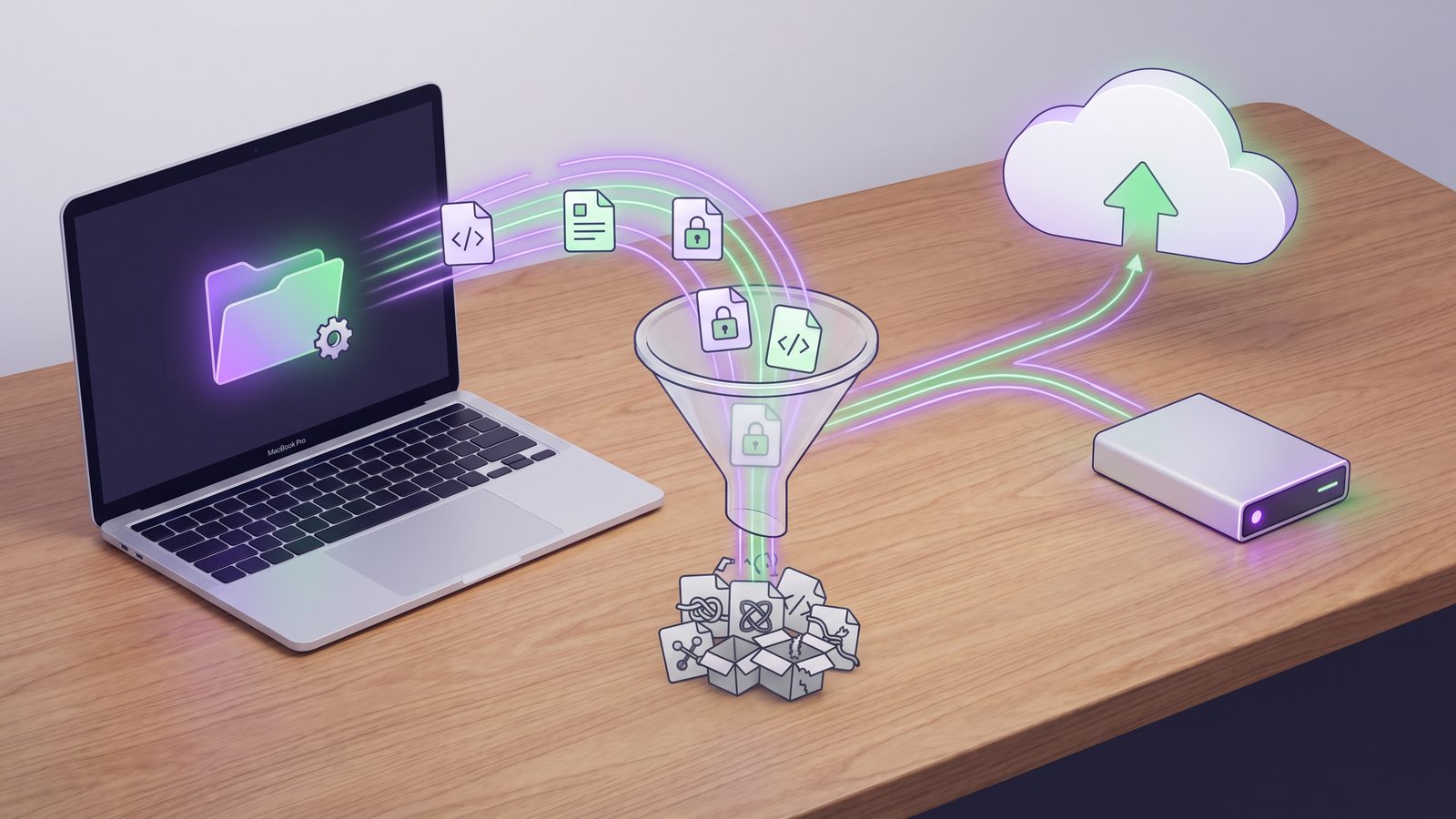
Where LSyncer fits in a developer sync workflow
LSyncer is for the recurring folder sync job that is too important to leave to memory and too boring to keep rebuilding as a shell script. It is a native macOS app built around developer folders: skip node_modules, .git, virtual environments, build output, and caches by default; pick a source and destination; schedule syncs; and see whether the last run actually succeeded.
It is not a replacement for Git. Keep using Git for history, branches, review, and collaboration. It is not a cloud storage service. You choose the destination: another folder, an external drive, a cloud-safe mirror, or a local backup location. LSyncer sits between the messy working tree and the clean copy you would want during restore.
The pricing is intentionally simple for this kind of utility: $19.99 one-time on the Mac App Store, no subscription. If you already have a reliable rsync setup with monitoring, keep it. If your current “backup process” is a command you occasionally paste and hope you remember correctly, a small visible app can be the safer choice.
Recommended setup for developer folder sync on Mac
- Keep active projects local. Use
~/Developer/,~/Code/, or another local workspace instead of working directly inside iCloud Drive. - Use Git for source history. Folder sync is a backup and handoff layer, not version control.
- Define exclusions first. Add dependency folders, build output, caches, Git internals, logs, and local virtual environments before the first sync.
- Choose mirror behavior deliberately. Decide whether the destination should keep deleted files, mirror the source exactly, or archive older versions.
- Make failures visible. Check logs, timestamps, notifications, or app status. A stale sync is easier to fix when you know it is stale.
- Test restore. Copy the destination to a scratch folder, reinstall dependencies from lockfiles, and make sure the project opens or builds.
That setup keeps the boring parts boring. Your clean mirror contains source, docs, lockfiles, scripts, and configuration. Your dependency trees stay rebuildable. Your Mac spends less time pushing disposable files through sync queues.
Related reading
- Free folder sync software Mac — how to compare Finder,
rsync, FreeFileSync, and other free options for clean developer backups. - GoodSync alternative for Mac developers — how to compare broad sync tools with focused code-folder backup workflows.
- File sync for Mac developers — a broader guide to Finder,
ditto,rsync, cloud destinations, and filtered app workflows. - File synchronization utility for Mac — how to evaluate Mac sync utilities for developer projects before choosing scripts, cloud folders, or an app.
- Folder compare and sync on Mac — how to preview changes before mirroring a project folder.
- Mac sync two folders — practical patterns for syncing two local folders without copying dependency junk.
- Best rsync alternative for Mac developers — when scripts are enough and when a visible app is safer.
FAQ
What is the best Mac folder sync software for developers?
The best Mac folder sync software for developers is one that supports clear exclusions, visible run status, safe mirror behavior, and schedules you can trust. rsync is excellent if you maintain scripts carefully. LSyncer is a good fit if you want a native app with developer-focused exclusions and visible sync status.
Should Mac folder sync software copy node_modules?
Usually no. node_modules is large, noisy, and reproducible from package.json plus a lockfile. Sync the source files and lockfiles, then reinstall dependencies on the destination with npm ci, pnpm install, or yarn install if you need to run the project there.
Is iCloud Drive good folder sync software for code projects?
iCloud Drive is good for documents and can be useful as a destination for a filtered project mirror. It is not ideal as the live working folder for dependency-heavy projects because package managers and build tools create thousands of small files that can overload the sync queue.
Can I use rsync instead of a Mac folder sync app?
Yes. rsync is reliable when you use explicit paths, dry runs, and an exclude file. The tradeoff is maintenance: you own schedules, logs, mounted-drive checks, notifications, and path safety. A sync app is useful when you want those jobs visible without maintaining scripts.
What should developer folder sync exclude on macOS?
Start with node_modules/, .git/, .venv/, venv/, vendor/bundle/, dist/, build/, .next/cache/, .turbo/, coverage/, target/, __pycache__/, .pytest_cache/, logs, temporary files, and .DS_Store. Add stack-specific caches as you find them.