

Looking for free folder sync software Mac options usually means one of two things: you want a clean backup of a work folder, or a sync tool just spent forever copying files you did not actually need. For developers, the second problem is common. A project can contain a few megabytes of source code wrapped in gigabytes of node_modules, virtual environments, build output, caches, Git internals, test artifacts, and local logs.
Free folder sync software Mac developers can use — with the right limits
There are good free ways to sync folders on a Mac. Finder can copy a folder. ditto ships with macOS. rsync is available from Terminal. FreeFileSync gives you a visual comparison workflow. Syncthing can keep machines aligned. None of those tools are wrong.
The catch is that most free folder sync software treats a folder as a folder. It does not know that src/ matters and node_modules/ is disposable. It does not know that package-lock.json helps you rebuild a project while .next/cache/ just makes your backup noisy. It does not know that copying .git/objects/ into a cloud destination may create thousands of tiny file events you never wanted to sync.
So the right question is not “what is the best free sync app?” The useful question is “which free workflow can make a clean, restorable project copy without dragging generated junk along?” This guide compares the practical options and shows where each one fits.
Why free sync tools get painful on code folders
Sync cost is not just total size. File count matters. A single 2 GB video is often easier to copy than 80,000 tiny files because each file carries metadata work: directory traversal, permissions, modification times, extended attributes, checksums or comparisons, writes, deletes, and downstream file-system events.
Developer tools create exactly the kind of file tree that makes sync noisy. A JavaScript package install creates nested dependency directories, package metadata, type definitions, binaries, symlinks, and cache state. A Python project creates .venv/, __pycache__/, wheels, build directories, and test caches. A Rails app may have vendor/bundle/, tmp/, log/, compiled assets, and local SQLite files. Frameworks add .next/cache/, .nuxt/, .turbo/, coverage/, dist/, and build/.
Cloud destinations amplify the pain. If your free sync tool writes a full project tree into iCloud Drive, Dropbox, Google Drive, OneDrive, or a NAS client folder, that second tool now has to index and reconcile the copied files too. The free tool may finish, but the cloud queue keeps spinning. That is why a project backup can make a Mac feel busy long after the command or app window says it is done.

Free folder sync options on Mac, compared honestly
Pick the tool by failure mode, not by feature count. A folder sync job that silently copied a bad path, deleted the wrong destination, or filled cloud storage with dependencies is worse than a manual process you understand.
1. Finder copy: okay for tiny one-off snapshots
Dragging a folder in Finder is the lowest-friction option. It is fine for a clean notes folder, a small static site, or a dated archive where you want a complete copy. It is not a good recurring developer backup workflow.
Finder does not give you reusable exclusions, dry-run output, reliable logs, or a review of destructive mirror behavior. If the source includes node_modules, Finder copies it. If the source includes secrets, Finder copies those too. Use Finder when the folder is already clean, not when you need the copy process to make smart decisions.
2. ditto: built into macOS, still blunt
ditto is a macOS command-line copy tool that preserves common Mac metadata well. For a simple local copy, it is handy:
ditto ~/Developer/my-app /Volumes/Backup/my-appThe strength is simplicity. The weakness is the same: it copies the tree you give it. You can combine shell techniques to stage a cleaner folder first, but by the time you are building a filtering pipeline around ditto, rsync is usually a better fit.
3. rsync: the best free baseline if you respect it
For many developers, rsync is the best free folder sync software Mac already has available. It is fast, explicit, scriptable, and good at one-way mirrors. It also has sharp edges: trailing slashes matter, --delete really deletes, and a stale destination variable can point at the wrong folder.
Start with a dry run and exclusions:
rsync -avh --delete --dry-run \
  --exclude 'node_modules/' \
  --exclude '.git/' \
  --exclude '.venv/' \
  --exclude 'venv/' \
  --exclude 'vendor/bundle/' \
  --exclude 'dist/' \
  --exclude 'build/' \
  --exclude '.next/cache/' \
  --exclude '.turbo/' \
  --exclude 'coverage/' \
  --exclude '__pycache__/' \
  ~/Developer/my-app/ \
  /Volumes/Backup/projects/my-app/
Read the output. Keep --dry-run until the result is boring. Then remove it for the real sync. If you sync multiple projects, move the excludes into a file:
# ~/.config/dev-sync-excludes.txt
node_modules/
.git/
.venv/
venv/
vendor/bundle/
dist/
build/
.next/cache/
.turbo/
coverage/
__pycache__/
.pytest_cache/
target/
.DS_Store
rsync -avh --delete --dry-run \
--exclude-from ~/.config/dev-sync-excludes.txt \
~/Developer/my-app/ \
/Volumes/Backup/projects/my-app/If you want deeper command examples, the guides on rsync dry runs on Mac, rsync exclude files, and multiple rsync excludes cover the safer patterns.
4. FreeFileSync: useful visual review, still needs strict filters
FreeFileSync is a solid choice when you want to compare folders visually before syncing. That preview is valuable. For developer projects, the filter configuration matters more than the button you press afterward.
Before the first comparison, add patterns for dependency folders, caches, build output, and Git internals if you are not intentionally mirroring the repository database. Then inspect the preview for common mistakes: node_modules appearing in the destination list, .venv slipping through, or dist being excluded even though this particular project stores committed release assets there.
The dedicated FreeFileSync exclude folders on Mac guide has more exact filtering notes. The short version: visual tools are excellent when they make review easier; they are dangerous when the preview is treated as decoration.
5. Syncthing and Unison: free two-way sync, different risk profile
Two-way sync solves a different problem from backup. It is useful when two machines both edit the same folder, but conflict handling becomes the center of the workflow. Generated folders are especially bad candidates for two-way sync because both sides can change them without human intent.
Syncthing and Unison can work well for source-focused projects if you add strict ignore rules before the first run. They are less ideal if you just point them at ~/Developer and hope. If both machines run package managers or build watchers, you can create a stream of meaningless conflicts and updates.
A safe free folder sync workflow for Mac developers
You can build a reliable free workflow if you keep it boring and explicit.
- Keep active projects local. Use
~/Developer/,~/Code/, or another normal local folder instead of developing directly inside iCloud Drive or another cloud-synced folder. - Use Git for history. Folder sync is not version control. Keep commits, remotes, branches, pull requests, and tags in Git.
- Choose the destination by purpose. An external SSD, NAS share, second local folder, or cloud folder can all work. Decide whether it is a mirror, an archive, or a handoff copy.
- Write exclusions first. Add
node_modules/,.venv/,venv/,vendor/bundle/,dist/,build/,.next/cache/,.turbo/,coverage/,__pycache__/,.pytest_cache/,target/, logs, temp folders, and.DS_Storebefore the first copy. - Preview destructive behavior. A mirror with deletes should always have a dry run or visual preview before you trust it.
- Restore-test the destination. Copy the synced folder into a scratch location and run the install command:
npm ci,pnpm install --frozen-lockfile,bundle install,uv sync, or whatever the project expects.
The restore test is the part most people skip. It is also the quickest way to find out whether you synced the right files. A clean destination should have enough information to rebuild dependencies. It should not need a half-copied cache tree to be useful.
When free folder sync software is not enough
Free is a good default when the workflow is simple. It stops being free in practice when you spend time rebuilding the same exclude list, checking whether a scheduled script ran, debugging a missing destination drive, or cleaning up a cloud folder filled with dependency junk.
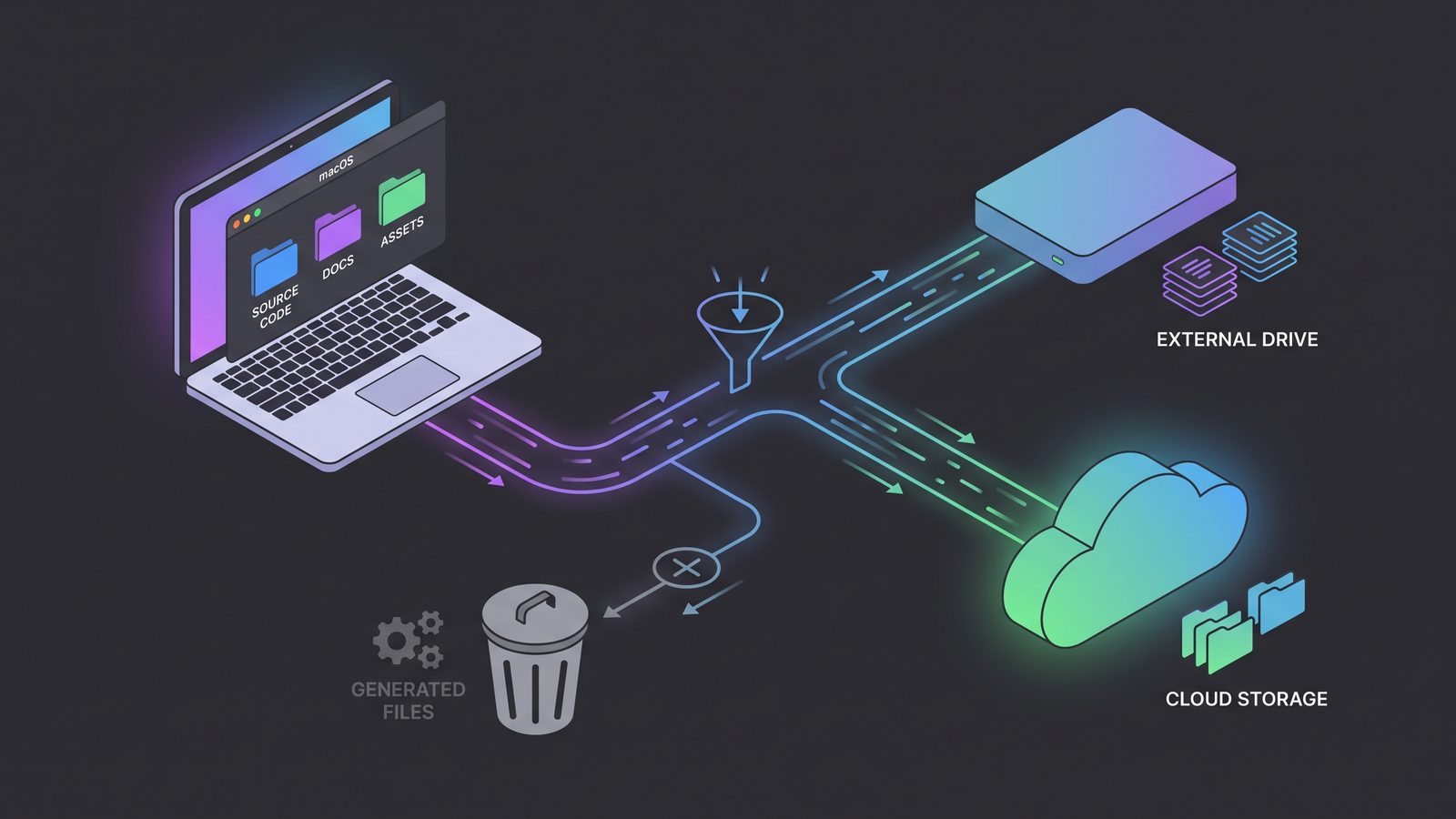
That is where a focused app can be worth paying for. LSyncer is built for the recurring Mac developer sync job: choose a source and destination, skip developer-generated folders by default, run on a schedule, and keep status visible. It is not a Git replacement, a cloud storage service, or a whole-Mac backup system. It is the filtered project-copy layer between your messy working tree and the clean backup you actually want.
The price is a one-time $19.99 Mac App Store purchase. If your rsync scripts are already reliable and monitored, keep them. If your current backup is an occasional manual copy, a stale shell command, or a generic sync app that keeps grabbing node_modules, LSyncer can make the routine safer without turning it into another subscription.
Best practices that apply to free and paid sync tools
- Do not sync active dependency installs. Let
npm install,pnpm install,bundle install, oruv syncfinish before running a manual sync. - Keep secrets out of shared destinations. Review
.env, private keys, local database dumps, certificates, and production credentials separately. - Document the restore command. A clean backup is better when the next step is written in
README.md. - Review
dist/andbuild/per project. They are usually generated, but some repositories commit release artifacts or static assets there. - Watch for stale automation. A scheduled sync job needs visible status, logs, alerts, or a habit of checking it before travel and hardware changes.
The best free folder sync software Mac workflow is the one you can explain under stress: what it copies, what it skips, what it may delete, where it logs failures, and how you restore from it. If those answers are fuzzy, fix the workflow before you trust the backup.
Related reading
- Mac folder sync software for developers — a broader checklist for exclusions, schedules, status, and clean mirrors.
- FreeFileSync exclude folders on Mac — exact filtering guidance for visual sync workflows.
- Syncthing folder out of sync on Mac — when free peer-to-peer sync gets stuck on generated developer files.
- Rsync dry run on Mac — how to preview copy and delete behavior before a sync touches the destination.
- File synchronization utility for Mac — how to evaluate sync utilities when developer folders are involved.
FAQ
What is the best free folder sync software Mac developers can use?
rsync is the strongest free baseline for one-way developer backups because it supports dry runs, excludes, mirrors, and scripts. FreeFileSync is useful when you want a visual comparison. Syncthing and Unison are better for two-way sync, but they need strict ignores for generated folders.
Can Finder be used as free folder sync software on Mac?
Finder can copy folders, but it is not a reliable recurring sync workflow for code projects. It lacks reusable exclusions, dry-run output, logs, schedules, and clear mirror behavior. Use it for small one-off snapshots, not for dependency-heavy developer folders.
Should free sync tools copy node_modules?
Usually no. node_modules is generated from package metadata and lockfiles. Sync package.json plus the lockfile, then recreate dependencies with npm ci, pnpm install --frozen-lockfile, or the package manager your project uses.
Is rsync safe for Mac folder sync?
rsync is safe when you use explicit paths, dry runs, exclude files, and careful delete behavior. It is risky when you paste commands without checking source and destination paths, especially with --delete. Always preview mirrors before running the real command.
When should I use LSyncer instead of a free sync tool?
Use LSyncer when you want a native Mac app for recurring developer folder sync with built-in exclusions, schedules, visible status, and fewer scripts to maintain. Use free tools when you prefer Terminal control, already monitor your jobs, and are comfortable maintaining exclusions yourself.