

If you are choosing a file synchronization utility for Mac development work, the hard part is not copying files. Finder can copy files. ditto can copy files. rsync can copy files. The hard part is deciding which files should never enter the sync job in the first place.
That difference matters more for code than it does for documents. A small React, Rails, Python, or Swift project can look tiny in Finder and still contain tens of thousands of generated files after one install or build. A generic sync utility sees those files as ordinary work. Your Mac sees a flood of file-system events, metadata checks, conflict decisions, uploads, deletes, and retries.
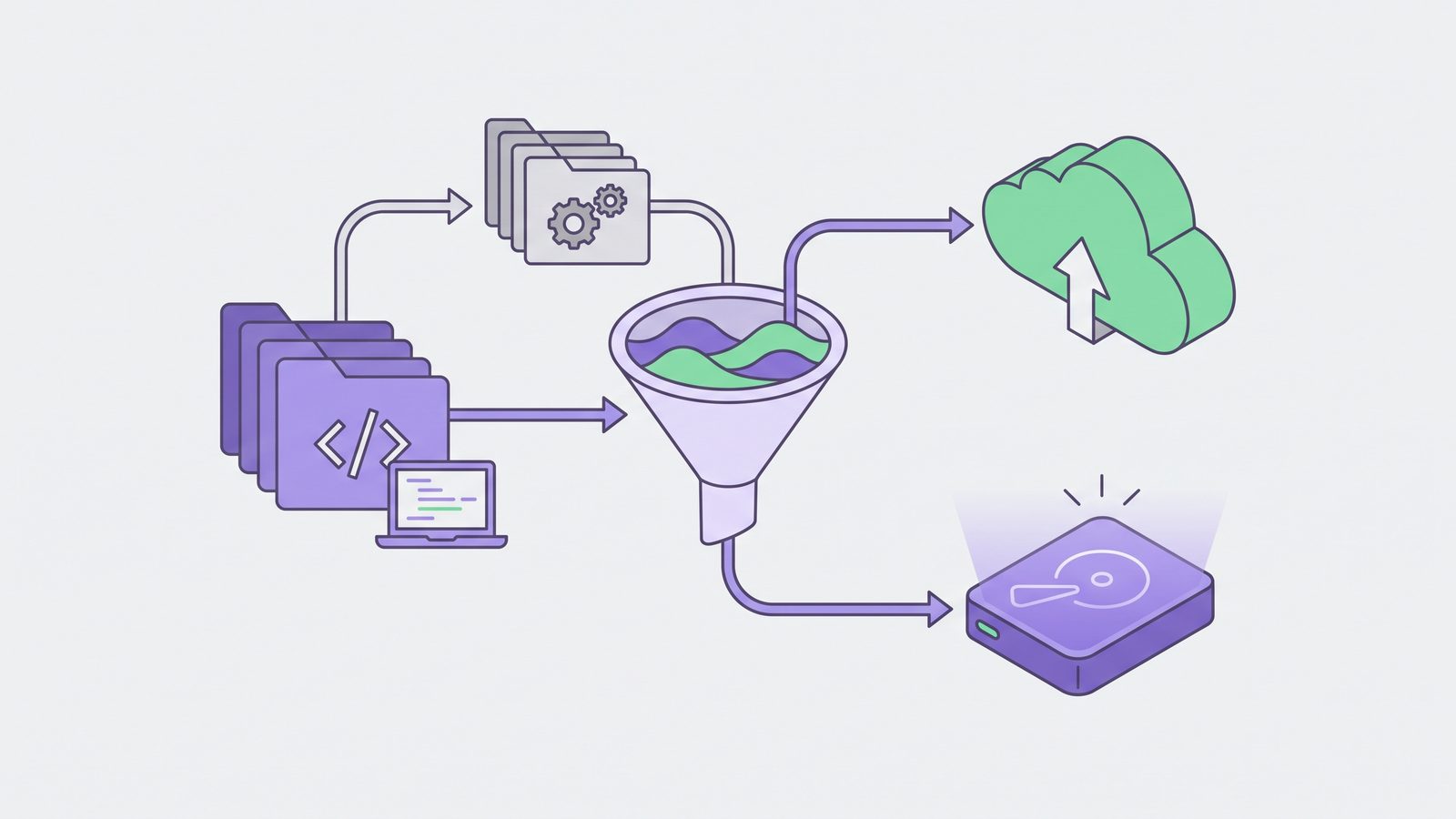
The best Mac sync setup for developers is usually boring: keep active projects local, sync only source-level files, exclude generated folders, preview risky changes, and verify that the destination can restore cleanly. This guide explains how to evaluate the options, what to exclude, where cloud tools go wrong, and when a dedicated utility such as LSyncer is worth using instead of another script.
What a file synchronization utility for Mac has to do for developers
A document sync tool optimizes for convenience: every photo, spreadsheet, PDF, and note should appear everywhere. A developer sync tool has a different job. It should preserve the parts that represent the project and ignore the parts that can be regenerated.
For a typical project, the important files are source code, lockfiles, configuration, migrations, documentation, test fixtures, scripts, and assets. The noisy files are dependency trees, package caches, build outputs, coverage reports, virtual environments, compiled artifacts, local databases, logs, and editor indexes. The utility should make that split obvious.
That is why “sync everything” is the wrong default for code folders. It creates bigger backups, slower comparisons, noisy conflicts, and cloud queues that never settle. Worse, it hides the real signal. If your sync log contains 38,000 generated files, you are less likely to notice that a migration file or deployment script failed to copy.
Why generic sync tools struggle with code folders
Most sync tools watch file-system changes and compare source and destination state. That works well when a folder changes at human speed. Development tools do not change folders at human speed. A package manager can create, rewrite, and delete thousands of files in seconds. A build watcher can touch caches continuously while you edit one component.
The problem is especially visible with JavaScript projects. A fresh npm install or pnpm install can produce a large dependency graph, many nested directories, small files, symlinks, metadata updates, native build artifacts, and package-manager cache state. Ruby and Python have similar patterns with vendor/bundle/, .bundle/, .venv/, __pycache__/, wheels, coverage output, and test databases.
Cloud folders add another layer. iCloud Drive, Dropbox, OneDrive, and Google Drive are useful destinations for clean project copies, but they are poor places to run active dependency-heavy work. They index, upload, download, de-duplicate, and reconcile files while your tools are still changing them. That is how a normal install turns into high CPU, a stuck queue, or a folder that says it is “syncing” long after the actual work is done.

Compare Mac file sync options before picking a utility
There is no single best tool for every folder. The right file synchronization utility for Mac depends on whether you need a one-time copy, a repeatable mirror, a cloud-visible backup, or a two-machine workflow.
rsync is excellent when you are comfortable reviewing commands, using dry runs, saving exclude files, and checking logs. It is transparent, fast, and available from Terminal.
--delete, and forgotten exclusions can change what gets copied or removed. A script is only as safe as the last edit.
Finder and ditto are fine for simple copies. They are not good recurring developer sync systems because exclusions, status, and repeatability are weak. If you copy a project by dragging it to an external disk, you probably copied node_modules, .git, build output, caches, and private local files too.
rsync is the strongest built-in option for repeatable filtered sync. A starting point looks like this:
rsync -avh --delete --dry-run \
  --exclude 'node_modules/' \
  --exclude '.git/' \
  --exclude '.venv/' \
  --exclude 'venv/' \
  --exclude 'dist/' \
  --exclude 'build/' \
  --exclude '.next/cache/' \
  ~/Developer/my-app/ \
  /Volumes/Backup/projects/my-app/
Keep --dry-run until the output is boring. Then remove it for the real sync. If the exclude list grows, move it into a file:
cat > ~/Developer/.sync-excludes <<'EOF'
node_modules/
.git/
.venv/
venv/
vendor/bundle/
dist/
build/
.next/cache/
.turbo/
coverage/
__pycache__/
*.log
.DS_Store
EOF

rsync -avh --delete --dry-run \
  --exclude-from ~/Developer/.sync-excludes \
  ~/Developer/my-app/ \
  /Volumes/Backup/projects/my-app/
Visual comparison tools and broad backup apps can help when you need manual review. They are useful for photos, documents, app data, or whole-disk strategy. For code folders, judge them by the developer-specific details: persistent exclusions, readable previews, visible schedules, failure alerts, and whether a restore test is easy to perform.
Folders to exclude from Mac sync jobs
The exact list depends on your stack, but these defaults cover most developer projects:
- JavaScript and TypeScript:
node_modules/,.next/cache/,.nuxt/,.turbo/,coverage/,dist/,build/. - Python:
.venv/,venv/,__pycache__/,.pytest_cache/,.mypy_cache/,dist/,build/,*.egg-info/. - Ruby:
vendor/bundle/,.bundle/,tmp/,log/, coverage output, and local database files if they are disposable. - Rust, Go, Java, and compiled stacks:
target/,bin/,obj/,.gradle/, generated class files, and local build caches. - Editor and OS noise:
.DS_Store, temporary swap files, large local indexes, and machine-specific workspace state.
Be careful with .git/. If your goal is a full repository mirror for disaster recovery, backing up Git internals may be intentional. If your goal is a clean working-tree copy, exclude .git/ and rely on remote repositories or explicit git clone --mirror jobs for history. Mixing those two goals leads to bloated copies and confusing restores.
Also treat secrets separately. A sync utility should not blindly copy .env, private keys, database dumps, production certificates, or local credentials into shared storage. Some projects need encrypted secret backups. Others should recreate local secrets from a password manager. Decide intentionally.
A safe workflow for a Mac file sync utility
- Keep active projects in a local workspace. Use
~/Developer/,~/Code/, or another folder outside iCloud Drive and other cloud clients. - Define the destination. Pick an external SSD, NAS share, second local folder, or cloud folder that receives the clean mirror.
- Write exclusions before the first run. Do not let the first run teach you that
node_moduleswas included. - Preview deletes. Any mirror that can remove destination files needs a dry run or a visual preview.
- Sync source-level files. Source, docs, lockfiles, migrations, and configuration should move. Generated dependencies should not.
- Restore-test occasionally. Copy the destination into a scratch folder and run the project’s install command. A backup you never restore is a guess.
This workflow works with scripts, visual tools, and apps. The important habit is deciding what the destination should represent. For developers, the destination should usually be a clean project copy you can rebuild from, not a byte-for-byte duplicate of every disposable file your tools produced that afternoon.
When LSyncer makes sense
If you already maintain a small set of reliable rsync scripts, keep using them. Terminal tools are excellent when the person maintaining them is also the person running them. The friction starts when you want recurring sync jobs, visible status, sensible exclusions, schedules, and fewer tiny decisions every time you add a project.
LSyncer is built for that developer-specific middle ground. It is a native macOS file synchronization utility that focuses on local folder sync, scheduled runs, clear status, and exclusions for the folders that usually do not belong in project backups: node_modules, .git, venv, build output, and caches. It does not replace Git, Time Machine, or a full backup strategy. It replaces the fragile part where a useful project mirror turns into a slow copy of generated junk.
A good setup is:
- Git remote for source history and collaboration.
- Time Machine or a system backup for whole-Mac recovery.
- LSyncer or an equivalent filtered sync job for clean project mirrors to an external drive, NAS, second folder, or cloud destination.
That layered approach keeps each tool in its lane. Git handles versions. Time Machine handles the Mac. The file sync utility handles the clean project copy that you can inspect, move, and restore without dragging dependency folders everywhere.
Best practices for developer folder sync on Mac
- Name sync jobs by intent. “Client app to external SSD” is better than “Backup 3”.
- Keep exclude rules versioned. If you use scripts, store the exclude file with your developer tooling notes. If you use an app, review the rules when a new framework enters the project.
- Separate backup from collaboration. Do not use a folder sync utility as a replacement for Git branches, pull requests, and code review.
- Avoid syncing live databases unless you mean it. SQLite files, local Postgres dumps, and test fixtures can be huge or inconsistent while an app is running.
- Check status before travel or hardware changes. A visible successful run is more useful than assuming the external drive mirror is current.
- Document the restore command. Put the install command in
README.mdor a project note so a clean copy becomes runnable quickly.
The practical test is simple: if your laptop died today, could you take the synced project copy, open it on another Mac, reinstall dependencies from lockfiles, and continue working? If yes, your sync utility is doing useful work. If the answer is “maybe, but the destination has a half-synced node_modules tree and a stale cache,” tighten the workflow.
Related reading
- File sync for Mac developers — a broader guide to keeping code folders backed up without copying generated junk.
- Mac folder sync software for developers — a selection checklist for exclusions, schedules, visible status, and safe mirrors.
- Unison file sync Mac — a practical guide to two-way sync, conflict review, and developer-folder ignore rules.
- Rsync GUI for Mac — what to look for if you want rsync power with a visual workflow.
- Folder compare and sync on Mac — how to preview changes before a sync writes or deletes files.
FAQ
What is the best file synchronization utility for Mac developers?
The best file synchronization utility for Mac developers supports exclusions, previews or clear status, scheduled runs, and safe restore workflows. rsync is strong for terminal users. LSyncer is a good fit if you want a native macOS app with developer-focused exclusions and visible sync status.
Should a Mac file sync utility copy node_modules?
Usually no. node_modules is generated from package.json and a lockfile. Sync source files and lockfiles, then recreate dependencies on the destination with npm ci, pnpm install --frozen-lockfile, or the package manager your project uses.
Is iCloud Drive a good file synchronization utility for code projects?
iCloud Drive is useful for documents and can be a destination for a filtered project mirror. It is not a good live working folder for dependency-heavy projects because package managers and build tools create too many small file changes for a cloud client to track comfortably.
Is rsync better than a Mac sync app?
rsync is better when you want scriptable control and are comfortable reviewing dry runs. A Mac sync app is better when you want saved jobs, schedules, visible status, and fewer chances to mistype destructive command-line options. Many developers use both.
What files should I sync for a clean developer backup?
Sync source code, docs, configuration, migrations, scripts, assets, and lockfiles. Exclude generated dependencies, build output, caches, coverage folders, temporary files, local databases unless needed, and secrets that should not live in a shared destination.