
If you search for Mac sync two folders, most answers assume you are syncing documents, photos, or a tidy work folder. Developer folders are messier. A project directory can contain a few hundred source files and fifty thousand disposable files in node_modules, .git, .venv, dist, .next/cache, or vendor/bundle. Syncing all of that is slow, noisy, and sometimes enough to make iCloud Drive or Finder feel broken.
Mac sync two folders: what changes when the folders contain code?
For normal files, folder sync is a simple question: copy anything new from folder A to folder B, update changed files, and maybe delete files that no longer exist. That model works for a photos folder. It is too blunt for a working codebase.
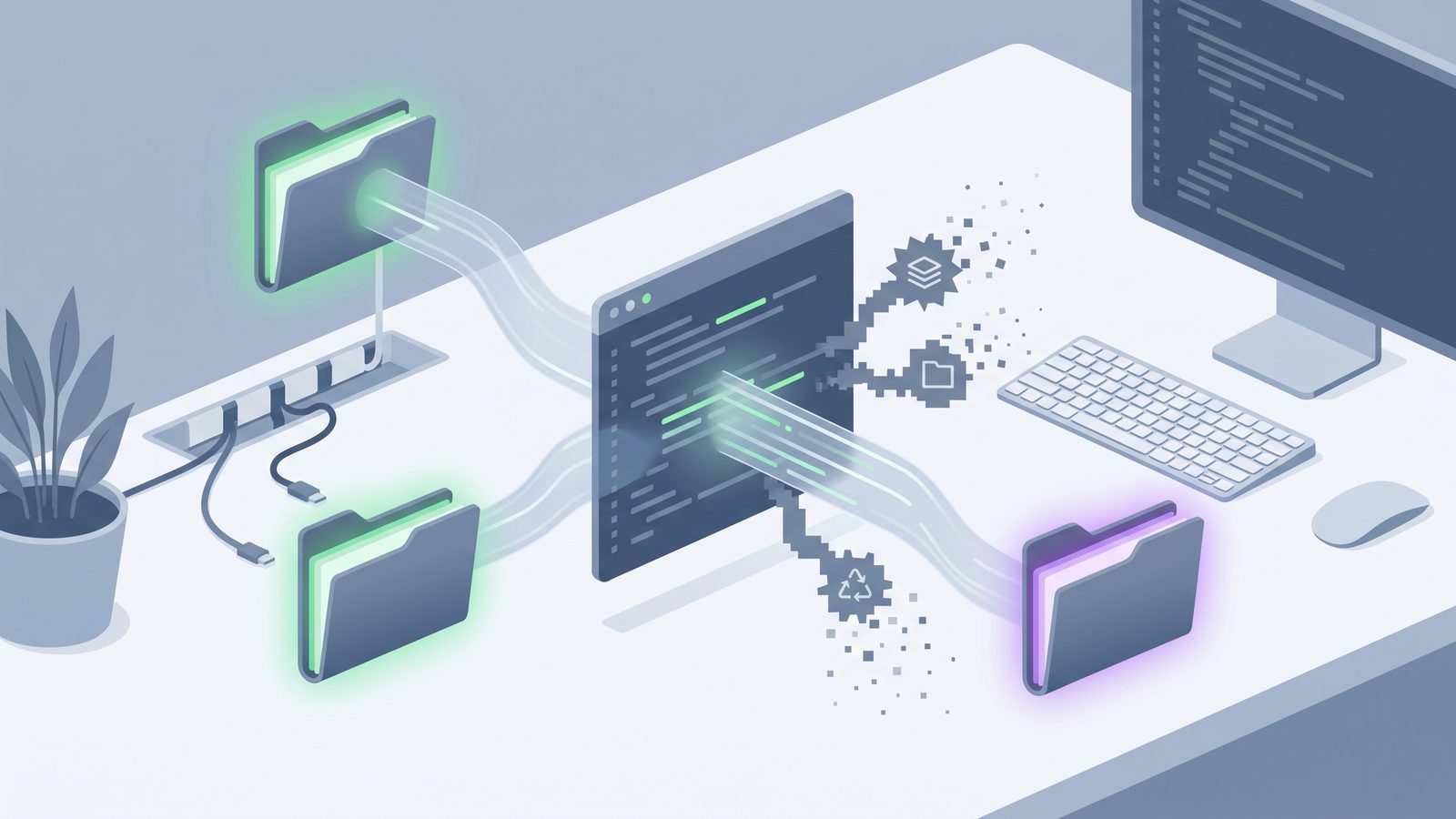
A developer project mixes durable files with generated state. The durable files are the ones you would put in Git or need to recover after a laptop failure: source code, lockfiles, migration files, scripts, docs, config templates, and design assets. The generated files can usually be recreated: dependencies, compiled output, caches, coverage reports, temporary files, logs, and local virtual environments.
When you sync both categories as if they were equally important, two things happen. The sync takes far longer than it should, and the destination becomes harder to trust. A backup full of dependency trees looks complete in Finder, but it may include stale packages, old build output, platform-specific binaries, or half-written cache files captured during an install.
Why syncing two folders on Mac gets slow
macOS itself is not the problem. APFS can handle large directory trees, and tools like rsync can compare files efficiently. The pain comes from the shape of modern developer folders.
node_modules is the usual offender because it contains thousands of small files. JavaScript packages often include source, transpiled builds, type definitions, maps, tests, metadata, nested dependencies, and binaries. Python projects add .venv, __pycache__, wheels, and local build folders. Ruby projects add vendor/bundle. Frontend frameworks add .next, .nuxt, dist, coverage, and hot reload caches.
Small files are expensive for sync tools. Each file needs metadata checks. Many tools also check size, modification time, permissions, extended attributes, and sometimes checksums. If the destination is an external drive, network share, or cloud-synced folder, every file can also trigger indexing, file provider events, backup scans, or cloud upload work.
Option 1: Finder copy, when you only need a one-time snapshot
Finder is fine for a one-time copy of a small project. Drag the folder to an external drive, wait for it to finish, and label the destination with a date. If you are archiving a finished project and do not care about incremental updates, this is boring and reliable.
The problem is repeatability. Finder does not give you a clear exclusion list. It will happily copy node_modules, .git, local databases, build output, and anything else in the tree. If the copy fails halfway through, you may not know exactly what made it across. Finder is also not a mirror. If you delete a file from the source, Finder does not automatically remove it from the destination on the next copy.
Use Finder when the folder is small, the copy is manual, and the destination is just a human-readable archive. Do not use it as your main developer backup workflow unless you enjoy checking folders by hand.
Option 2: ditto, the built-in macOS copy tool
ditto ships with macOS and is useful when you want a better command-line copy than Finder. It preserves metadata better than a naive cp -R, creates the destination if needed, and works well in simple scripts.
ditto ~/Developer/my-app /Volumes/Backup/my-appFor clean folders, that command is enough. For code, it has the same main flaw as Finder: it copies the whole tree unless you build additional filtering around it. ditto does support skipping AppleDouble files and some metadata handling, but it is not the tool most developers reach for when they need a maintained exclusion set for dependency folders.
Use ditto for packaging, one-off copies, and simple local mirrors. Once you need repeatable excludes, move to rsync or a sync app that understands ignore patterns.

Option 3: use rsync to sync two folders on Mac
rsync is still the best default answer for developers who are comfortable in Terminal. It compares source and destination, copies changed files, and can delete files from the destination that no longer exist in the source. It also gives you explicit exclusion rules.
rsync -av --delete \
  --exclude node_modules/ \
  --exclude .git/ \
  --exclude .venv/ \
  --exclude venv/ \
  --exclude vendor/bundle/ \
  --exclude .next/cache/ \
  --exclude dist/ \
  --exclude build/ \
  --exclude coverage/ \
  ~/Developer/my-app/ /Volumes/Backup/my-app/
The trailing slashes matter. In the example above, ~/Developer/my-app/ means "copy the contents of this folder into the destination." Without that slash, you may create a nested my-app folder inside the destination. That is not a bug, but it catches people all the time.
Before adding --delete, run a dry run:
rsync -avn --delete \
  --exclude node_modules/ \
  --exclude .git/ \
  ~/Developer/my-app/ /Volumes/Backup/my-app/
The -n flag shows what would happen without changing the destination. Read the output. If the destination path is wrong, --delete will still do exactly what you asked. It does not know what you meant.
For more than one project, keep exclusions in a file:
# ~/.config/dev-sync-excludes.txt
node_modules/
.git/
.venv/
venv/
vendor/bundle/
.next/cache/
.nuxt/
dist/
build/
coverage/
__pycache__/
.pytest_cache/
target/
.DS_Store
Then call it from rsync:
rsync -av --delete \
  --exclude-from ~/.config/dev-sync-excludes.txt \
  ~/Developer/my-app/ /Volumes/Backup/my-app/
This is a solid setup if you like scripts. The maintenance burden is real, though. You need to decide where the logs go, how the job runs on a schedule, what happens when the destination drive is missing, and how you will notice failed syncs.
Option 4: bidirectional sync tools, when both folders change
Sometimes a mirror is not enough. You may edit code on two Macs, or keep a project on an external SSD and a local folder. In that case, you need bidirectional sync, not just source-to-destination copy.
Tools like Unison, FreeFileSync, and Syncthing can help, but be careful with developer folders. Bidirectional sync means conflicts are possible. If both sides change the same file, the tool has to choose, ask, or create conflict copies. That is manageable for documents. It gets awkward inside generated folders, package manager output, SQLite databases, and framework caches.
If you use a bidirectional tool for code, exclude the same generated folders you would exclude from rsync. Also keep Git as the source of truth for source code. Sync tools are useful for moving files around; they are not a replacement for version control.
Option 5: use LSyncer when you want filtered Mac folder sync without babysitting scripts
If your goal is "sync two folders on Mac" and the folders are developer projects, a filtered workflow is usually the right compromise. You want the safety of explicit exclusions, the repeatability of a script, and the visibility of an app.
That is where LSyncer fits. It is a native macOS folder sync app built for developer folders. It skips common dependency and generated folders such as node_modules, .git, virtual environments, build output, and caches. You choose the source and destination, set rules, schedule runs, and see whether the last sync succeeded. The app does not replace Git, iCloud, or your external drive. It sits between your messy project tree and the clean copy you actually want to keep.
For example, you might keep active projects in ~/Developer, then use LSyncer to maintain a clean mirror on an external SSD or an iCloud-safe folder. Source files, docs, lockfiles, and config get copied. Dependency junk stays behind. If a sync fails because the destination is missing, you see that instead of assuming a background script worked.
LSyncer is a one-time $19.99 purchase on the Mac App Store. That pricing matters for this use case: folder sync is infrastructure, not another monthly service you want to justify.
Recommended folder sync workflow for Mac developers
For most Mac developers, the best setup is simple:
- Use Git for source history. Sync tools should not be your only copy of important source code.
- Keep active work out of iCloud Drive when possible. If iCloud watches a project while your package manager writes thousands of files, the Mac can bog down.
- Sync a filtered mirror to your backup destination. Copy source, docs, lockfiles, and config. Skip dependency trees and generated output.
- Make failures visible. A sync job that silently fails for two weeks is worse than no automation because it gives you false confidence.
- Test restores occasionally. Open the destination, clone dependencies again with
npm install,pnpm install,bundle install, orpip install -r requirements.txt, and make sure the project can run.
If you prefer Terminal, rsync --exclude-from is the baseline. If you prefer a visible app with schedules and built-in developer exclusions, use LSyncer. Either way, avoid the naive version of "sync everything." That is how small source folders turn into huge, slow, unreliable backups.
Related reading
- iCloud Drive stuck uploading on Mac explains what to do when a cloud queue will not drain after a build or dependency install.
- Best rsync alternative for Mac developers explains when scripts are still the right tool and when they become maintenance work.
- Rsync exclude node_modules on Mac shows safe patterns, dry runs, and exclude files for dependency-heavy projects.
- Sync folder to external hard drive on Mac covers filtered external SSD backups for developer projects.
- File sync for Mac developers compares Finder,
ditto,rsync, iCloud, and filtered app workflows for code backups. - Sync files between two Macs explains how to share clean developer projects across a desktop and laptop without copying dependency junk.
- FreeFileSync exclude folders on Mac shows how to filter dependency trees, virtual environments, and caches before they reach your backup.
- How to sync node_modules without freezing your Mac digs deeper into dependency folders and why they wreck generic sync tools.
- How to stop iCloud from syncing certain folders on Mac covers iCloud-safe folder layouts and workarounds.
- Exclude folders from Time Machine on Mac explains which generated project folders to keep out of backup snapshots.
FAQ
What is the easiest way to sync two folders on Mac?
For a one-time copy, Finder or ditto is easiest. For repeatable folder sync, use rsync with exclusions or a dedicated Mac sync app. Developer projects need filtering because folders like node_modules, .git, .venv, and build caches can make a simple sync painfully slow.
Can I use rsync to sync two folders on Mac?
Yes. rsync -av --delete source/ destination/ is a common Mac folder sync command. For code folders, add --exclude or --exclude-from rules so you do not copy dependency folders, Git internals, caches, and build output. Always test destructive changes with -n before using --delete.
Should I sync node_modules between two folders?
Usually no. node_modules is large, noisy, and easy to recreate from package-lock.json, pnpm-lock.yaml, or yarn.lock. Sync the lockfile and source code, then reinstall dependencies on the destination if you need to run the project there.
Is iCloud Drive good for syncing developer project folders?
iCloud Drive works well for documents, but it is a poor fit for active dependency-heavy projects. Package managers and build tools create many small files quickly, which can trigger constant sync work. If you use iCloud as a destination, keep a filtered project mirror there instead of the live working folder.
What should I exclude when syncing Mac developer folders?
Start with node_modules/, .git/, .venv/, venv/, vendor/bundle/, dist/, build/, coverage/, .next/cache/, __pycache__/, .pytest_cache/, target/, logs, and temporary folders. Adjust the list for your stack.
Related reading
- Rsync GUI for Mac — how visual rsync workflows compare with scripts for developer folder backups.
- Folder compare and sync on Mac — a review-first workflow for safe project mirrors and clean backup destinations.
- Rsync exclude node_modules on Mac — exact patterns for keeping dependency folders out of clean mirrors.
- File sync for Mac developers — how to choose a backup workflow that skips generated junk.