

If you are searching for an rsync alternative for Mac, you probably already know the tradeoff: rsync is fast, scriptable, and battle-tested, but it was not designed around the messy reality of modern macOS development folders. The moment your workflow includes node_modules, .git, Python venv, Ruby gems, build caches, and iCloud Drive, a simple copy command turns into a maintenance job.
Why Mac developers look for an rsync alternative for Mac
rsync is still one of the best file synchronization tools ever written. On macOS it can mirror folders, preserve timestamps, delete removed files, and skip patterns with --exclude. For a clean documents folder, that is often enough.
Developer projects are different. A real code folder is a mix of important source files and disposable generated output. You want to preserve src/, package.json, pyproject.toml, Gemfile, migrations, docs, and configuration. You usually do not want to copy node_modules/, .git/objects/, .next/, dist/, coverage/, .venv/, __pycache__/, target/, or IDE indexes.
That distinction is the core reason developers outgrow raw rsync. The command works, but the workflow around it becomes fragile: exclusion rules drift between projects, one missing slash changes the result, schedules are hidden in cron or launchd, and failures are easy to miss until you need the backup.
What rsync still does well on macOS
Before replacing it, it is worth being honest about what rsync gets right. It is deterministic, available from the terminal, easy to run over SSH, and excellent for one-off mirrors. A basic project backup looks like this:
rsync -av --delete \
  --exclude node_modules \
  --exclude .git \
  --exclude .next \
  --exclude dist \
  ~/Developer/my-app/ /Volumes/Backup/my-app/
That command is perfectly reasonable. It copies changed files, removes files that disappeared from the source, and skips common folders that should not be backed up. If you have one project and you run the command manually once a week, you may not need anything else.
The problems show up when the workflow becomes routine. Maybe you have fifteen active repos. Maybe some are Node apps, some are Python services, and some are Rails projects. Maybe the backup destination is an external SSD on weekdays and a local iCloud-safe folder on weekends. Maybe you want a visible status that tells you whether the last sync succeeded. This is where a one-line command starts growing into a shell script with project-specific branches.
Where rsync breaks down for developer folders
1. Exclusion rules are easy to get wrong
--exclude node_modules looks obvious, but exclusion semantics matter. Patterns can match differently depending on leading slashes, trailing slashes, relative paths, and where you run the command. A rule that works for one project may fail when the folder is nested under a monorepo. A rule that skips .venv/ may not skip services/api/.venv/ if it was written too narrowly.
The safe approach is to maintain a project-aware ignore list and review it whenever a stack changes. In practice, those rules usually live in an old shell script nobody wants to touch.
2. --delete is powerful and dangerous
For true mirrors, --delete is useful: if a file disappears from the source, it disappears from the destination. But on macOS, a typo in the destination path can turn a sync command into a bad afternoon. The risk is not that rsync is unreliable; the risk is that it obeys exactly what you typed.
# Good: trailing slash means "contents of my-app"
rsync -av --delete ~/Developer/my-app/ /Volumes/Backup/my-app/

# Risky when variables are empty or paths are wrong
rsync -av --delete "$SOURCE" "$DEST"
If you script rsync, add guardrails: verify both paths exist, reject empty variables, avoid running as root, and use --dry-run when changing rules.
3. Scheduling is invisible
On macOS, scheduled terminal jobs usually mean launchd, cron, or a third-party scheduler. They work, but they are not obvious. A scheduled job can fail because a drive was not mounted, a path changed, Terminal lacked Full Disk Access, or the Mac was asleep. Unless you log aggressively and check those logs, you may not notice.
That is a bad failure mode for backups. A sync system should make stale folders visible. If the last successful run was three weeks ago, you should not discover that during a laptop replacement.

The best rsync alternative for Mac depends on the workflow
There is no universal replacement for rsync. The right answer depends on what you are syncing and why.
Option 1: Keep a clean rsync script
If you prefer terminal workflows, make the script boring and explicit. Store it in a repo, document the destination, and make the ignore list easy to audit.
#!/usr/bin/env bash
set -euo pipefail

SOURCE="$HOME/Developer/my-app/"
DEST="/Volumes/Backup/Developer/my-app/"

[[ -d "$SOURCE" ]] || { echo "Missing source: $SOURCE"; exit 1; }
[[ -d "$DEST" ]] || { echo "Missing destination: $DEST"; exit 1; }

rsync -av --delete \
  --exclude 'node_modules/' \
  --exclude '.git/' \
  --exclude '.next/' \
  --exclude 'dist/' \
  --exclude 'build/' \
  --exclude '.venv/' \
  --exclude '__pycache__/' \
  "$SOURCE" "$DEST"
This is the baseline every alternative should beat. If a GUI tool cannot make this safer or easier, it is not buying you much.
Option 2: Use Git for source code and stop treating sync as version control
For many developers, the most reliable backup for source code is still a remote Git host. Push frequently, use private repos where needed, and avoid putting generated folders in the remote. Git is not a full-machine backup, but for source files it is excellent.
The limitation is that Git does not cover everything around a project: local notes, scratch scripts, exported test data, design assets, large sample files, or private configuration you intentionally keep out of the repo. Those still need a backup or sync workflow.
Option 3: Use cloud storage carefully
iCloud Drive, Dropbox, and Google Drive are convenient, but they are not automatically developer-friendly. The dangerous pattern is placing entire active projects inside a synced cloud folder and letting the provider watch every dependency install. That can create huge sync queues and local CPU churn.
If you use cloud storage, keep active projects in ~/Developer and sync a filtered copy instead. The filtered copy should contain source, docs, and config — not disposable dependency folders.
Option 4: Use LSyncer for Mac developer folder sync
LSyncer is a native macOS folder sync app built around this exact problem. It is not trying to replace every server-side rsync workflow. It is for developers who want a practical local sync tool for code folders, external drives, and clean backup copies without syncing the junk that makes generic tools slow.
By default, LSyncer is designed for folders that contain node_modules, .git, venv, build output, and cache directories. You choose the source and destination, set the schedule, and keep status visible instead of hiding the whole workflow in a shell script. It is a one-time $19.99 App Store purchase, not a subscription.
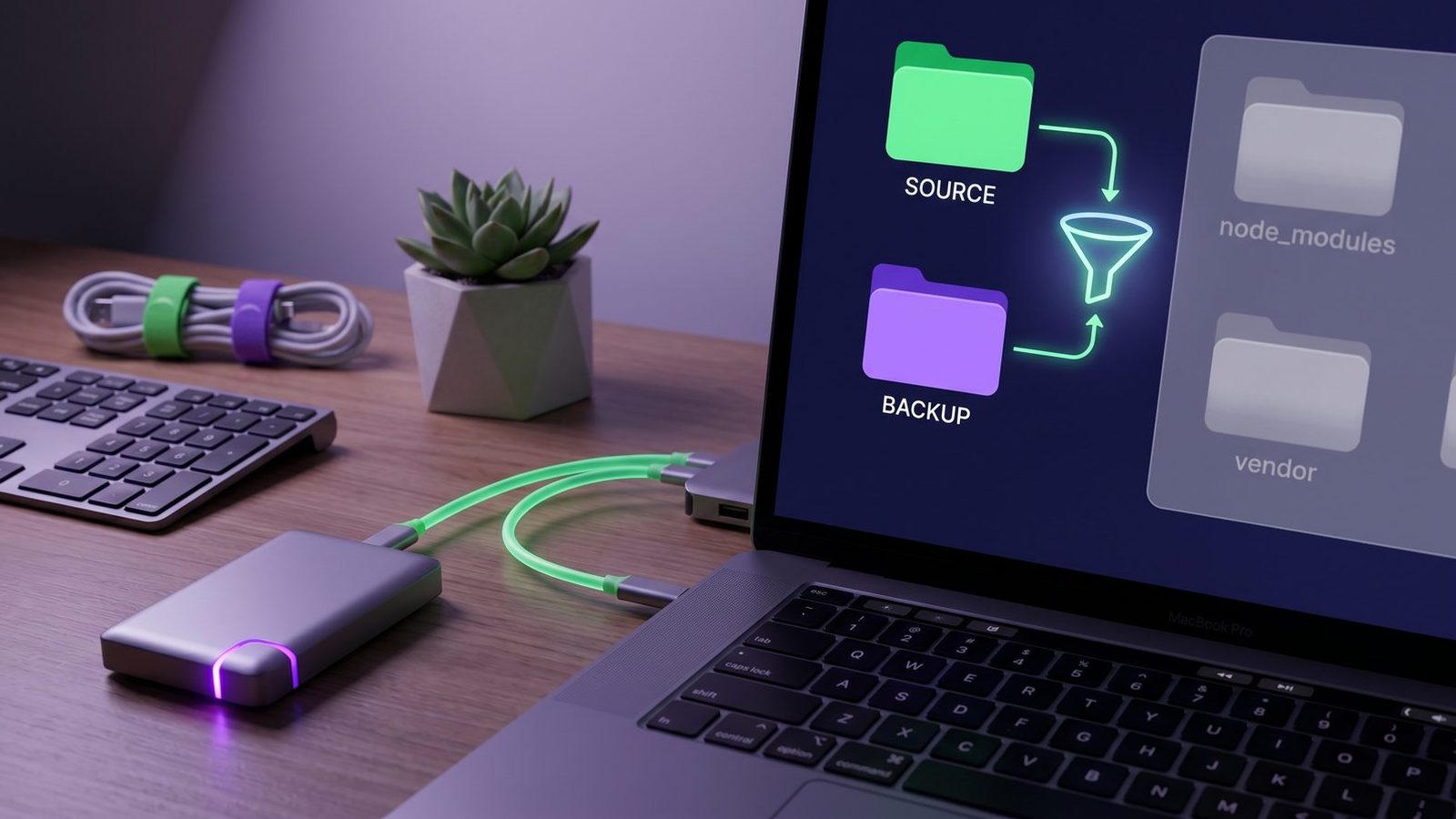
Recommended exclusions for Mac developer backups
Whether you use rsync, LSyncer, or another Mac folder sync tool, start with a conservative ignore list. These folders are usually safe to regenerate and expensive to copy:
- Node.js:
node_modules/,.next/,.nuxt/,dist/,build/,coverage/ - Python:
.venv/,venv/,__pycache__/,.pytest_cache/,.mypy_cache/,.ruff_cache/ - Ruby:
vendor/bundle/,tmp/,log/,.bundle/ - Rust and JVM:
target/,.gradle/,build/,out/ - Editors and OS files:
.DS_Store,.idea/when not intentionally shared, local workspace files, and temporary indexes
Be more careful with .git/. If the destination is meant to be a clean source backup and the project is already pushed to a remote, excluding .git/ is usually fine. If the destination is meant to preserve unpushed branches, tags, and local Git history, include it or make sure you have another Git-level backup.
Best practices for replacing rsync on a Mac
- Keep active code outside iCloud Drive. Use
~/Developer,~/Code, or another local-only folder for projects you build and run daily. - Sync filtered copies, not raw project folders. A clean backup of source and config is more useful than a massive mirror full of generated dependencies.
- Test destructive behavior. If your tool deletes destination files, understand when and why. For scripts, run
rsync --dry-runbefore changing patterns. - Make stale syncs visible. A backup workflow that silently stopped running is worse than one that fails loudly.
- Do not confuse sync with version control. Git is for history and collaboration. Folder sync is for keeping usable copies of files in another location.
The short version: rsync is still excellent, but modern Mac development workflows need more than a copy engine. They need safe defaults, dependency-aware exclusions, scheduling, and status you can trust. If you enjoy maintaining that in shell scripts, keep using rsync. If you want a native Mac app for the everyday version of that job, LSyncer is built for it.
Frequently asked questions
What is the best rsync alternative for Mac developers?
The best option depends on the workflow. For terminal automation and SSH, rsync is still hard to beat. For local Mac developer folder sync with visible status, schedules, and built-in exclusions for node_modules, .git, and build caches, a native app like LSyncer is often easier to maintain.
Should I back up node_modules?
Usually no. node_modules is generated from package.json and a lockfile such as package-lock.json, pnpm-lock.yaml, or yarn.lock. Back up the manifest and lockfile, then regenerate dependencies with your package manager.
Is rsync safe with --delete?
--delete is safe when the source and destination are correct, but it is intentionally destructive. It removes destination files that no longer exist in the source. Use explicit paths, guard against empty variables, and run --dry-run when editing scripts.
Can I use iCloud Drive as a code backup?
You can, but avoid putting active projects directly inside iCloud Drive. iCloud does not understand dependency folders or build caches, and it has no developer-friendly ignore file. A filtered copy of your project is safer than syncing the active folder itself.
Does LSyncer replace Git?
No. LSyncer is folder sync, not version control. Use Git for commits, history, branches, and collaboration. Use LSyncer to keep clean copies of project folders in another local destination, external drive, or cloud-safe location.
Keep reading
- Mac folder sync software for developers — a broader checklist for evaluating sync apps, scripts, and cloud destinations
- Rsync GUI for Mac — what to check before trusting a visual rsync workflow with developer folders
- Robocopy for Mac — translate Robocopy-style mirror habits into safer macOS developer backups with exclusions
- Rsync dry run on Mac — preview copy and delete behavior before a mirror touches your backup destination
- iCloud Drive not syncing on Mac — why code projects overload cloud sync and how to recover cleanly
- Mac sync two folders — a practical guide to Finder, ditto, rsync, and filtered developer folder sync
- Rsync exclude node_modules on Mac — exact patterns, dry-run workflow, and exclude-file setup for clean code backups
- File sync for Mac developers — how to choose a sync workflow that backs up code without dependency junk
- FreeFileSync exclude folders on Mac — how to filter dependency folders, Git internals, virtual environments, and caches
- How to sync node_modules without freezing your Mac — five solutions ranked from free to paid
- ChronoSync vs Lsyncer — which Mac sync tool fits your workflow
- How to stop iCloud from syncing certain folders — four methods compared