
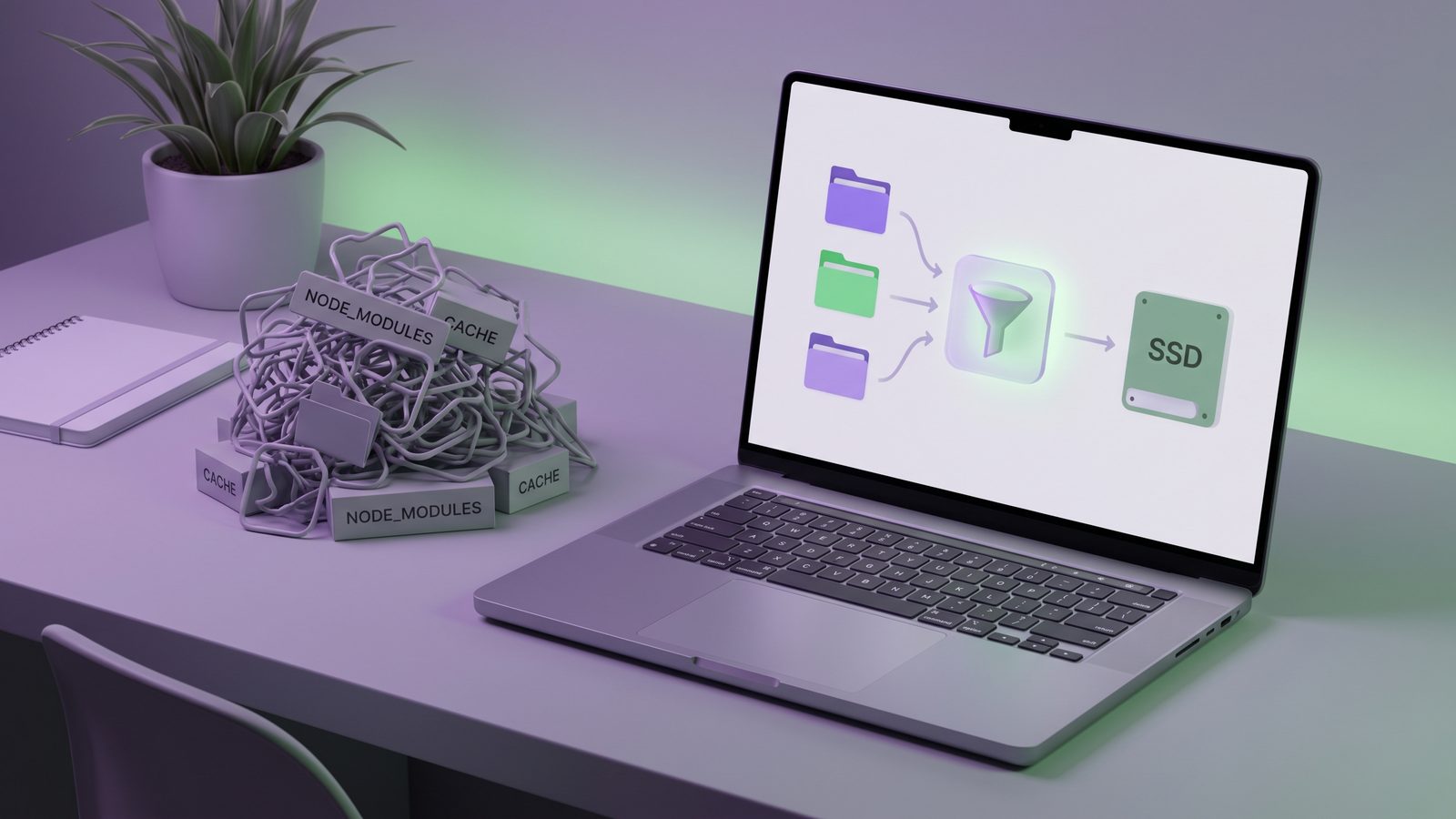
If you are looking for file sync for Mac that works with real development folders, the usual advice is incomplete. Finder can copy files. iCloud Drive can sync documents. rsync can mirror a directory. The hard part is syncing a code project without dragging along node_modules, .git, virtual environments, build caches, test artifacts, and all the small-file churn that makes a Mac feel broken.
File sync for Mac developer folders is different from document sync
Most Mac file sync tools assume a folder is mostly durable user content: PDFs, photos, notes, spreadsheets, and the occasional archive. A developer project is not like that. It contains source files you care about, configuration files you need, lockfiles that define dependency state, and a large amount of generated material that should usually be rebuilt instead of copied.
That distinction matters because sync tools are literal. If a folder contains 90,000 files, the tool sees 90,000 files. It does not automatically know that src/components/Button.tsx is valuable while node_modules/.pnpm/react@... is disposable. It may spend more work scanning dependency trees than backing up the files that actually define the project.
For developers, a good Mac file sync workflow answers four questions before it copies anything:
- What should be preserved? Source code, docs, config, lockfiles, migrations, scripts, and assets.
- What should be rebuilt?
node_modules/,.venv/, Ruby bundles, compiled output, and caches. - What should stay local? Git object databases, IDE indexes, logs, secrets, and temporary files.
- How will you notice failure? A backup that silently stopped last month is not a backup.
Why code folders overload Mac sync tools
Modern package managers and build systems optimize for local development speed, not sync friendliness. When you run npm install, pnpm install, pip install, bundle install, cargo build, or a JavaScript framework build, the tool may create thousands of files in a few seconds. Many are tiny. Many change often. Some are nested deeply. Some are removed and recreated during normal work.
That pattern is rough on sync systems for three reasons.
1. Small files have high overhead
Copying one 500 MB video file is not the same as copying 100,000 tiny files. Each file may require metadata checks, permissions handling, directory traversal, conflict evaluation, checksums, and destination writes. Cloud sync tools add even more overhead because they also track upload state and remote metadata. The file size may be small, but the bookkeeping cost is large.
2. Developer folders change in bursts
A dependency install or build is not a quiet stream of edits. It is a burst: create directory, write files, rename temporary files, delete stale files, write lock data, update caches. If a sync service watches the folder live, it may start processing intermediate states that are obsolete seconds later. That is why iCloud Drive can appear stuck after a build even when the files you care about are already stable.
3. Git internals and caches create sync noise
The .git/ directory is a database, not just a folder of text files. It contains refs, objects, packs, logs, indexes, and lock files. Build caches such as .next/cache/, .turbo/, coverage/, target/, __pycache__/, and .pytest_cache/ also change constantly. Syncing these folders rarely improves recoverability, but it does increase churn.

Best file sync for Mac options for code projects
There is no single right tool for every developer. The right choice depends on whether you need a one-time copy, a repeatable local backup, a cloud-safe mirror, or a fully automated workflow.
Option 1: Finder copy for occasional snapshots
Finder is fine when you need a quick one-off copy of a small project. The problem is that Finder copies what it sees. If your project contains node_modules/, .venv/, and dist/, those folders go with it unless you remove them first.
Use Finder when the source is already clean or when the project is tiny. Do not use it as your regular developer backup workflow unless you are comfortable manually cleaning the destination.
Option 2: ditto or cp for simple local copies
macOS includes ditto, which is useful for copying directory trees while preserving metadata. It is simple and available everywhere:
ditto ~/Developer/my-app ~/Backups/my-appThat command is easy, but it has the same weakness as Finder: no project-aware filtering. You can combine command-line tools with cleanup steps, but at that point rsync is usually better.
Option 3: rsync with an exclude file
For terminal users, rsync is the baseline. The safest pattern is to keep an exclusion file and reuse it across projects:
# ~/Developer/.syncignore
node_modules/
.git/
.venv/
venv/
vendor/bundle/
dist/
build/
.next/cache/
.turbo/
coverage/
__pycache__/
.pytest_cache/
.DS_Store
rsync -av --delete --exclude-from ~/Developer/.syncignore \
~/Developer/my-app/ \
/Volumes/Backup/my-app/This is a solid workflow if you like scripts and review your commands carefully. Add -n for a dry run when changing rules:
rsync -avn --delete --exclude-from ~/Developer/.syncignore \
  ~/Developer/my-app/ \
  /Volumes/Backup/my-app/
The tradeoff is operational. You are responsible for schedules, logs, notifications, path safety, mounted drive checks, and exclusion drift. That is manageable for one or two folders. It gets annoying across many projects.
Option 4: iCloud Drive as a destination, not the live project folder
iCloud Drive is useful for documents and cross-device availability, but it is a poor place to run an active dependency-heavy project. The better pattern is to keep the live project outside iCloud, then sync a filtered mirror into iCloud:
~/Developer/my-app/           # live working folder, not in iCloud
~/Library/Mobile Documents/   # iCloud destination gets a clean mirror
This avoids asking iCloud to watch every dependency install in real time. iCloud sees a smaller, cleaner destination that contains source files and project metadata, not the entire generated workspace. If you have already hit stuck queues, read the companion guides on iCloud Drive stuck uploading on Mac and stopping iCloud from syncing certain folders.
Option 5: A dedicated developer sync app
A dedicated Mac file sync app makes sense when you want the filtering logic of rsync without maintaining scripts. For developer folders, the useful features are not exotic. You want built-in exclusions for common dependency and cache folders, visible run status, schedules, stale-sync warnings, and a clear destination.
That is where LSyncer fits. It is a $19.99 one-time macOS app built around developer folder sync: skip node_modules, .git, virtual environments, build output, and caches by default; sync the folders you choose; and show whether the last run actually succeeded. It is not a replacement for Git, and it is not a cloud storage service. It is a practical way to keep clean local, external-drive, or cloud-safe copies of code folders without babysitting a shell script.
What to exclude from Mac file sync for developer projects
Start with a conservative exclusion list, then customize it for your stack. The goal is not to exclude everything large. The goal is to exclude things that are reproducible, noisy, unsafe, or not useful during restore.
src/, app/, lib/, docs, assets, migrations, tests, package.json, lockfiles, pyproject.toml, Gemfile, README.md, local scripts, and checked-in configuration.
node_modules/, .git/, .venv/, venv/, vendor/bundle/, dist/, build/, .next/cache/, .turbo/, coverage/, target/, __pycache__/, logs, temp files, and IDE indexes.
Secrets deserve a separate note. Do not blindly sync .env files, private keys, database dumps, production credentials, or local certificate material into a shared or cloud destination. Some teams intentionally back up encrypted secrets. Others keep them outside project folders. Either approach is better than accidental sync.
A practical Mac developer file sync checklist
- Move active projects out of iCloud Drive. Use
~/Developer/,~/Code/, or another local workspace for day-to-day work. - Decide the restore goal. Are you trying to restore source history, recreate a runnable environment, or keep a quick external-drive mirror?
- Create exclusions before the first sync. Do not wait for the first slow run to discover that
node_moduleswas copied. - Dry-run destructive mirrors. If a workflow deletes destination files, test with
rsync -nor use an app that makes the operation clear. - Make status visible. Check timestamps, logs, or app status. Silent failure is the enemy of backups.
- Test a restore once. Copy the destination somewhere temporary, reinstall dependencies from lockfiles, and verify the project opens or builds.
Once you think about sync this way, the tool choice gets clearer. For a one-off copy, use Finder or ditto. For scripted automation, use rsync with a reviewed exclude file. For recurring developer folder sync on macOS where you want built-in filtering and visible status, use a dedicated app such as LSyncer.
Related reading
- Mac folder sync software for developers — the selection checklist for clean backups, exclusions, schedules, and visible status.
- File synchronization utility for Mac — a practical selection guide for source-level sync, exclusions, and restore-tested project copies.
- Best rsync alternative for Mac developers — when terminal sync is still right and when a visible app is safer.
- npm install slow on Mac — diagnosing installs that become slow because sync tools watch
node_modules. - Mac sync two folders — practical Finder,
ditto,rsync, and filtered sync options. - Sync files between two Macs — how to use Git, rsync, cloud bridges, or filtered app sync without copying dependency junk.
- Sync files between Mac and PC — a cross-platform workflow that keeps generated files out of shared folders.
- Folder compare and sync on Mac — preview changes before syncing a clean developer project backup.
- FreeFileSync exclude folders on Mac — how to avoid copying dependency trees, Git internals, virtual environments, and caches.
- Syncthing exclude
node_moduleson Mac — peer-to-peer sync works better when generated folders never enter the shared set. - Dropbox stuck syncing node_modules — how to keep Dropbox useful without putting live dependency trees in its queue.
- Google Drive exclude folder from sync — a clean backup pattern for Drive users who need to skip dependency folders.
- How to sync node_modules without freezing your Mac — why dependency folders punish generic sync tools.
- Exclude folders from Time Machine on Mac — how to stop generated files from bloating developer backups.
FAQ
What is the best file sync for Mac developers?
The best file sync for Mac developers is the one that filters generated folders before copying. rsync with an exclude file is strong for terminal users. A dedicated app such as LSyncer is better if you want built-in exclusions, schedules, visible status, and fewer scripts to maintain.
Should I sync node_modules on a Mac?
Usually no. node_modules is large, noisy, and reproducible from package.json plus a lockfile. Sync the source code and lockfile, then reinstall dependencies with npm install, pnpm install, or yarn install on the destination if needed.
Can iCloud Drive be used for developer file sync?
Yes, but use it as a destination for a filtered mirror, not as the live working folder for dependency-heavy projects. Keeping active projects outside iCloud and syncing a clean copy into iCloud avoids much of the small-file churn that causes stuck uploads and high CPU.
Is rsync safe for syncing Mac project folders?
rsync is safe when commands are reviewed and paths are correct. The risky part is usually human error around --delete, empty variables, wrong destinations, or missing exclusions. Use -n for dry runs and keep an explicit exclude file for developer folders.
What folders should I exclude from developer backups?
Common exclusions include node_modules/, .git/, .venv/, venv/, vendor/bundle/, dist/, build/, .next/cache/, .turbo/, coverage/, target/, __pycache__/, logs, temporary files, and IDE indexes. Adjust the list for each language and framework.