

Sync files between two Macs sounds like a solved problem until the folder is an active codebase. Documents copy cleanly. Developer projects bring node_modules/, .git/, virtual environments, build output, caches, local databases, and file watchers that can turn a simple two-Mac sync into a slow, conflict-prone mess.
Sync files between two Macs without copying dependency junk
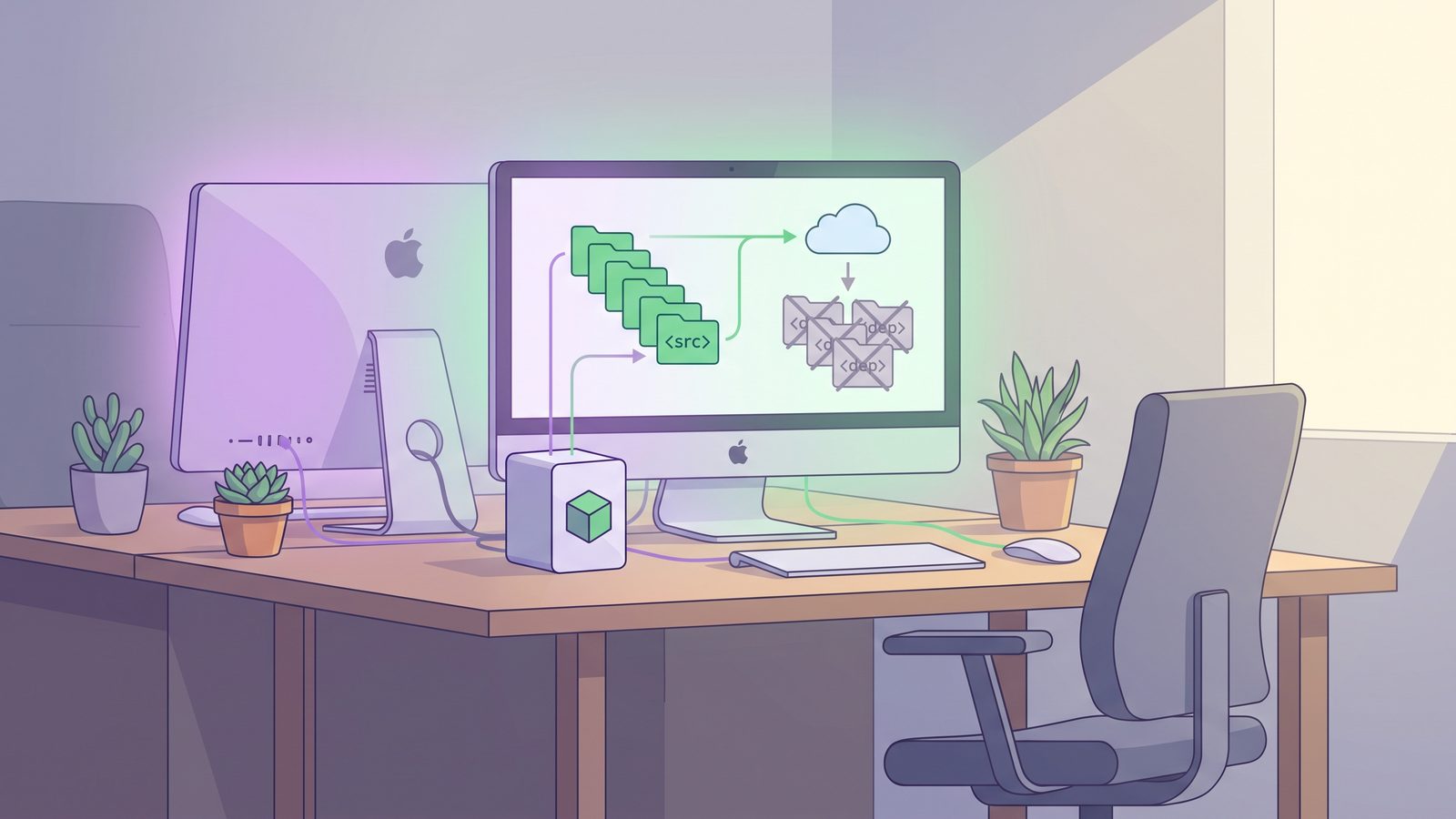
The goal is not to make every byte identical all the time. For code projects, the goal is to keep recoverable project state available on both Macs: source, tests, docs, migrations, small assets, lockfiles, configuration, and scripts. Generated state should usually stay local to the machine that produced it. If a folder can be rebuilt by npm ci, pnpm install --frozen-lockfile, bundle install, pip install -r requirements.txt, or a build command, synchronizing it between Macs is usually wasted work.
This matters most when you move between a desktop Mac and a laptop. You want to sit down at either machine and continue working, but you do not want both machines fighting over tens of thousands of dependency files. A naive sync job copies everything, then spends the next hour reconciling churn that should never have left the first Mac.
Why two-Mac folder sync breaks on code projects
Most folder sync tools compare file names, sizes, modification times, hashes, or filesystem events. That is reasonable for a folder of PDFs. It is noisy for a repository that changes hundreds or thousands of files during normal development.
A single npm install can create a deep tree of tiny files under node_modules/. A Next.js app may rewrite .next/cache/. Python creates __pycache__/, .pytest_cache/, .mypy_cache/, and virtual environments. Ruby projects can write vendor/bundle/, tmp/, and log/. Xcode, Gradle, Rust, Go, and Java projects have their own generated directories. None of that is valuable cross-machine source of truth.
The sync tool only sees file activity. It does not know whether a file is hand-written source or disposable machine output. When two Macs are both active, that creates four common failure modes:
- Huge queues. The sync spends most of its time on dependency and cache files instead of your code changes.
- Conflicts. Both Macs generate machine-specific files, then the sync tool tries to decide which copy wins.
- Slow editors and package installs. Sync scanning competes with your IDE, language server, test runner, and package manager.
- Untrusted restores. The second Mac receives stale binaries, partial build output, and platform-specific state that may not match its local environment.
Option 1: use Git as the primary cross-Mac sync layer
For source code, Git should be the first answer. It is explicit, reviewable, conflict-aware, and designed for collaboration across machines. If both Macs have access to GitHub, GitLab, Bitbucket, or a private remote, use Git for committed work and a folder sync tool only for supporting files that do not belong in the repo.
A simple handoff looks like this:
git status

git add src tests package.json package-lock.json

git commit -m "Checkpoint current work"

git push origin feature-branch
Then, on the second Mac:
git fetch origin

git switch feature-branch

git pull --ff-only

npm ci
This is boring, which is exactly why it works. The second Mac gets source and lockfiles. It builds its own node_modules/. You avoid copying local caches, OS-specific binaries, and partial build output.
The weak spot is uncommitted work. Git can move it with WIP commits, branches, patches, or stashes, but that requires discipline. If your real need is “keep a clean copy of this project folder available on my other Mac even when I forget to push,” add a filtered folder sync layer.
Option 2: use rsync over SSH or a shared folder
rsync is a strong choice when you want exact control. It can sync from one Mac to another over SSH, or from one Mac to a shared network volume mounted from the other machine. The important part is not the transport. The important part is the exclude file.
Create a reusable developer exclude file:
cat > ~/.rsync-two-macs-excludes <<'EOF'
node_modules/
.pnpm-store/
.yarn/cache/
.next/cache/
.nuxt/
dist/
build/
coverage/
.turbo/
.vite/
.git/
.venv/
venv/
__pycache__/
.pytest_cache/
.mypy_cache/
vendor/bundle/
tmp/
log/
target/
.gradle/
.DS_Store
EOF
Preview a sync from a MacBook to an iMac over SSH:
rsync -avnih --delete \
  --exclude-from "$HOME/.rsync-two-macs-excludes" \
  ~/Developer/my-app/ [email protected]:/Users/user/Developer/my-app/
The n in -avnih makes it a dry run. Review the output before allowing deletes. When the preview is right, remove the n:
rsync -avih --delete \
  --exclude-from "$HOME/.rsync-two-macs-excludes" \
  ~/Developer/my-app/ [email protected]:/Users/user/Developer/my-app/
If you use a shared folder instead of SSH, mount the destination in Finder and sync to a path under /Volumes/. Keep the trailing slashes. ~/Developer/my-app/ copies the contents of the folder; ~/Developer/my-app can create an extra nested directory depending on the destination.

Option 3: use iCloud or a cloud drive carefully
iCloud Drive, Dropbox, Google Drive, and OneDrive are convenient if both Macs already use the same account. They are not ideal for active developer folders. They watch everything in the synced location and generally do not understand that node_modules/, .git/objects/, build caches, and virtual environments are disposable.
If you use a cloud drive as the bridge between two Macs, keep active repositories out of the cloud-synced folder. Work in a local folder such as ~/Developer or ~/Code. Then sync a filtered copy into the cloud destination:
~/Developer/my-app/                 # active local project
~/Library/Mobile Documents/.../Projects/my-app-clean/  # filtered copy
This gives the second Mac a clean project copy without asking iCloud to index every dependency file. It also makes troubleshooting easier: if the cloud queue is stuck, you know the destination is supposed to contain only the filtered project state, not a live build directory.
Option 4: use Syncthing or peer-to-peer sync with ignores
Peer-to-peer tools such as Syncthing can sync directly between Macs without a cloud provider. That is attractive for privacy and local-network speed. The same developer rule still applies: configure ignores before syncing a project folder.
For Syncthing, a project-level .stignore might include:
node_modules
.pnpm-store
.yarn/cache
.next/cache
dist
build
coverage
.venv
venv
__pycache__
.pytest_cache
.mypy_cache
vendor/bundle
tmp
log
target
.gradle
.DS_Store
Be careful with bidirectional sync. If both Macs edit the same files offline, conflicts are normal. That is not a bug; it is a consequence of two sources of truth. For source code, Git handles those conflicts better than a file sync layer. Use peer-to-peer sync for clean project copies, support files, notes, and assets that do not have a better version-control workflow.
Option 5: use a Mac folder sync app with visible status
A GUI folder sync app makes sense when the workflow should be repeatable without becoming another forgotten shell script. For two-Mac developer sync, look for four things:
- Default exclusions for developer folders such as
node_modules/,.git/, virtual environments, caches, and build output. - Visible last-run status so you can tell whether the second Mac has a recent copy.
- Failure alerts instead of silent background errors.
- Per-folder rules because a Node app, Python service, and Rails project do not produce the same junk.
This is where LSyncer fits. It is a native macOS folder sync app built for developer projects: choose a source folder, choose a destination, skip generated folders by default, and run syncs on a schedule or when you need them. For a two-Mac workflow, you can sync a clean project copy to a shared destination, external SSD, network-mounted folder, or cloud bridge while keeping active dependency folders local. It is $19.99 one-time, with no subscription and no cloud service required by the app.
If you already have good rsync automation and check the logs, keep it. If the problem is that the script is hard to trust, schedules are scattered, or excludes differ between projects, a focused Mac app can make the workflow easier to maintain.
Best practices for syncing files between two Macs
- Pick one source of truth per folder. Avoid editing the same uncommitted file on both Macs at the same time.
- Use Git for source history. Folder sync should complement Git, not replace commits and branches.
- Exclude generated folders from the start. Add
node_modules/,.git/when appropriate, virtual environments, caches, build output, logs, and coverage. - Reinstall dependencies per Mac. It is cleaner and usually faster than syncing platform-specific dependency trees.
- Preview destructive syncs. If a tool can delete destination files, run a dry run or compare pass first.
- Keep active projects local. Use cloud or network destinations for clean copies, not live package-manager churn.
- Test the second Mac. Open the synced copy and run the real restore path: install dependencies, run tests, start the app.
Related reading
- two way folder sync Mac — decide when bidirectional sync is appropriate and how to avoid
node_modulesconflict noise. - Mac sync two folders — local folder mirroring basics, including Finder,
ditto, andrsync. - Mac sync folders local shared network — use a shared LAN destination without sending dependency trees across the network.
- rsync exclude-from Mac — maintain one reusable exclude list for developer backup jobs.
- Syncthing exclude node_modules on Mac — keep peer-to-peer sync from indexing dependency trees.
- Syncthing folder out of sync on Mac — troubleshoot stuck peer-to-peer sync before copying generated files between Macs.
- Unison file sync Mac — when bidirectional sync helps, when it adds conflict risk, and how to exclude generated project folders.
- Sync files between Mac and PC — adapt the same filtered handoff pattern for Windows-accessible shares, drives, and cloud bridges.
- File sync for Mac developers — compare Finder, cloud sync, scripts, and filtered app workflows.
FAQ
What is the best way to sync files between two Macs for development?
Use Git for source code and a filtered folder sync workflow for clean project copies. Do not sync generated folders such as node_modules/, virtual environments, build output, or caches unless you have a specific archive reason.
Should I sync node_modules between two Macs?
Usually no. Sync package.json and the lockfile, then run npm ci, pnpm install --frozen-lockfile, or your package manager’s equivalent on each Mac. That avoids stale binaries and thousands of low-value sync operations.
Can iCloud Drive sync code projects between two Macs?
It can, but it often struggles with active developer folders because it watches every generated file. A safer pattern is to keep the active project local and sync a filtered copy to iCloud Drive, excluding dependency folders and caches.
Is rsync safe for syncing two Macs?
Yes, if you use excludes and dry runs. Start with rsync -avnih to preview changes. Be especially careful with --delete and trailing slashes because those control what the destination becomes.
How do I avoid conflicts when syncing two Macs?
Pick one source of truth for each folder, avoid editing the same uncommitted files on both Macs, and use Git for source conflicts. Folder sync tools are good at copying files; Git is better at explaining and resolving code changes.