

Mac sync folders local shared network is a practical workflow when you want project files available on another Mac, a NAS share, or a small office server without paying for another cloud account. It also exposes the exact weakness of generic sync tools: they copy the folder tree, not the intent behind the folder. For developer projects, that difference can mean tens of thousands of useless dependency and cache files crossing the LAN.
Mac sync folders local shared network without copying generated junk
People searching for mac sync folders local shared network usually need a recoverable project copy on a nearby destination, not a live clone of every byte on an SSD. The useful target is a clean recoverable copy, not a live clone of every byte on your SSD. A JavaScript app needs src/, tests/, package.json, lockfiles, configuration, migrations, docs, and project scripts. It usually does not need node_modules/, .next/cache/, coverage/, dist/, or package-manager caches copied to the shared network folder. A Python project needs source, requirements, lockfiles, and test fixtures, not .venv/, __pycache__/, and .pytest_cache/.
This is why a local network sync that works perfectly for invoices and photos can feel broken on a codebase. The network may be fine. The problem is file count, metadata churn, and generated state. A single package install creates far more filesystem work than editing ten source files. If your sync job reacts to all of it, your Mac, router, SMB share, and destination disk spend their time preserving files that a clean restore would rebuild anyway.
Why local network folder sync slows down on Mac code projects
Local network shares usually sit on SMB, AFP legacy setups, a NAS vendor protocol, or a mounted folder exposed by another Mac. All of those are sensitive to latency. A local SSD can create and inspect small files quickly. A network share has to negotiate metadata, permissions, directory entries, locks, timestamps, and sometimes extended attributes across the wire. That overhead is invisible for a few large files and obvious for a dependency tree with thousands of entries.
Developer tools also change files while the sync is scanning. npm install writes a deep dependency tree. pnpm and Yarn maintain stores and caches. Next.js, Vite, Astro, Rails, Django, Xcode, Gradle, Rust, Go, and Java tools rewrite build output. Test runners create coverage and temporary files. Git changes refs, objects, indexes, and lock files. If the source folder is hot, the sync job can chase a moving target.
That leads to several failure modes:
- Long scans before copying begins. The tool has to walk generated directories just to decide that most files changed or did not change.
- Huge queues of tiny writes. Network throughput looks low because the bottleneck is create/stat/delete operations, not raw megabytes per second.
- Stale or partial generated state. A destination may receive half of a cache or dependency tree while the package manager is still writing it.
- Confusing deletes. Mirroring can remove files on the destination because a generated folder changed shape locally.
- Slow development on the source Mac. File watchers, Spotlight, antivirus, cloud sync clients, and the network sync job all compete with the editor and build tools.

Option 1: use Git for source and the network folder for clean copies
Git should remain the first sync layer for source code. It is explicit, conflict-aware, and built for code review. If the destination Mac or server can clone from the same remote, use Git for committed work and keep the local shared network folder for clean snapshots, assets, documentation bundles, or projects that need a simple file-level copy.
git status
git add src tests package.json package-lock.json
git commit -m "Checkpoint work before switching machines"
git push origin feature-branch
Then rebuild on the other machine:
git pull --ff-only
npm ci
npm test
This is the cleanest workflow when your work is ready to commit. It is less convenient for uncommitted experiments, local configuration, generated reports, or a folder you want backed up every evening without remembering to push. That is where filtered folder sync helps.
Option 2: use rsync to sync a Mac folder to a local network share
rsync is the standard command-line answer because it can preview changes and exclude noisy paths. Mount the shared network folder first. In Finder, use Go → Connect to Server, connect to an SMB path such as smb://nas.local/Projects, and confirm the mounted destination under /Volumes/.
Start with a dry run:
rsync -avhn --delete \
  --exclude 'node_modules/' \
  --exclude '.pnpm-store/' \
  --exclude '.yarn/cache/' \
  --exclude '.next/cache/' \
  --exclude '.turbo/' \
  --exclude 'dist/' \
  --exclude 'build/' \
  --exclude 'coverage/' \
  --exclude '.venv/' \
  --exclude 'venv/' \
  --exclude '__pycache__/' \
  --exclude '.pytest_cache/' \
  --exclude '.mypy_cache/' \
  --exclude 'vendor/bundle/' \
  --exclude '.DS_Store' \
  ~/Developer/my-app/ \
  /Volumes/SharedProjects/my-app/
The n in -avhn means dry run. Read the output. Confirm that the source trailing slash is correct, that the destination is the mounted share you expect, and that deletes are not surprising. Only then remove n:
rsync -avh --delete \
  --exclude-from="$HOME/Developer/.network-sync-excludes" \
  ~/Developer/my-app/ \
  /Volumes/SharedProjects/my-app/
For repeated jobs, use an exclude file instead of a long command. Keep it under version control if several projects share the same policy, or keep one in ~/Developer/ if it is personal machine configuration.
node_modules/
.pnpm-store/
.yarn/cache/
.next/cache/
.nuxt/
.svelte-kit/
.turbo/
.vite/
dist/
build/
coverage/
.venv/
venv/
__pycache__/
.pytest_cache/
.mypy_cache/
vendor/bundle/
tmp/
log/
target/
.gradle/
.DS_Store
Option 3: use a two-folder sync app, but check the delete model
GUI sync apps are useful when you want repeatable jobs, schedules, visible status, and fewer shell scripts. The danger is assuming that all sync modes are safe. “Mirror left to right” is different from “two-way sync.” “Update only” is different from “delete files missing from source.” A local network share also introduces disconnects: if the share is not mounted, a poorly configured job may fail silently or try to write somewhere unexpected.
Before trusting any app with a local shared network folder, create a small test project and deliberately include a fake node_modules/, cache directory, and source file. Run the job. Check the destination. Delete a file on the source and run again. You want to know exactly how the app handles exclusions, deletes, skipped files, and unavailable network paths before pointing it at real work.
Option 4: schedule local network sync with launchd carefully
If you are comfortable maintaining scripts, launchd can run a filtered rsync job on a schedule. Keep the script defensive: verify the network volume exists, write logs, and avoid deletes unless the dry-run history is boring.
#!/bin/zsh
set -euo pipefail

SRC="$HOME/Developer/my-app/"
DEST="/Volumes/SharedProjects/my-app/"
EXCLUDES="$HOME/Developer/.network-sync-excludes"
LOG="$HOME/Library/Logs/my-app-network-sync.log"

if [ ! -d "$DEST" ]; then
  echo "$(date) destination not mounted: $DEST" >> "$LOG"
  exit 1
fi

/usr/bin/rsync -avh --delete \
  --exclude-from="$EXCLUDES" \
  "$SRC" "$DEST" >> "$LOG" 2>&1
That script is intentionally boring. The important parts are the mounted-destination check and the log. A scheduled sync that fails loudly is fixable. A scheduled sync that appears to work but writes to the wrong path or hides permission errors is dangerous.
Where Lsyncer fits in a local shared network workflow
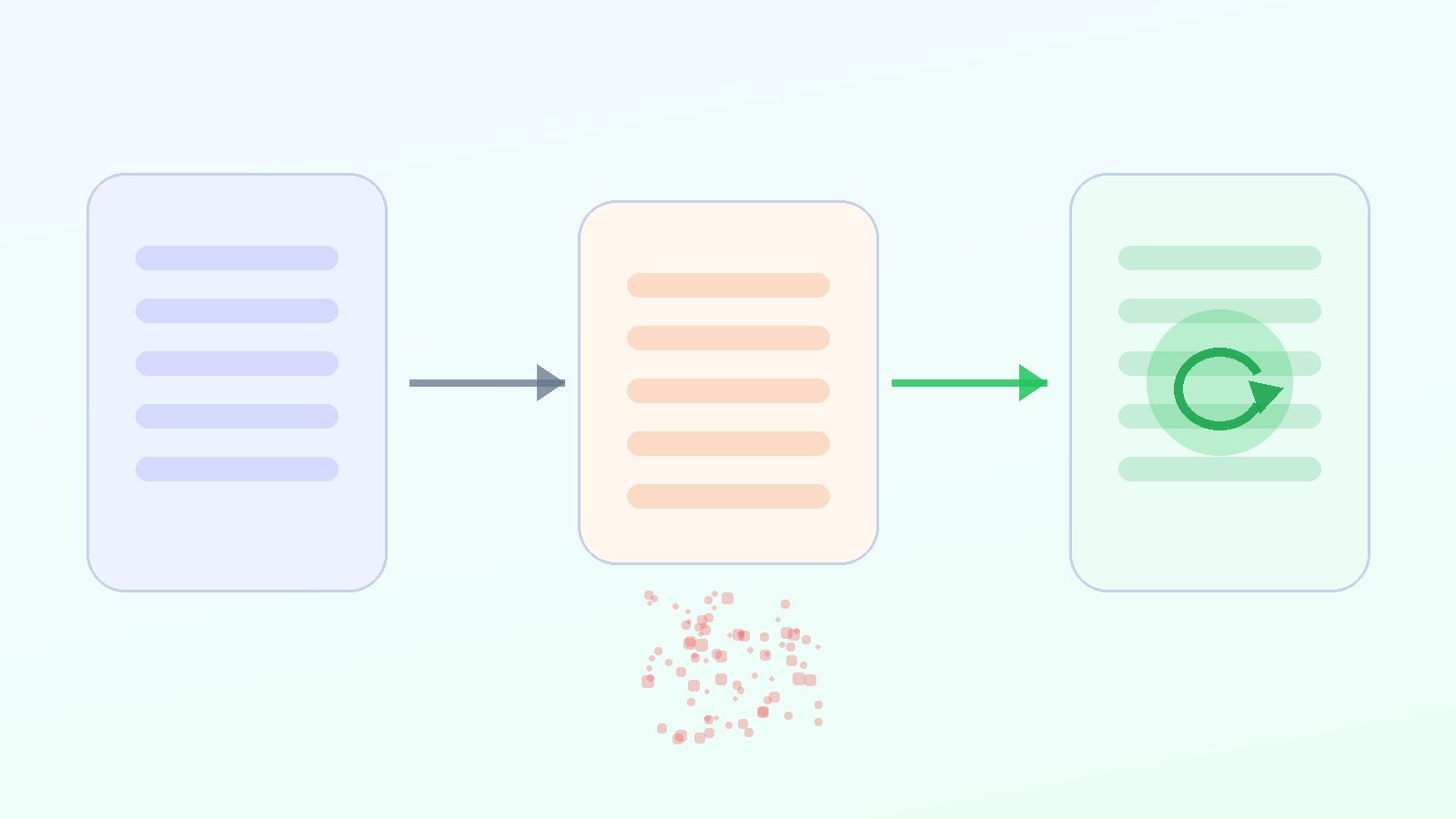
Lsyncer fits when you want the filtered-folder behavior without maintaining rsync scripts and launchd jobs. It is a native macOS folder sync app built for developer projects: choose the local project folder, choose a destination such as a mounted network share, skip generated folders like node_modules/, .git, virtual environments, caches, and build output, then run the job manually or on a schedule.
That does not replace Git, Time Machine, or an offsite backup. Treat Lsyncer as the clean project-copy layer. Git keeps source history. Time Machine or another whole-Mac backup protects the machine. The local shared network folder gives you a recoverable copy of active work without asking iCloud, SMB, or a NAS to preserve every disposable file your tools generated. Lsyncer is a one-time $19.99 Mac App Store purchase, not another sync subscription.
Best practices for Mac local network folder sync
- Keep active projects on the local SSD. Work from
~/Developeror~/Code, then sync a filtered copy to the shared network folder. - Use one source of truth per job. Avoid bidirectional sync for active code unless you understand the conflict model.
- Exclude generated folders by default. Start with
node_modules/, virtual environments, package caches, framework caches, build output, coverage, and OS metadata. - Preview deletes. If a tool supports dry runs or previews, use them before enabling mirror mode or scheduled deletes.
- Check mount paths. A network share under
/Volumes/SharedProjectsshould exist before the job runs. Fail rather than guessing. - Restore-test occasionally. Copy the network version to a scratch folder, reinstall dependencies, and run tests.
mkdir -p ~/RestoreTest
rsync -avh /Volumes/SharedProjects/my-app/ ~/RestoreTest/my-app/
cd ~/RestoreTest/my-app
npm ci
npm test
If the restore test needs a missing generated directory, document the command that rebuilds it. If it needs a missing hand-written file, update your sync rules. The test tells you whether the shared network folder is a backup or just a comforting copy.
Related reading
- Sync Files Between Two Macs — how to move work between a MacBook and desktop Mac without syncing dependency folders.
- Synology Drive Client Mac — how to keep Synology NAS sync from ingesting generated developer folders.
- Mac NAS Backup Solution — the NAS version of the same filtered developer backup workflow.
- rsync exclude-from Mac — reusable exclude files for safer repeatable sync jobs.
FAQ
How do I sync folders on a Mac over a local shared network?
Mount the shared destination in Finder, confirm the path under /Volumes/, then use a sync tool such as rsync or a GUI folder sync app. For developer projects, add exclusions for node_modules/, virtual environments, build output, caches, and OS metadata before running the sync.
Should I sync node_modules to a local network folder?
Usually no. Keep package.json and the lockfile, then rebuild dependencies with npm ci, pnpm install --frozen-lockfile, or the command your project uses. Syncing node_modules/ creates a large number of small network writes and rarely improves recovery.
Is rsync safe for Mac local network folder sync?
Yes, if you use explicit paths, keep trailing slashes straight, run -n dry runs before real copies, and review deletes before enabling --delete. The unsafe pattern is a scheduled destructive sync with no logs, no preview, and no destination mount check.
Can I use iCloud Drive as the shared folder between Macs?
You can, but avoid working directly inside iCloud Drive for active developer projects. Keep the working copy local and sync a filtered copy into iCloud or another shared destination. That keeps generated dependency folders out of the cloud queue.
What should a developer sync to a shared network folder?
Sync source code, tests, documentation, lockfiles, configuration, migrations, scripts, and small fixtures. Skip generated dependencies, language caches, build output, coverage folders, temporary files, and machine-specific state unless you have a specific recovery reason to keep them.