

two way folder sync Mac is useful when two folders can both change and you need them reconciled instead of copied in one direction. For developers, the hard part is not moving files between Macs, external drives, NAS shares, or cloud-backed folders. The hard part is keeping source files in sync while generated folders such as node_modules/, .git/, .venv/, dist/, and build caches stay out of the conflict loop.
two way folder sync Mac: the safe developer workflow
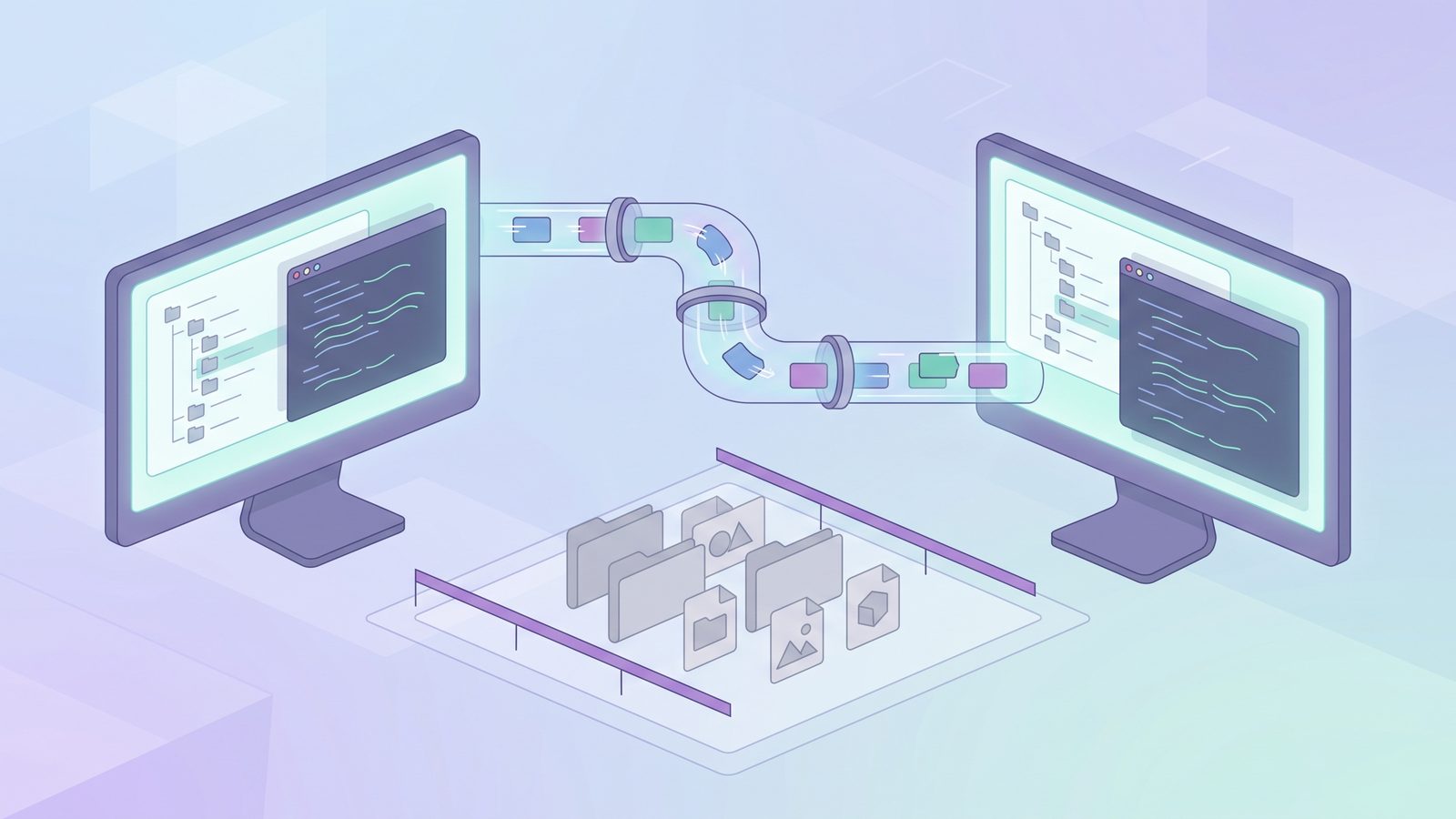
A two-way sync watches or scans both sides, compares what changed, and propagates updates in both directions. If you edit README.md on your MacBook and docs/api.md on your desktop, a good two-way sync can copy both changes so each folder catches up. If you edit the same file differently on both sides, the tool should stop and show a conflict instead of silently choosing a winner.
That sounds ideal until you point it at an active codebase. Developer folders contain durable project inputs next to disposable machine state. Source files, tests, migrations, docs, lockfiles, small fixtures, and configuration belong in sync. Dependency trees, build output, test caches, interpreter bytecode, logs, local databases, and package-manager caches usually do not. If your sync tool treats both categories as equally important, every install, build, and test run becomes sync noise.
The safest Mac developer pattern is: use Git for source history, use package managers to rebuild dependencies, and use folder sync only for the files that really need to exist in both places. That may be a full project minus generated folders, a documentation tree, a design asset folder, or a small local tools directory. The moment you include everything by default, the sync job becomes harder to trust.
Why two-way sync is riskier for code than documents
Documents usually change because a person edited them. Code folders change because people, compilers, package managers, test runners, language servers, bundlers, and editors all touch the tree. A single npm install can create tens of thousands of files. A Next.js or Vite dev server can rewrite caches constantly. Python can populate __pycache__/ across the tree. Ruby and Rust projects have their own generated directories. None of that is meaningful collaboration state.
Two-way sync adds another problem: direction is no longer obvious. With a one-way backup, the source wins. With bidirectional sync, both sides may have authority. That is fine for a notes folder. It is dangerous for code unless you know how conflicts will be reported, whether deletes propagate, and how ignores behave before the first real run.
Method 1: decide if you really need two-way sync
Before installing another tool, ask whether both sides genuinely need to change. If one folder is the source of truth and another folder is a backup, staging copy, external SSD, NAS mirror, or cloud handoff, use one-way sync instead. It has fewer failure modes and a much easier mental model.
Two-way sync is a better fit when:
- You edit the same non-Git folder from a MacBook and desktop Mac.
- You maintain notes, docs, design assets, scripts, or local project resources outside a repository.
- You need both replicas usable while disconnected, then reconciled later.
- You are willing to review conflicts instead of expecting silent automatic merges.
If the folder is an active Git repository, Git should usually be the primary two-way system. Push branches, pull changes, review diffs, and let package managers rebuild dependencies per machine. Folder sync can still help with local assets or clean working-tree copies, but it should not replace commits.

Method 2: test with a small folder before syncing a project
Do not make your first run a 4 GB repository. Create two temporary folders and learn how your tool handles edits, deletes, renames, conflicts, symlinks, file permissions, hidden files, and interrupted destinations. You want to know what the review screen looks like before you trust it with real work.
mkdir -p ~/SyncTest/A ~/SyncTest/B
printf "from A\n" > ~/SyncTest/A/notes.md
printf "from B\n" > ~/SyncTest/B/todo.md
Run the sync. Confirm both files appear on both sides. Then edit the same file differently in each folder and run the sync again. A safe two-way tool should show a conflict or create conflict copies. If it silently overwrites one side, do not use it for source files.
Also test deletes. If you delete todo.md on one side, does the tool delete it on the other side, restore it from the other side, or ask? There is no universal right answer, but there is a wrong one: discovering delete behavior after it removes the only copy of something you needed.
Method 3: add developer exclusions before the first real run
The exclusion list should exist before the first real sync, not after the tool has indexed a dependency tree. For most Mac developer projects, start by excluding generated folders and machine-local state:
node_modules/
.pnpm-store/
.yarn/cache/
.next/cache/
.nuxt/
.turbo/
.vite/
dist/
build/
coverage/
.venv/
venv/
__pycache__/
.pytest_cache/
.mypy_cache/
.ruff_cache/
vendor/bundle/
tmp/
log/
target/
.gradle/
.DS_Store
Be careful with .git/. If both sides are normal working copies, ignore .git/ and use a Git remote for repository history. If the job is a local backup of unpushed branches, a file sync tool is still a weak substitute for a private remote or bare mirror. Git object stores are not designed to be reconciled by generic bidirectional sync during active work.
Lockfiles should usually stay in sync: package-lock.json, pnpm-lock.yaml, yarn.lock, poetry.lock, requirements.txt, Gemfile.lock, Cargo.lock, and similar files are part of the reproducible project state. The rule is not “exclude everything tool-related.” The rule is “sync the restore contract, rebuild the generated result.”
Method 4: compare two-way sync options on Mac
For many developer backup jobs, the right answer is not a two-way tool at all. A one-way filtered sync is easier to automate because the source is clear. If your actual goal is “keep a clean project copy on an external drive or cloud folder,” choose a one-way workflow and avoid bidirectional conflict handling entirely.
Where LSyncer fits
LSyncer is not trying to be a universal bidirectional merge engine. If you need true two-way reconciliation between two changing replicas, tools like Unison or Syncthing may fit better after careful configuration. LSyncer fits the more common developer need: clean, repeatable folder sync on macOS where you choose a source, choose a destination, skip generated folders, and run the job manually or on a schedule.
That makes it useful when a “two way folder sync Mac” search is really about keeping work available in another place without dragging dependency junk along. For example, you might keep active work in ~/Developer, use Git for history, and use LSyncer to maintain a filtered copy on an external SSD, NAS share, or cloud-backed folder. The app ships with developer-friendly exclusions for folders such as node_modules/, .git/, virtual environments, caches, and build output, costs $19.99 once, and stays local-first.
The distinction matters. If both sides need to edit the same file, use a tool that shows conflicts. If one side is the working folder and the other side is a clean copy, use a one-way filtered sync. LSyncer is for the second case, where visibility, saved rules, and scheduled runs are more valuable than pretending a backup copy is a collaborator.
Best practices for bidirectional folder sync on Mac
- Use Git for code history. Do not ask folder sync to replace commits, branches, remotes, or merge review.
- Start with small tests. Learn conflict, delete, rename, and hidden-file behavior before syncing a real project.
- Exclude generated folders before scanning. Add ignores for dependencies, caches, virtual environments, build output, logs, and OS metadata first.
- Keep lockfiles and project inputs. Those files make restores reproducible and should usually travel with the source.
- Avoid syncing active projects inside iCloud Drive. Work locally, then sync a filtered copy outward if you need cloud availability.
- Review conflicts intentionally. Conflict prompts are not errors to skip. They are the whole reason to use a careful two-way tool.
- Prefer one-way sync for backups. If the destination should not edit the source, do not add bidirectional complexity.
Related reading
- Unison File Sync Mac — configure explicit bidirectional sync and conflict review for developer folders.
- One Way Folder Sync Mac — use a simpler source-to-destination workflow when the other folder is only a backup.
- Sync Files Between Two Macs — choose between Git, cloud sync, network copies, and filtered project sync.
- Syncthing exclude node_modules Mac — keep peer-to-peer sync from indexing generated dependency trees.
FAQ
What is the safest two way folder sync Mac setup for developers?
The safest setup syncs source files, docs, assets, and lockfiles while excluding generated folders such as node_modules/, virtual environments, caches, build output, logs, and OS metadata. Use Git for code history and choose a tool that shows conflicts instead of silently overwriting one side.
Should I sync node_modules between two Macs?
Usually no. node_modules/ is large, noisy, and often machine-specific. Sync package.json and the lockfile, then run npm install, pnpm install, or yarn install locally on each Mac.
Is two-way sync better than rsync for Mac folders?
Only when both sides genuinely change. rsync is usually one-way, which is better for backups and mirrors because the source of truth is clear. Two-way sync is useful for shared folders that change on both sides, but it requires conflict review and stricter exclusions.
Can iCloud Drive be used for two-way folder sync on Mac developer projects?
It can sync documents, but active developer projects often overload it with tiny generated files. Keep daily work outside iCloud Drive and sync a filtered copy if you need cloud availability. Avoid putting raw node_modules/, .git/, build caches, and virtual environments into iCloud.
When should I use LSyncer instead of a bidirectional sync tool?
Use LSyncer when the real job is a clean source-to-destination sync: project folder to external SSD, NAS, another local folder, or cloud-backed copy with developer exclusions. Use a true bidirectional tool when both folders are active replicas and you need conflict handling.