
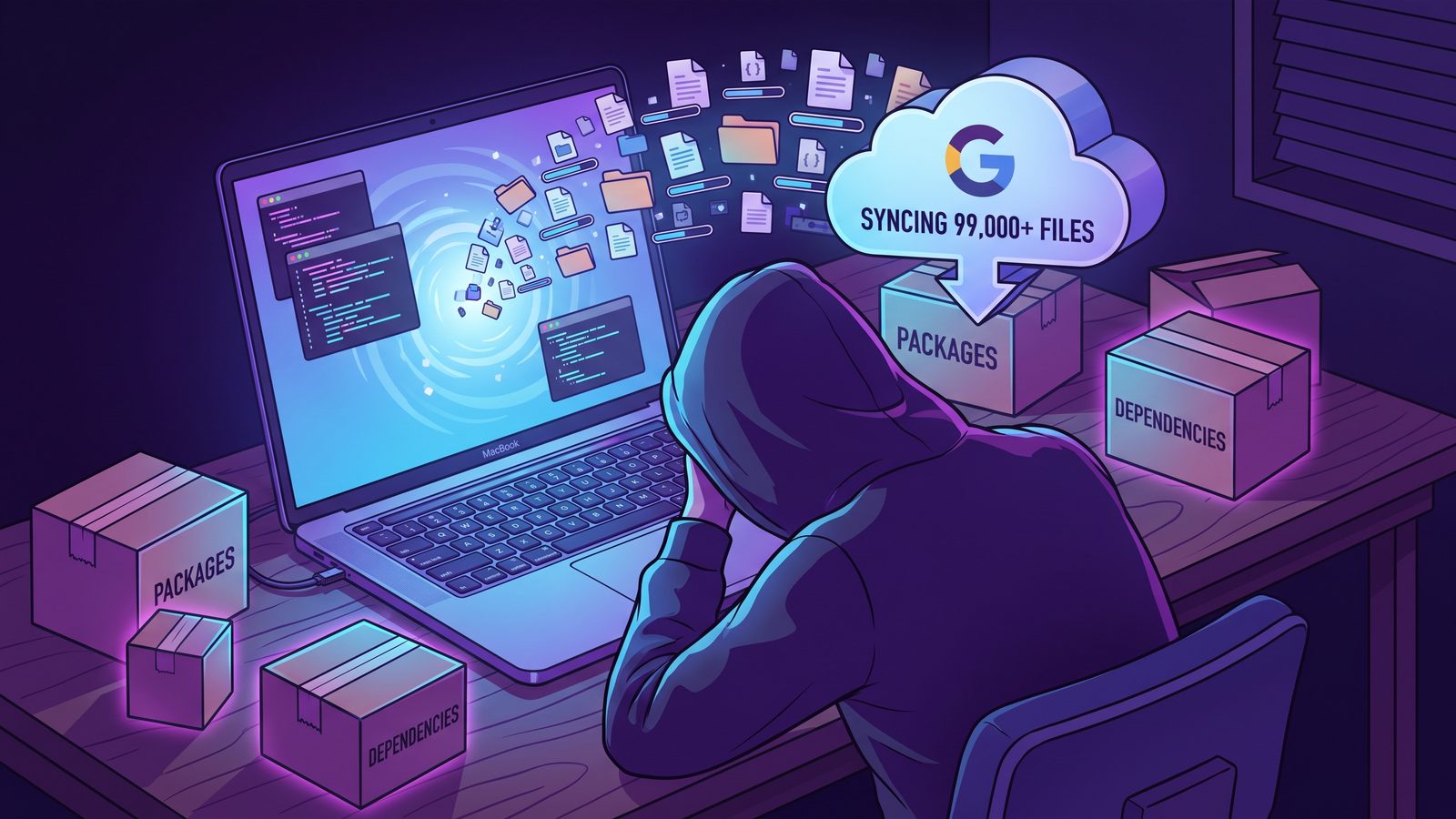
Google Drive exclude folder from sync is one of those searches that usually starts after the damage is already visible: Drive for desktop is chewing CPU, the menu bar says it is still syncing, and your Mac developer folder contains thousands of files that never needed to go to the cloud. The good fix is not to upload dependencies faster. It is to keep generated folders out of the Google Drive queue in the first place.
Google Drive exclude folder from sync on Mac: what developers need to know
Google Drive for desktop is useful for documents, shared assets, and folders that change at human speed. A developer project changes differently. A single npm install can create or rewrite tens of thousands of small files under node_modules. A framework dev server may keep updating .next/cache, .vite, dist, logs, coverage reports, and temporary bundles. Python, Ruby, Rust, and JVM projects have the same pattern with .venv, vendor/bundle, target, and build output.
The painful detail is that cloud sync cost is not only about bytes. File count matters. Every tiny package file has a path, timestamp, permissions, metadata, hash work, upload state, and conflict state. Google Drive has to notice the change, decide whether it belongs in the synced set, queue it, upload or reconcile it, and update its local database. While that happens, macOS may also run Spotlight indexing, endpoint security scanning, editor watchers, and package-manager operations over the same tree.
For developers, the core decision is simple: source code, lockfiles, docs, migrations, small assets, and configuration are worth syncing. Dependency folders, build caches, generated bundles, and Git internals usually are not. The problem is that Google Drive does not work like a package manager. It sees a folder tree, not your intent.
Why Google Drive struggles with node_modules and build folders
A normal document folder might contain a few hundred files. A typical JavaScript project can contain 50,000 or more after dependencies are installed. The files are often tiny, deeply nested, and frequently replaced. Package managers optimize for local development speed and reproducible installs; they do not optimize for cloud sync clients watching every write.
That mismatch creates several failure modes:
- Large file counts create long queues. Google Drive may be making progress, but each file still needs metadata work and state tracking.
- Generated folders keep changing. A dev server, test runner, or package install can rewrite files while Drive is still processing the last batch.
- Conflict handling gets noisy. Files that change rapidly are more likely to produce duplicate or conflicted copies when another machine is involved.
- The Mac feels slow for unrelated work. Drive, Spotlight, your editor, and security tools may all scan the same dependency tree.

Fix 1: keep active projects out of Google Drive
The most reliable fix is to stop developing directly inside your Google Drive folder. Use a local workspace for active projects:
mkdir -p ~/Developer
mv ~/Google\ Drive/My\ Drive/Projects/my-app ~/Developer/my-app
Then reinstall generated dependencies locally if needed:
cd ~/Developer/my-app
npm ci
This changes Google Drive from a live filesystem participant into a backup or transfer destination. Your editor, Git operations, package manager, and dev server work against normal local storage. Google Drive no longer has to observe every install, rebuild, cache write, and test artifact in real time.
If the project is shared through Git, this is also the cleaner mental model. Git handles source history and collaboration. Google Drive can hold a clean snapshot, exported assets, documentation, or a filtered backup. Mixing live dependency trees with consumer cloud sync is what usually creates the pain.
Fix 2: use Google Drive selective sync for top-level folders
Google Drive for desktop lets you choose which My Drive folders are available on a Mac. This can help if an entire top-level folder does not need to sync to the machine. Open Google Drive settings and review the folders being mirrored or streamed. If a broad Projects folder is included, consider removing it from Drive sync and keeping active repositories local instead.
The limitation is important: selective sync is usually a coarse folder-level control. It is not a developer-aware ignore file. If your folder Projects/my-app is inside the synced set, Google Drive does not automatically understand that Projects/my-app/src matters while Projects/my-app/node_modules is disposable. Selective sync is useful for big folder boundaries, not precise exclusion of build artifacts inside a project.
Fix 3: sync a clean copy into Google Drive with rsync
If you are comfortable with Terminal, rsync is the direct way to create a filtered Google Drive backup. Keep the working copy in ~/Developer, then copy only the durable files into a Drive-backed destination:
rsync -av --delete \
  --exclude 'node_modules/' \
  --exclude '.git/' \
  --exclude '.next/' \
  --exclude '.nuxt/' \
  --exclude '.vite/' \
  --exclude 'dist/' \
  --exclude 'build/' \
  --exclude 'coverage/' \
  --exclude '.turbo/' \
  ~/Developer/my-app/ \
  ~/Google\ Drive/My\ Drive/CodeBackups/my-app/
Run a dry run first. This is not optional if you use --delete:
rsync -avn --delete \
  --exclude 'node_modules/' \
  --exclude '.git/' \
  --exclude 'dist/' \
  ~/Developer/my-app/ \
  ~/Google\ Drive/My\ Drive/CodeBackups/my-app/
Read the output before removing -n. A filtered mirror should show source files, docs, configs, lockfiles, and assets. It should not show a flood of dependency packages or build cache paths. If the destination path is wrong, stop and fix it before running a real sync.
For other stacks, add language-specific exclusions. Python projects often need .venv/, venv/, __pycache__/, and .pytest_cache/. Ruby projects often need vendor/bundle/, tmp/, and logs. Rust projects often need target/. JVM projects often need .gradle/, build/, and out/. The exact list matters less than the principle: sync the recipe and source, not the generated workspace.
Fix 4: use a dedicated Mac folder sync app with exclusions
An rsync command is excellent when you want full control and are willing to maintain scripts. It becomes easier to get wrong when you have multiple projects, several destinations, scheduled runs, mounted drives, and different exclusion rules per stack. At that point the sync job is no longer a one-liner. It is part of your backup system.
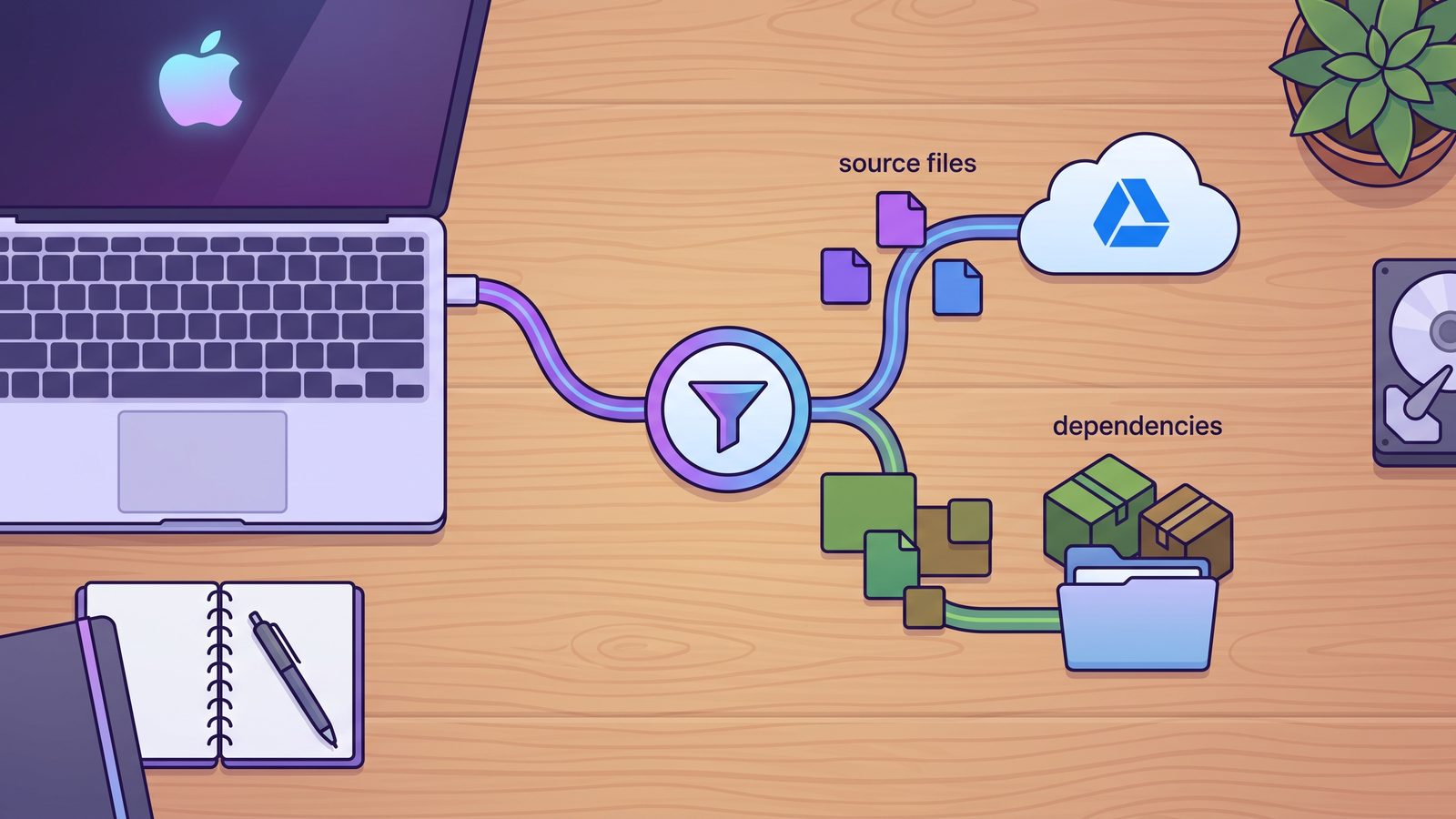
Lsyncer is built for this developer-folder version of the problem. You choose a local source such as ~/Developer/my-app, choose a destination such as ~/Google Drive/My Drive/CodeBackups/my-app, and keep exclusions visible instead of buried in a shell command. It skips common generated folders such as node_modules, .git, virtual environments, build output, and caches, with room for custom rules.
The point is not to replace Google Drive. Google Drive can still move the clean destination copy between Macs or keep it available in the cloud. Lsyncer sits before Drive and reduces the folder to the parts worth syncing. It is a native macOS app with visible run status and scheduling, sold as a one-time $19.99 Mac App Store purchase.
What to exclude from Google Drive developer backups
src/, app/, lib/, tests, docs, migrations, small assets, package.json, lockfiles, pyproject.toml, Gemfile, config templates, and project notes.
node_modules/, .git/, .next/, .nuxt/, .vite/, dist/, build/, coverage/, .venv/, venv/, vendor/bundle/, target/, logs, temp files, and IDE indexes.
Be careful with secrets. A developer backup workflow should not accidentally publish .env files, private keys, local certificates, database dumps, or production credentials into a shared Google Drive folder. Either keep secrets outside the synced tree, encrypt them intentionally, or use your team's approved secret-management process.
Best practices for Google Drive and Mac developer folders
- Keep the working directory local. Use
~/Developeror~/Codefor active projects, not a Google Drive folder. - Use Git for source history. Cloud sync is not a replacement for branches, commits, reviews, and remote repositories.
- Sync a filtered mirror. Put the clean backup in Google Drive instead of putting the live project under Drive.
- Preserve lockfiles. Back up
package-lock.json,pnpm-lock.yaml,yarn.lock,poetry.lock,Gemfile.lock, and similar files. - Check restore behavior. Copy the backup to a temporary location, reinstall dependencies, and verify the project can open or build.
- Make failures visible. Whether you use scripts or an app, confirm the last sync ran and that Google Drive is not stuck on generated file churn.
Related reading
- Dropbox stuck syncing node_modules — the same dependency-tree problem in another cloud sync client.
- Box Drive exclude folder Mac — a clean Box-backed backup workflow for Mac developers.
- OneDrive exclude folder from sync on Mac — apply the filtered-backup workflow to OneDrive.
- File sync for Mac developers — compare Finder,
ditto,rsync, cloud destinations, and filtered app workflows. - Rsync exclude node_modules on Mac — safe exclude patterns, dry runs, and command-line mirrors.
FAQ
Can Google Drive exclude a folder from sync on Mac?
Google Drive for desktop can limit which broader folders are synced or available on a Mac, but it is not a developer-aware ignore system for subfolders like node_modules inside an otherwise synced project. For precise exclusions, use a filtered copy workflow with rsync or a folder sync app.
Should I put Node.js projects in Google Drive?
Usually no. Keep active Node.js projects in a local workspace and sync a filtered backup into Google Drive. Live development inside Google Drive makes every dependency install, build cache update, and watcher event part of the cloud sync workload.
Is it safe to exclude node_modules from Google Drive?
Yes, if your project has the right manifest and lockfile. node_modules is generated from files such as package.json, package-lock.json, pnpm-lock.yaml, or yarn.lock. Back up those files and reinstall dependencies when restoring.
Why is Google Drive stuck syncing my Mac project folder?
Developer folders often contain many small generated files that change rapidly. Google Drive may appear stuck because it is hashing, indexing, uploading, or reconciling a large queue of dependency and cache files rather than a small set of source changes.
What is the best way to back up Mac developer folders to Google Drive?
The safest pattern is a local working folder plus a filtered Google Drive destination. Use rsync with reviewed exclusions or a dedicated app such as Lsyncer to copy source files, lockfiles, docs, and assets while skipping dependencies, build output, caches, and Git internals.