

If you want to sync folder to external hard drive Mac workflows reliably, treat developer projects differently from normal documents. A codebase is not just source files. It also contains dependency trees, package-manager caches, build output, test artifacts, virtual environments, and sometimes a large .git/ database. Copying all of that to an external SSD may work once, then become slow, noisy, or unsafe the next time you mirror the folder.
Sync folder to external hard drive Mac: start with what should actually be backed up
The common mistake is thinking of folder sync as a byte-for-byte copy. For photos or PDFs, that may be fine. For active development folders, a useful external-drive backup is usually a filtered copy: source code, lockfiles, configuration, migrations, documentation, scripts, and small fixtures go to the drive; generated folders stay behind because they can be rebuilt.
That distinction matters because external drives are often used as the last clean recovery path. If the backup contains a stale node_modules/, an old venv/, a half-written dist/, or a copied .next/cache/, restore tests get confusing. You may not know whether a failure came from your code or from generated state that should never have been preserved.
This guide walks through practical ways to sync a Mac folder to an external hard drive, from simple Finder copies to rsync and filtered GUI workflows. The goal is not to sell you a specific tool. The goal is to avoid the failure mode where your external-drive “backup” becomes a pile of dependency junk that takes forever to copy and still does not restore cleanly.
Why external drive sync gets slow with node_modules and build folders
External drives are fast at sustained reads and writes. They are less magical when a sync job has to compare hundreds of thousands of small files. A typical Node.js project can have tens of thousands of files under node_modules/. Python projects add venv/, __pycache__/, .pytest_cache/, and wheel caches. Ruby projects may have vendor/bundle/. Frontend builds add .next/, dist/, coverage/, and framework-specific caches.
Each file costs more than its size suggests. The sync tool has to stat the file, compare metadata, possibly compare contents, create directories, preserve permissions, decide whether to delete old files, and handle rename or symlink behavior. On APFS-to-exFAT copies, some metadata cannot be represented the same way. On APFS-to-APFS copies, metadata is better preserved, but the directory walk still costs time.
The .git/ directory is another special case. It contains many small objects, lock files during operations, refs, pack files, and metadata that changes as you commit, rebase, fetch, or switch branches. Copying .git/ is not always wrong, but it should be intentional. If your remote repository is the source of truth and you only need a working-tree backup, you may choose to skip .git/. If you need local branches, unpushed commits, hooks, or worktrees recovered exactly, include it, but avoid syncing while Git is in the middle of an operation.

Method 1: Finder copy for one-time project archives
Finder is fine when you need a one-off archive of a small project. Connect the external drive, create a dated folder such as Projects-Backup-2026-07-17, and copy the project folder into it. This gives you a simple snapshot with no hidden automation. It is easy to explain and easy to inspect.
Finder becomes weak when the project is large or when you need repeated updates. It does not give you a clear dry run. It does not show a precise list of files that will be overwritten or deleted. It also encourages all-or-nothing copies. If you copy the project after every meaningful change, you will either duplicate large folders repeatedly or overwrite a previous archive without a detailed log.
Finder copy works when
- The project is small.
- You want a manual archive before a risky change.
- You do not need scheduled sync or delete mirroring.
Finder copy is risky when
- The project contains huge
node_modules/or cache folders. - You need to update the same external-drive copy repeatedly.
- You need proof of exactly what changed.
If you use Finder, clean the project first. For Node.js, consider removing node_modules/ before copying if you know the lockfile is current. For Python, remove disposable caches such as __pycache__/ and .pytest_cache/. Do not remove anything you cannot recreate.
Method 2: use rsync to sync folder to external hard drive on Mac
rsync is the practical baseline for repeatable external-drive backups. macOS includes an older Apple-provided rsync, and many developers install a newer version with Homebrew. Either way, the habit that matters is the same: run a preview first, use explicit paths, and maintain an exclude list for generated folders.
Start with a dry run. The trailing slash on the source path means “copy the contents of this folder into the destination folder.” Without it, rsync copies the folder itself as a child of the destination. That difference is responsible for many accidental nested backups.
rsync -avhn --delete \
  --exclude 'node_modules/' \
  --exclude '.next/cache/' \
  --exclude 'dist/' \
  --exclude 'coverage/' \
  ~/Projects/my-app/ \
  /Volumes/BackupSSD/Projects/my-app/
Read the output before removing n from -avhn. If the delete list looks wrong, stop. Usually the mistake is a path typo, a missing trailing slash, or an external drive mounted under a slightly different name such as /Volumes/BackupSSD 1/.
When the preview is correct, run the real sync:
rsync -avh --delete \
  --exclude 'node_modules/' \
  --exclude '.next/cache/' \
  --exclude 'dist/' \
  --exclude 'coverage/' \
  ~/Projects/my-app/ \
  /Volumes/BackupSSD/Projects/my-app/
For repeat use, move the patterns to a file such as ~/Projects/.backup-excludes:
node_modules/
.pnpm-store/
.yarn/cache/
.next/cache/
dist/
build/
coverage/
.pytest_cache/
__pycache__/
.venv/
venv/
.DS_Store
Then call it with --exclude-from:
rsync -avhn --delete \
  --exclude-from ~/Projects/.backup-excludes \
  ~/Projects/my-app/ \
  /Volumes/BackupSSD/Projects/my-app/
That gives you a repeatable command you can put in a shell script. If you need more detail, add --itemize-changes so the output marks file updates, deletes, and metadata changes.
Method 3: use ditto for simple Mac copies without delete mirroring
ditto is another macOS-native option. It is useful for copying a folder tree while preserving common Mac metadata. It is not a full bidirectional sync system and does not have the same preview-oriented workflow as rsync, but it can be a good fit for simple “copy this folder to that drive” jobs.
ditto ~/Projects/my-app /Volumes/BackupSSD/Projects/my-appThe limitation is filtering. ditto can skip paths using regular expressions with --norsrc or --noextattr for certain metadata choices, but it is not as ergonomic for a developer backup policy as an rsync --exclude-from file. Use it when you want a straightforward copy and do not need a sophisticated exclude list.
Method 4: automate external-drive backups with a filtered GUI
A command is great until you forget to run it. A scheduled GUI workflow is better when the external drive is plugged in regularly and you want the backup to happen without rebuilding shell commands every time. The important features are not visual polish. They are exclusions, schedule control, logs, and failure visibility.
For developer projects, look for a tool that lets you exclude node_modules/, .git/, venv/, dist/, build/, coverage/, and framework caches before the first run. Also check how the tool handles delete mirroring. A mirror that deletes files on the destination can be correct, but only after you trust the source and exclude rules.
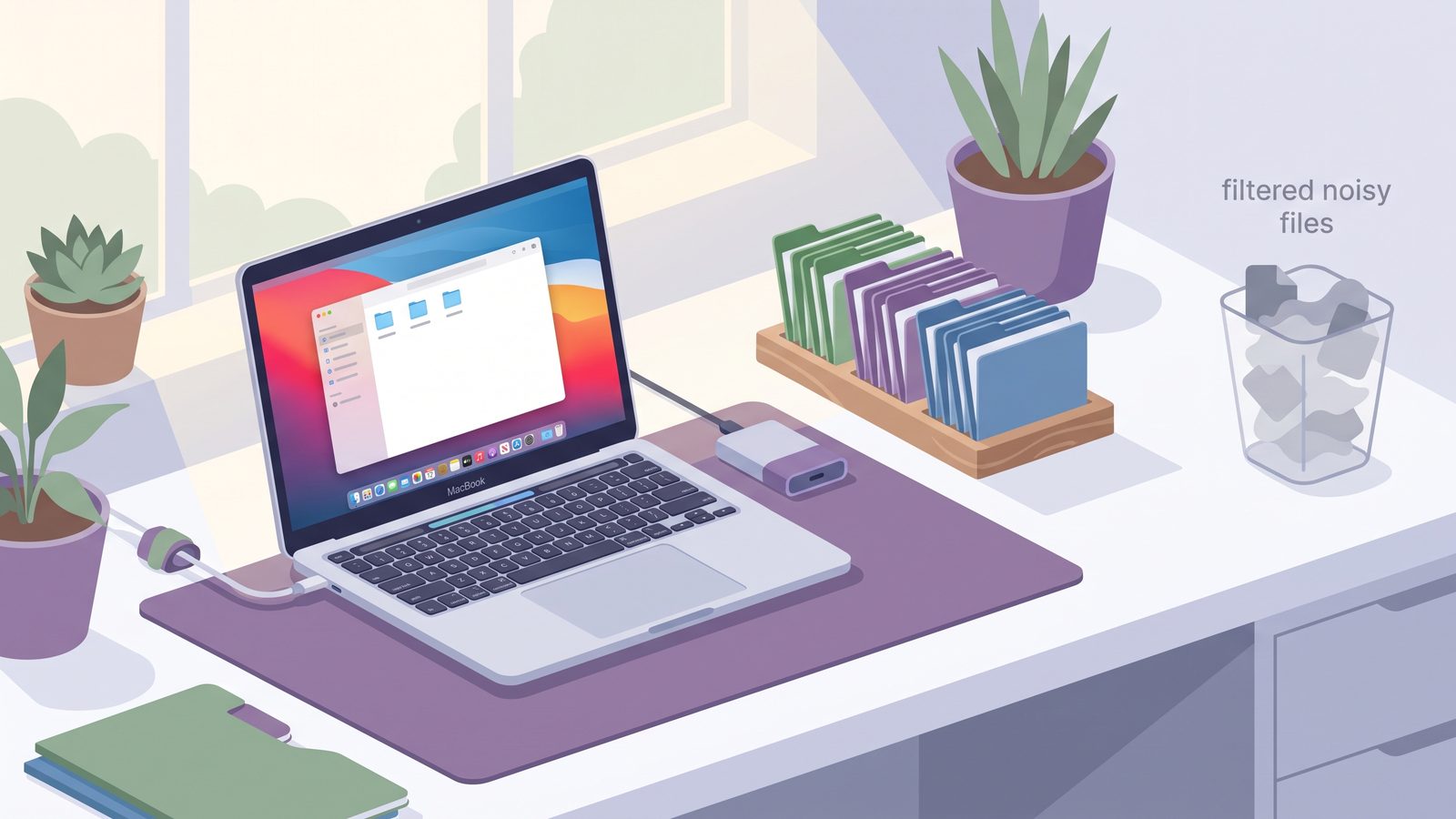
This is where Lsyncer fits naturally for Mac developers. It is a native macOS folder sync app built around the exact folders that make generic sync painful: node_modules/, .git/, virtual environments, build output, and caches. You choose source and destination folders, set exclusion rules, and run scheduled syncs with visible status. For an external SSD workflow, that means you can keep a clean project copy on the drive without asking iCloud Drive, Finder, or an ad hoc shell script to understand your stack.
Lsyncer is not a replacement for Git, Time Machine, or offsite backups. Think of it as a controlled project-folder mirror: useful when you want a local external-drive copy of active work, but you do not want dependency folders to dominate the backup.
What to exclude when syncing development folders to an external drive
The right exclude list depends on the stack, but the principle is stable: keep human-authored source and project manifests; skip generated or reinstallable artifacts.
- Node.js: usually skip
node_modules/,.next/cache/,dist/,build/,coverage/,.turbo/, and package-manager caches. Keeppackage.jsonand lockfiles. - Python: usually skip
venv/,.venv/,__pycache__/,.pytest_cache/,.mypy_cache/, and build artifacts. Keeppyproject.toml,requirements.txt, lockfiles, source, and migrations. - Ruby: usually skip
vendor/bundle/,tmp/,log/, and generated assets. KeepGemfile,Gemfile.lock, app code, config, and database migrations. - General macOS: skip
.DS_Storeand transient editor state unless you have a reason to preserve it.
Be cautious with .env files. They may be needed for restore context, but they often contain secrets. For many teams, the better pattern is to back up .env.example, password-manager entries, and infrastructure secrets separately rather than putting real credentials on a portable drive.
External drive format and path checks before you sync
Before trusting an external-drive backup, check the filesystem format. APFS is usually the best choice for a Mac-only SSD because it handles modern macOS metadata well. exFAT is convenient for cross-platform drives, but it does not preserve every macOS metadata detail and may behave differently around permissions and special files. If the drive is for developer backups only and you do not need Windows write access, APFS is usually cleaner.
Also verify the mount path every time you automate. macOS mounts drives under /Volumes/DriveName. If a stale mount folder exists, the real drive may mount as /Volumes/DriveName 1. A script pointed at the wrong path may copy into the internal disk instead of the external drive. Before running a destructive mirror, confirm the destination exists and has the expected free space:
df -h /Volumes/BackupSSD
ls /Volumes/BackupSSD/Projects
If you use --delete, consider writing a small guard in your script that exits unless the destination path is mounted. A mirror command should fail closed when the drive is absent.
Restore-test your external-drive project backup
A backup is not proven until you restore it somewhere else. For a developer folder, the test does not have to be complicated. Copy the external-drive backup to a temporary local path, install dependencies, run the test suite, and start the app.
mkdir -p ~/RestoreTest
rsync -avh /Volumes/BackupSSD/Projects/my-app/ ~/RestoreTest/my-app/
cd ~/RestoreTest/my-app
npm ci
npm test
If that works, your backup contains the important parts. If it fails because a generated folder was missing, ask whether the folder is actually generated or whether your project has undocumented local state. The restore test is valuable because it exposes hidden assumptions while you still have the original machine.
Related reading
- Mac auto backup folder — set up recurring project backups that skip generated folders automatically.
- Mac sync two folders — compare Finder,
ditto,rsync, and filtered sync for local mirrors. - Backup tool for Mac developers — choose the right recovery layer before deciding where an external-drive sync belongs.
- Rsync dry run on Mac — preview copy and delete behavior before touching your backup drive.
- Mirror folder Mac — decide when an external-drive copy should be a strict mirror and what generated files to exclude.
- Mac NAS backup solution — move clean project backups from a Mac to NAS storage without copying dependency churn.
FAQ
What is the best way to sync a folder to an external hard drive on Mac?
For a small one-time copy, Finder is enough. For repeatable developer backups, use rsync with a dry run and exclude rules, or use a Mac GUI sync tool that supports exclusions, logs, and schedules. The key is to skip generated folders such as node_modules/, caches, and build output.
Should I copy node_modules to an external drive?
Usually no. Back up package.json and your lockfile instead, then recreate dependencies with npm ci, pnpm install --frozen-lockfile, or the package-manager command your project uses. Copying node_modules/ makes sync slower and can preserve stale platform-specific state.
Should I include .git in an external-drive project backup?
It depends. Include .git/ if you need unpushed commits, local branches, hooks, or exact repository state. Skip it if your Git remote is the source of truth and you only need a working-tree backup. Do not sync while Git is actively rebasing, merging, or writing lock files.
Is APFS better than exFAT for Mac developer backups?
For Mac-only external SSDs, APFS is usually better because it handles macOS metadata and permissions more naturally. exFAT is useful when you need Windows compatibility, but it is less ideal for preserving Mac-specific file behavior.
Can I schedule external-drive folder syncs?
Yes. You can schedule a shell script with launchd, run a manual rsync command when the drive is connected, or use a GUI app such as Lsyncer to manage schedules, exclusions, and run status without maintaining scripts.