

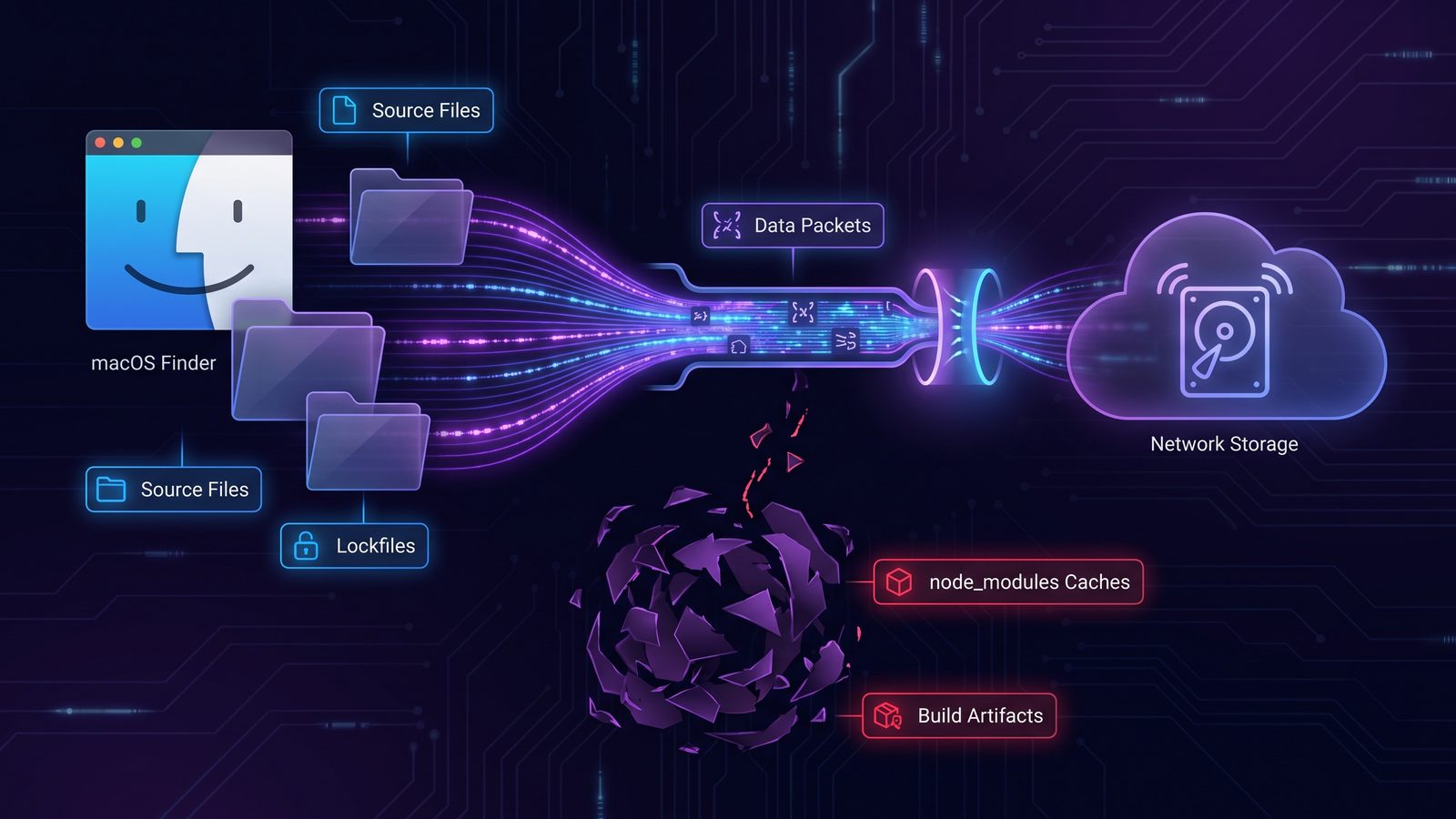
A Mac NAS backup solution works well for developer projects only when it treats code folders differently from photos and documents. A NAS is a great destination for a MacBook or desktop Mac, but blindly copying node_modules/, .venv/, .git/, build output, package caches, and local test artifacts can turn a useful backup into a slow network file-count problem.
Mac NAS backup solution for developer projects: back up the rebuildable parts correctly
The point of a NAS backup is not to move the largest number of files. The point is to recover work confidently. For a developer, that usually means source code, lockfiles, configuration, migrations, documentation, scripts, small fixtures, and recovery notes. It does not usually mean copying every generated dependency tree across the network after each install.
This distinction matters because NAS backups are often slower than local SSD copies at the exact workload that developer folders produce: many small files, frequent metadata changes, and repeated scans. A single JavaScript project can contain tens of thousands of filesystem entries under node_modules/. A Python workspace can add .venv/, __pycache__/, .pytest_cache/, wheel caches, and test output. Xcode, Rust, Java, Ruby, and frontend build tools add their own generated directories.
If you are choosing a Mac NAS backup solution for active development work, judge it by the restore path. Can you copy the project back to a clean folder, run npm ci, uv sync, bundle install, or your normal bootstrap command, and get back to work? If yes, the backup is useful. If the backup is huge but full of stale caches, it may be worse than a smaller, cleaner copy.
Why NAS backups get slow with node_modules, venv, and build folders
NAS storage is network storage. Even on a good wired LAN, every comparison and write has more latency than a local APFS volume. That latency is not a big deal when you copy a few large videos or disk images. It becomes visible when a backup tool walks hundreds of thousands of tiny files and asks the NAS to create directories, update metadata, check timestamps, delete stale files, and handle file locks.
Developer folders multiply that cost. Package managers write many files quickly. Build systems rewrite caches. Test runners create coverage reports. Language servers update indexes. Git writes lock files while it packs objects or changes refs. If your backup process runs while those tools are active, it may copy half-written generated state or spend most of its time comparing folders you never needed to recover.
Cloud sync clients make the problem worse when they sit in the middle. A common setup is: work inside iCloud Drive, Dropbox, Google Drive, or OneDrive, then also back up to a NAS. That means a dependency install can trigger local file events, cloud upload queues, Spotlight scans, security tooling, and the NAS backup job. The Mac feels slow even though the source code itself is small.
Option 1: Time Machine to a NAS for whole-Mac recovery
Time Machine can back up to supported network destinations, including many NAS devices configured for SMB Time Machine shares. It is a good safety layer for recovering a Mac, a user account, documents, and app state. If your NAS supports Time Machine properly and the connection is stable, it is worth using.
For active developer projects, Time Machine is not the only layer you need. It is versioned and convenient, but it does not give the same intentional filtered project copy that you might want for a clean restore. It may include generated folders unless you exclude them. It may also spend time preparing or scanning when large dependency trees change frequently.
You can exclude noisy folders in Time Machine settings, but managing exclusions at the level of every node_modules/ or .venv/ inside a changing ~/Developer tree is clumsy. Use Time Machine for broad Mac recovery. Use a second, filtered project workflow when you want clean code backups on the NAS.
Option 2: rsync from Mac to NAS with exclusions
rsync is the baseline tool for a repeatable Mac-to-NAS project backup. It can preview changes, mirror deletes, preserve useful metadata, and skip generated directories. The safest workflow starts with a mounted NAS share, a trailing slash on the source path, and a dry run.
rsync -avhn --delete \
  --exclude 'node_modules/' \
  --exclude '.venv/' \
  --exclude 'venv/' \
  --exclude '.next/cache/' \
  --exclude 'dist/' \
  --exclude 'build/' \
  --exclude 'coverage/' \
  ~/Developer/my-app/ \
  /Volumes/DevNAS/Projects/my-app/
The n in -avhn means dry run. Keep it there until the output makes sense. Look for unexpected deletes, nested destination paths, and folders that should have been excluded. Only then run the real copy by removing n:
rsync -avh --delete \
  --exclude 'node_modules/' \
  --exclude '.venv/' \
  --exclude 'venv/' \
  --exclude '.next/cache/' \
  --exclude 'dist/' \
  --exclude 'build/' \
  --exclude 'coverage/' \
  ~/Developer/my-app/ \
  /Volumes/DevNAS/Projects/my-app/
For repeated use, move the rules to an exclude file:
node_modules/
.pnpm-store/
.yarn/cache/
.venv/
venv/
__pycache__/
.pytest_cache/
vendor/bundle/
.bundle/
.next/cache/
.nuxt/
.svelte-kit/
.turbo/
dist/
build/
coverage/
DerivedData/
.gradle/
target/
.DS_Store
Then call it with --exclude-from:
rsync -avhn --delete \
  --exclude-from="$HOME/Developer/.nas-backup-excludes" \
  ~/Developer/my-app/ \
  /Volumes/DevNAS/Projects/my-app/
Be careful with .git/. If you need unpushed commits, local branches, hooks, and reflogs recovered exactly, include it or maintain a separate bare mirror. If the Git remote is authoritative and the NAS copy is only a working-tree restore, excluding .git/ can make the backup smaller and calmer. The important part is deciding intentionally, not accepting a default blindly.
Option 3: Synology Drive, QNAP, or NAS vendor sync clients
NAS vendors often provide Mac clients for folder sync. They are convenient when you want a Dropbox-like experience backed by your own storage. The tradeoff is that real-time bidirectional sync can repeat the same mistake as cloud drives: it watches a hot development folder and tries to react to every generated file.
If you use a NAS vendor client, check three things before pointing it at ~/Developer:
- Selective sync or ignore rules: confirm that
node_modules/, virtual environments, caches, build output, and OS metadata can be skipped. - Conflict behavior: know what happens if two Macs change the same generated file or if one machine deletes a folder while another is offline.
- Status visibility: make sure failures, permission errors, and skipped files are visible enough that you will notice them.
Vendor sync clients are strongest for documents, shared team folders, and relatively stable project assets. For active code, a scheduled filtered backup is often less surprising than real-time bidirectional sync.
Option 4: filtered GUI sync for Mac-to-NAS project backups
A shell command is powerful, but not everyone wants to maintain scripts for every project, NAS mount, and schedule. A filtered GUI sync tool can be the better Mac NAS backup solution when you want reviewed exclusions, saved jobs, visible status, and scheduled runs without building your own launchd setup.
The feature checklist is straightforward: source and destination folders must be obvious; exclusions must be easy to inspect; logs must show what ran; failures must be visible; and destructive mirroring should never happen without confidence in the direction and rules. Developer backups should be boring enough to trust.

This is where Lsyncer fits naturally. Lsyncer is a native macOS folder sync app built for developer projects: it can skip node_modules/, .git/, virtual environments, build output, and caches while syncing the folders you choose. For a NAS workflow, you can mount the NAS share in Finder, set it as the destination, define project-friendly exclusions, and run the sync manually or on a schedule with visible status.
Lsyncer is not a replacement for Git, Time Machine, or offsite backup. It is the clean project-folder layer. Keep source history in Git, keep a broad recovery layer for the Mac, and use Lsyncer when you want a filtered copy of active work on a NAS without another subscription. The app is a one-time $19.99 Mac App Store purchase.
NAS backup checklist for Mac developers
- Use wired networking for first backups when possible. Initial project copies and large history imports are less painful over Ethernet than spotty Wi-Fi.
- Mount the NAS share predictably. Confirm paths such as
/Volumes/DevNASbefore any job that can delete destination files. - Keep active projects local. Work from
~/Developeror~/Code, not directly inside a cloud-synced folder or a live NAS mount. - Filter generated directories. Start with
node_modules/,.venv/,dist/,build/,coverage/, framework caches, and package-manager caches. - Handle secrets deliberately. Real
.envfiles, private keys, database dumps, and customer data may need encrypted storage or a separate policy. - Restore-test the backup. Copy the NAS version to a scratch folder, reinstall dependencies from lockfiles, and run tests before trusting the workflow.
mkdir -p ~/RestoreTest
rsync -avh /Volumes/DevNAS/Projects/my-app/ ~/RestoreTest/my-app/
cd ~/RestoreTest/my-app
npm ci
npm test
If the restore test fails because a generated folder is missing, check whether that folder is truly generated or whether your project has undocumented local state. The backup process is doing its job when it exposes assumptions early.
Related reading
- Synology Drive Client Mac — a focused guide to keeping NAS sync useful without copying
node_modules, caches, and build output. - Sync Folder to External Hard Drive Mac — the same filtered-project principle applied to local SSD backups.
- Mac sync folders local shared network — adapt filtered project copies to SMB shares, office servers, and local LAN destinations.
- Backup Tool for Mac Developers — how to layer Git, Time Machine, and filtered folder sync.
FAQ
What is the best Mac NAS backup solution for developers?
The best setup is usually layered: Git for source history, Time Machine or another broad backup for the Mac, and a filtered folder sync to the NAS for clean project copies. The filtered layer should skip generated folders such as node_modules/, .venv/, build output, and caches.
Should I back up node_modules to my NAS?
Usually no. Keep package.json and the lockfile, then rebuild dependencies with npm ci, pnpm install --frozen-lockfile, or the command your project uses. Backing up node_modules/ adds a large number of small files and often makes NAS jobs slower without improving recovery.
Is Time Machine to a NAS enough for code projects?
Time Machine is a good broad recovery layer, but it is not always the cleanest project backup. For active code, add a filtered project sync that preserves source, lockfiles, config, docs, and local recovery notes while skipping generated folders.
Can I use rsync from macOS to a NAS?
Yes. Mount the NAS share, run an rsync -avhn --delete dry run first, use explicit source and destination paths, and add --exclude or --exclude-from rules for generated directories. Remove the n only after the preview is correct.
Should I work directly from a NAS share on Mac?
For most development work, no. Keep active projects on the local SSD for speed and tool compatibility, then back them up or sync filtered copies to the NAS. Working directly from network storage can make package installs, watchers, and build tools noticeably slower.