

A backup tool for Mac can be excellent for photos, documents, and whole-disk recovery while still being the wrong shape for an active developer workspace. Code folders are different: they mix small source files with huge generated trees such as node_modules, .venv, vendor/bundle, .git, DerivedData, dist, and framework caches. If your backup app copies all of that blindly, the backup gets slower, cloud sync gets noisier, and restore becomes harder to trust.
Backup tool for Mac developers: choose the tool by restore job
The right question is not “which Mac backup tool copies everything?” It is “what do I need to restore, and how quickly can I prove that it works?” A developer usually needs several recovery layers, not one giant mirror of every byte.
- System recovery: your Mac, apps, settings, and user data after a disk failure or lost machine.
- Source history: Git remotes, branches, tags, pull requests, and review context.
- Project recovery: source files, lockfiles, config, migrations, docs, scripts, small fixtures, and local notes.
- Local-only state: secrets, sample databases, uploads, and test fixtures that may not belong in Git or a cloud folder.
No single tool handles those layers equally well. Time Machine is good for broad Mac recovery. Git is the source-of-truth layer for most code. Cloud drives are useful for availability, but they are poor places to run active dependency installs. rsync is flexible, but easy to misconfigure. GUI sync tools are easier to schedule and inspect, but only if they support exclusions that match real development folders.
Why normal Mac backup tools struggle with code folders
Most Mac backup tools are designed around documents, media libraries, application data, and full-volume recovery. Those workloads have plenty of large files and relatively stable directory trees. Developer projects behave differently. A small web app can contain a few hundred files you care about and tens of thousands of files your package manager generated. A monorepo can push that into hundreds of thousands of filesystem entries once caches, test output, generated clients, and language-server indexes are included.
The expensive part is not only size. It is file count and churn. Every tiny file requires directory traversal, metadata reads, permissions checks, possible writes, delete decisions, and sometimes extended attribute handling. On macOS, that work can collide with Spotlight, antivirus or enterprise security tools, File Provider clients, and external-drive metadata translation. If the destination is inside iCloud Drive, Dropbox, Google Drive, or OneDrive, the cloud client then queues its own pass over the copied files.
That is why a project folder can make your Mac feel slow even when the source code itself is small. Copying a 2 GB video is mostly a streaming operation. Copying a 700 MB dependency tree may be tens of thousands of tiny operations, and each changed file can wake another watcher.

What to look for in a backup tool for Mac development
When you evaluate a backup tool for Mac developer work, judge it by the restore path. A tool that makes a beautiful copy of a broken folder is not helping. Look for these capabilities before trusting it with code projects.
1. Folder exclusions that are easy to review
Exclusions should be visible, predictable, and boring. At minimum, a developer backup workflow should be able to skip common generated directories:
node_modules/
.venv/
venv/
__pycache__/
.pytest_cache/
vendor/bundle/
.bundle/
dist/
build/
.next/cache/
.nuxt/
.svelte-kit/
.turbo/
coverage/
DerivedData/
.gradle/
target/
.DS_Store
Be careful with .git/. If your remote repository is the source of truth and the backup only needs a clean working tree, excluding .git/ is often fine. If you need unpushed commits, local branches, hooks, reflogs, or a full offline clone, include it or make a separate Git-aware backup. Do not copy an active repository while Git is rebasing, merging, or writing lock files.
2. Dry runs or previewable changes
Any tool that can delete destination files should let you preview. With rsync, that means a dry run such as rsync -avhn --delete source/ destination/. With a GUI app, it means clear logs, visible source and destination paths, and enough status detail to catch a backwards copy before it damages the destination.
3. Scheduling without hiding failures
Scheduled backups are useful only if failures are visible. A cron job or launchd script that silently fails for three weeks is worse than a manual command you run carefully. Look for notifications, last-run timestamps, and logs that show skipped files, errors, and whether the destination was actually available.
4. A restore test that matches the project
Developer backups should be tested by rebuilding, not by eyeballing folder size. Copy the backup to a scratch directory and run the project’s normal setup commands:
mkdir -p ~/RestoreTest
cp -R /Volumes/Backup/Projects/my-app ~/RestoreTest/my-app
cd ~/RestoreTest/my-app
npm ci
npm test
For Python, recreate the environment with python -m venv .venv and pip install -r requirements.txt, uv sync, or your team’s equivalent. For Ruby, run bundle install. For Xcode projects, make sure the source, project files, package manifests, and signing/config notes are present, then let Xcode recreate DerivedData.
Backup tool options on Mac for code projects
Good fits
- Time Machine: broad Mac recovery, versioned snapshots, and safety net for normal user data.
- Git remotes: source history, collaboration, review context, and portable recovery for committed work.
rsyncwith excludes: flexible filtered mirrors for external drives, NAS paths, or clean cloud destinations.- Filtered GUI sync: repeatable project-folder backups with schedules, visible status, and reviewed exclusions.
Risky defaults
- Developing inside iCloud Drive: dependency installs can queue thousands of file-provider events.
- Whole-folder cloud sync: generated output gets uploaded even when it can be rebuilt.
- Unreviewed delete mirroring: a wrong source/destination or broad delete rule can remove useful backup state.
- Backing up only
.git: local secrets, sample data, docs, and untracked recovery notes may be missed.
For many developers, the stable setup is layered: keep active work in ~/Developer or ~/Code, push source history to a Git remote, let Time Machine protect the Mac broadly, and sync a filtered copy of important project folders to an external drive or cloud-backed destination. That avoids asking iCloud or another cloud client to watch every dependency install in real time.
A practical filtered backup workflow
- Move active projects out of cloud folders. Work from
~/Developer,~/Code, or another local-only path. This keeps package-manager churn away from File Provider clients. - Classify each project. Decide whether it needs Git-only recovery, a working-tree backup, local data backup, or a full archive.
- Create a shared exclude policy. Start with generated folders, then add stack-specific rules after a dry run.
- Pick a destination. External SSDs are good for fast local recovery. A cloud destination is fine for availability if it receives a filtered copy rather than the active workspace.
- Run a preview. Check file counts, deletes, and skipped directories before the first real copy.
- Restore-test. Rebuild the project from the backup in a scratch location and fix the policy before you trust it.
A command-line version can be as simple as this:
cat > ~/Developer/.dev-backup-excludes <<'EOF'
node_modules/
.venv/
venv/
__pycache__/
.pytest_cache/
vendor/bundle/
dist/
build/
.next/cache/
.turbo/
coverage/
DerivedData/
.DS_Store
EOF

rsync -avhn --delete \
  --exclude-from="$HOME/Developer/.dev-backup-excludes" \
  ~/Developer/my-app/ /Volumes/DevBackup/my-app/
Keep -n until the output looks right. Remove the n only for the real run. If the destination is a cloud folder, let rsync filter first so the cloud client sees a smaller, calmer tree.
Where Lsyncer fits
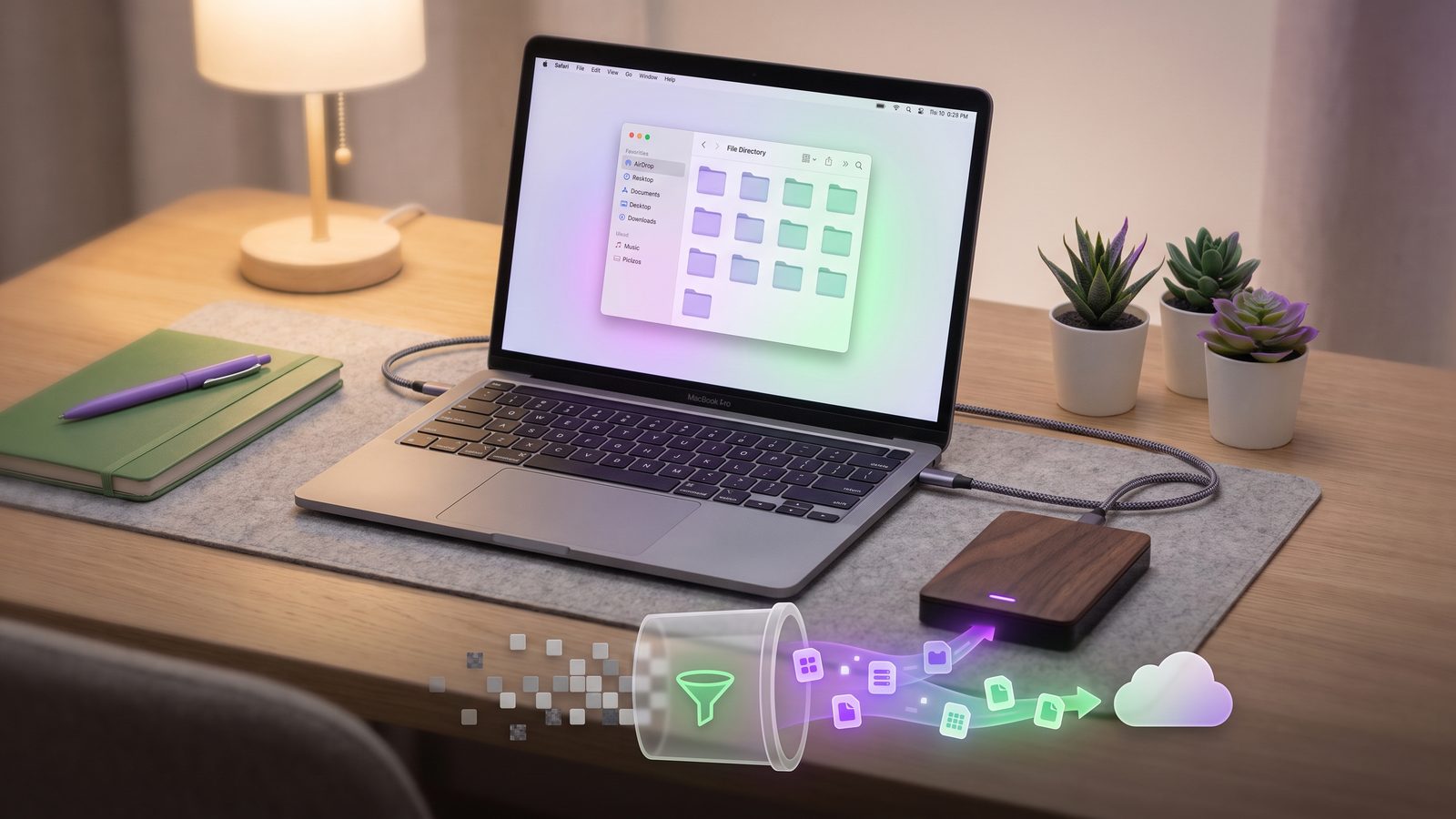
Lsyncer is useful when you want the filtered-sync part of this workflow without maintaining shell scripts. It is a native macOS app for syncing selected folders with developer-friendly exclusions, schedules, run status, and visible logs. The common pattern is to keep active projects local, then use Lsyncer to sync a clean copy to an external drive, another local folder, or a cloud-backed destination while skipping node_modules, .git, virtual environments, build output, and caches.
It does not replace Git. It does not replace a full Mac recovery plan. It is the project-folder layer: the part that keeps source and restore material available without forcing a generic cloud client to ingest every disposable file your tools generate. Lsyncer is a one-time $19.99 Mac App Store purchase, so it also fits teams and solo developers who dislike adding another subscription for a local workflow.
Best practices for Mac developer backups
- Keep source history in Git and push often. Folder sync should not be your only record of code changes.
- Keep active work local. Avoid running
npm install,pnpm install,bundle install, or Python environment creation directly inside iCloud Drive. - Back up lockfiles and manifests.
package-lock.json,pnpm-lock.yaml,yarn.lock,requirements.txt,uv.lock,Gemfile.lock, and project config often matter more than generated folders. - Review secrets separately. A backup destination is not automatically safe for
.env, private keys, local databases, or customer data. - Prefer boring restore tests. A recovery workflow is healthy when rebuilding from the backup feels uneventful.
- Document exceptions. If a generated folder must be included, write down why so future you does not “clean it up” and break recovery.
Related reading
- Mac auto backup folder — automate clean project backups without preserving dependency and cache churn.
- Backup Node.js project on Mac — a focused guide to clean Node.js backups without copying
node_modules. - rsync exclude-from Mac — build a reusable exclude file for developer backups.
- Sync folder to external hard drive on Mac — keep a filtered SSD copy of project folders.
- Mac NAS backup solution — apply the same filtered-backup workflow to network storage.
FAQ
What is the best backup tool for Mac developers?
The best setup is usually layered: Git for source history, Time Machine or another Mac backup tool for broad recovery, and a filtered folder sync tool for clean project copies. If the project contains node_modules, .venv, caches, or build output, choose a workflow that supports visible exclusions and restore testing.
Should a Mac backup include node_modules?
Usually no. Back up package.json, the lockfile, source files, tests, config, and docs. Recreate dependencies with npm ci, pnpm install --frozen-lockfile, or your project’s package-manager command after restore. Include node_modules only for a deliberate offline archive.
Is Time Machine enough for developer projects?
Time Machine is a useful safety net, but it is broad rather than project-specific. Keep using it for Mac recovery, then add Git and filtered folder sync for code projects where restore needs to be clean, reviewable, and free of generated dependency churn.
Should I back up the .git directory?
Back up .git when you need a full offline repository with local branches, hooks, reflogs, or unpushed commits. Skip it for a clean working-tree backup when the remote Git server is the source of truth. Make this a policy decision instead of an accidental default.
Can I use iCloud Drive as a Mac developer backup destination?
Yes, but avoid developing directly inside iCloud Drive. Keep active repositories in a local-only folder, then sync a filtered copy into iCloud that excludes dependency folders, virtual environments, build output, and caches. This gives iCloud fewer small files to index and upload.