

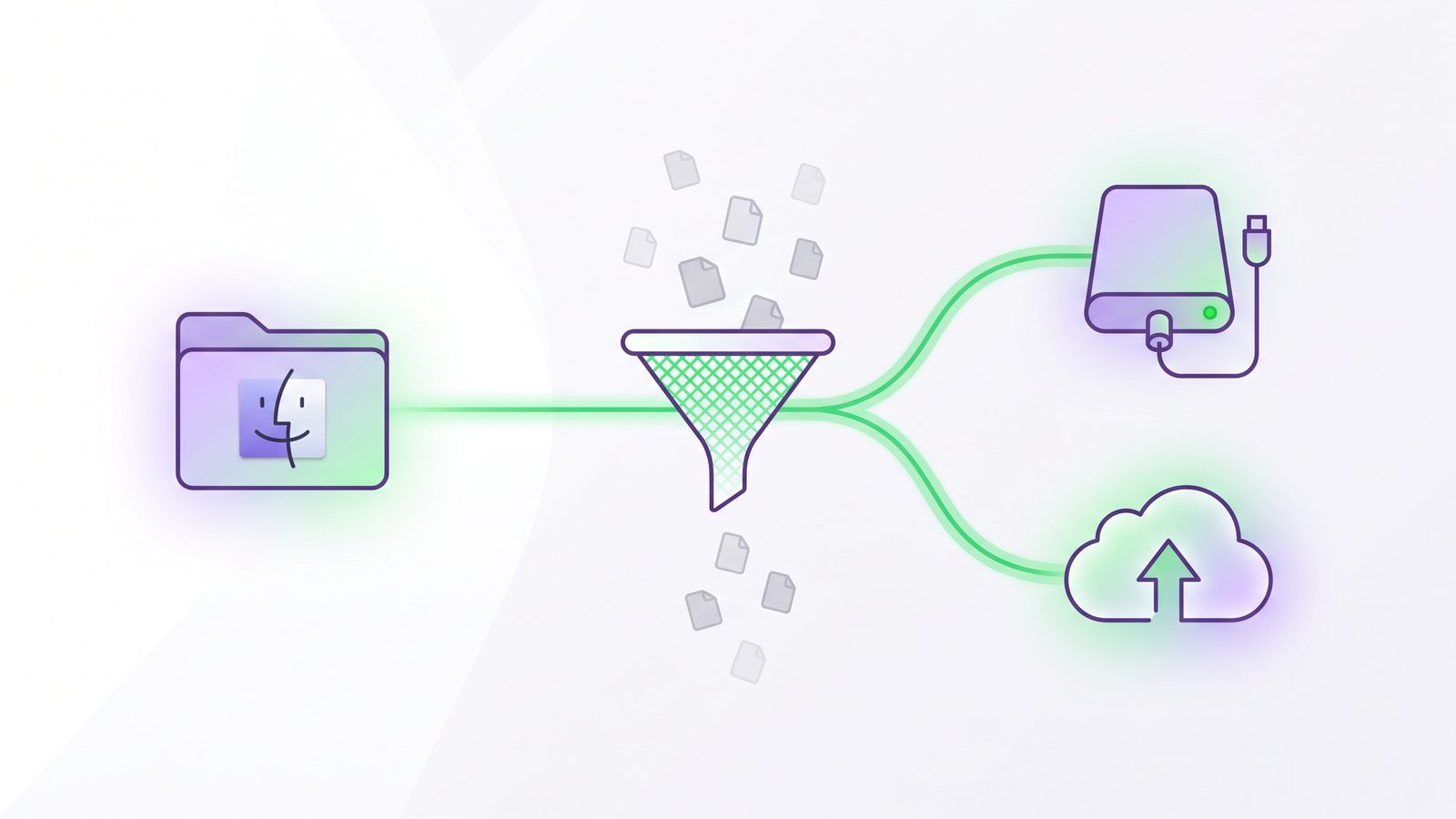
one way folder sync Mac is the workflow you want when one folder is the source of truth and another folder should receive a clean copy. For developers, that usually means syncing from ~/Developer to an external SSD, NAS share, cloud folder, or second Mac without copying node_modules/, virtual environments, build output, caches, and other files your tools can recreate.
one way folder sync Mac: the safe developer workflow
A one-way sync is simpler than a two-way sync because changes flow in one direction: source to destination. The destination is a backup, mirror, handoff folder, or staging area. It should not push edits back into the source. That makes it a good fit for project backups, external-drive copies, NAS folders, and cloud destinations where you want a readable copy but do not want conflict resolution in the middle of your development day.
The catch is that “one way” does not automatically mean “safe.” A blind one-way copy can still waste time scanning generated files, upload thousands of dependency files into iCloud Drive or Dropbox, overwrite a useful destination, or preserve stale build output that makes restores confusing. The rule is simple: sync the project inputs, not every byte the project produced.
Why one-way sync fits code folders better than two-way sync
Two-way sync has its place: keeping documents aligned between two machines, editing the same notes from multiple locations, or reconciling a shared folder where either side can change. Code projects are less forgiving. Git already handles collaboration, history, merges, and branches. A file sync tool should not also be trying to merge dependency churn, editor temp files, package-manager caches, and generated assets from two different machines.
One-way sync gives you a narrower contract:
- The source is where you work. Keep active repositories in a local path such as
~/Developer,~/Code, or a project workspace outside iCloud Drive. - The destination is a copy. It can be an external drive, NAS mount, cloud-backed folder, or another local folder.
- The sync policy is repeatable. The same excludes should apply every run, instead of relying on memory when dragging folders in Finder.
- Restores are explicit. If you need the destination later, copy it back or clone from Git, then rebuild dependencies with the package manager.
For developer workflows, that is usually exactly what you want. Git protects history. Time Machine protects the broader Mac. A filtered one-way folder sync gives you a clean project copy that is easy to inspect and fast to move.
Method 1: use rsync for one-way folder sync on Mac
rsync is the built-in tool most Mac developers should understand, even if they eventually prefer a GUI. It is fast after the first run, supports dry runs, and gives precise exclusion rules. Start with a preview. The trailing slash on the source means “copy the contents of this folder into the destination.”
mkdir -p /Volumes/DevBackup/my-app

rsync -avnih \
  ~/Developer/my-app/ \
  /Volumes/DevBackup/my-app/
The flags are worth spelling out:
-aenables archive behavior: recursive copy, timestamps, permissions, symlinks, and similar metadata.-vprints progress details.-nis dry run. Nothing changes yet.-ishows itemized changes so you can see what would copy or update.-hmakes sizes readable.
For a recurring one-way mirror, add --delete only when you want the destination to remove files that no longer exist in the source. That is useful for clean backups, but it deserves a dry run every time you change the source or destination path:
rsync -avnih --delete \
  ~/Developer/my-app/ \
  /Volumes/DevBackup/my-app/
If the preview looks right, remove the n from -avnih. If the delete list surprises you, stop and fix the path before running the real sync.

Method 2: add developer exclusions before the first real sync
Without exclusions, rsync will faithfully inspect the messy parts of your project. That may still be “correct,” but it is rarely what you want. Build a small exclude file and reuse it across project backup jobs:
cat > ~/.developer-one-way-sync-excludes <<'EOF'
node_modules/
.pnpm-store/
.yarn/cache/
.next/cache/
.nuxt/
.turbo/
.vite/
dist/
build/
coverage/
.git/
.venv/
venv/
__pycache__/
.pytest_cache/
.mypy_cache/
vendor/bundle/
tmp/
log/
target/
.gradle/
.DS_Store
EOF
Then preview the filtered sync:
rsync -avnih --delete \
  --exclude-from="$HOME/.developer-one-way-sync-excludes" \
  ~/Developer/my-app/ \
  /Volumes/DevBackup/my-app/
Those defaults are conservative for typical Node.js, Python, Ruby, frontend, Rust, and JVM projects. Adjust them per stack. A generated dist/ folder may be disposable in an app repository, but important in a static site deployment artifact. A .git/ folder is usually better protected by remotes or mirrors than by ordinary file sync, but some local backup policies may intentionally include it. The point is to make the decision explicit instead of accidentally syncing whatever happens to exist today.
Method 3: choose the right destination
The destination changes the risk profile of a one-way sync.
External SSD or local disk
Fast, simple, and good for weekly or daily project snapshots. The risk is forgetting to plug it in or assuming a copy happened when it did not.
NAS or SMB share
Useful for home-office backups and local network handoff. Watch for interrupted mounts, partial copies, and filename issues between systems.
Cloud-backed folder
Convenient when you want off-device availability, but never keep the active project there. Sync a filtered copy into iCloud Drive, Dropbox, Google Drive, or OneDrive instead.
Second Mac folder
Good for a desktop-to-laptop handoff when one machine is clearly primary. If both machines edit the project, use Git for source changes and avoid pretending folder sync is merge control.
For iCloud specifically, the clean pattern is to develop locally and sync a filtered copy into iCloud Drive only after generated folders are removed from the job. That keeps iCloud from indexing tens of thousands of tiny package files and makes upload queues easier to debug. If iCloud is already stuck, read iCloud Stuck on Syncing on Mac before adding more files to the queue.
Method 4: avoid Finder for recurring one-way sync
Finder is fine for a one-off copy of a small folder. It is not a great recurring one-way sync system for code. There is no dry-run output, no saved exclusion policy, no obvious delete behavior, and no durable log that says what happened last night. It also encourages dragging the whole project, including dependency folders you meant to skip.
ditto is another built-in macOS copy tool:
ditto ~/Developer/my-app /Volumes/DevBackup/my-appUse ditto for simple copies where exclusions, dry runs, and delete behavior do not matter. For developer backups, rsync is safer because it lets you preview and filter. For a recurring workflow you want to run on a schedule, a dedicated sync app can be less fragile than a shell command living in your notes.
Where LSyncer fits
LSyncer is useful when you want the one-way folder sync Mac workflow without maintaining another script. It is a native macOS app built around developer folders: choose a source, choose a destination, exclude node_modules/, .git/, virtual environments, caches, and build output, then run the job manually or on a schedule. It is local-first, does not require an account, and costs $19.99 once instead of adding another subscription.
The important part is not that every developer needs an app for this. Many teams are perfectly happy with rsync. The value of a GUI is visible status and repeatability: you can see when the last sync ran, whether it failed, and which rules are attached to the job. That matters when the destination is an external drive you only plug in sometimes, a NAS share that may disconnect, or a cloud folder that should receive a clean copy instead of your entire working tree.
Best practices for one-way syncing developer folders
- Keep active projects local. Use
~/Developeror~/Codefor daily work, then sync a filtered copy outward. - Use Git for history. Folder sync is not a replacement for commits, remotes, branches, or code review.
- Keep lockfiles. Sync
package-lock.json,pnpm-lock.yaml,yarn.lock,poetry.lock,requirements.txt,Gemfile.lock, and equivalent restore contracts. - Skip generated state. Exclude dependency folders, caches, build output, logs, coverage reports, and machine-local virtual environments unless you have a specific reason to preserve them.
- Dry-run destructive jobs. Any sync that deletes destination files should be previewed before the first real run and whenever paths change.
- Restore-test occasionally. Copy the destination to a temporary folder and run the install/test command. A backup is only real after it restores.
Related reading
- Copy Only Changed Files Mac — use incremental copies and exclusions for clean project backups.
- Mirror Folder Mac — decide when the destination should exactly match the source after exclusions.
- Mac Auto Backup Folder — automate recurring project backups without copying dependency junk.
FAQ
What is one-way folder sync on Mac?
One-way folder sync copies changes from a source folder to a destination folder without syncing destination edits back to the source. It is useful for backups, mirrors, handoff folders, and filtered copies into external drives, NAS shares, cloud folders, or another Mac.
Is one-way sync safer than two-way sync for developer projects?
Usually, yes. Developer projects already use Git for source collaboration and conflict handling. One-way sync avoids treating dependency folders, caches, build output, and editor temp files as changes that need to merge back from another location.
Should I include node_modules in a Mac folder sync?
Most of the time, no. Sync package.json and the lockfile, then rebuild node_modules with npm ci, pnpm install --frozen-lockfile, or the package manager your project uses. The dependency folder is large, noisy, and machine-specific enough that it usually makes backups worse.
Can I one-way sync a project into iCloud Drive?
Yes, but keep the active project outside iCloud Drive and sync a filtered copy into iCloud. Exclude node_modules/, virtual environments, caches, and build output so iCloud receives source files and lockfiles instead of a huge stream of disposable tiny files.
What is the best tool for one-way folder sync on Mac?
For command-line users, rsync is the most precise built-in tool because it supports dry runs, exclusions, and delete behavior. For recurring developer backups where visible status and scheduling matter, a Mac sync app with exclusions, such as LSyncer, is easier to maintain.