

Optimize Mac Storage not working is a common diagnosis when iCloud Drive keeps eating disk space, but the setting is often doing exactly what Apple designed: it evicts eligible documents when macOS needs room. Developer folders are different. If your Desktop or Documents folder contains active projects, node_modules, Python virtual environments, build caches, Git objects, and test output can keep getting created, touched, downloaded, indexed, and staged faster than macOS can make them cloud-only.
Optimize Mac Storage not working? Check developer folders before blaming iCloud
For normal documents, Optimize Mac Storage is mostly a background storage policy. For code, it becomes a sync workload problem. A package install can create 80,000 files in a few minutes. A dev server can rewrite cache files every time you save. A branch checkout can change Git metadata, lockfiles, build artifacts, and generated type files. If that project lives in ~/Desktop, ~/Documents, or iCloud Drive itself, macOS has to track those changes before it can safely decide what to evict.
The symptom looks simple: System Settings says iCloud Drive is using too much local storage, Finder still shows files as downloaded, or free space does not return after enabling Optimize Mac Storage. The cause is usually less magical. The folder is active. The files are recent. Some are waiting to upload. Some are being read by tools. Some are rebuildable junk that should never be part of a cloud sync set.
Why Optimize Mac Storage does not free active project files
iCloud Drive is built on file-provider state: local files, cloud placeholders, download state, upload state, metadata, conflict handling, and Finder badges. Optimize Mac Storage can remove local originals only when macOS considers them safe candidates. It is conservative because deleting the wrong local copy before an upload completes would be much worse than using extra disk space.
Developer tools make those safe-candidate decisions hard. npm, pnpm, yarn, pip, uv, Bundler, Xcode, test runners, and framework watchers all create or touch files in bursts. Many of those files are small, nested deeply, and short-lived. iCloud has to record them anyway if they are inside a watched folder.
That is why a project that is only a few hundred megabytes can behave worse than a multi-gigabyte video file. The video is one object. A dependency tree is tens of thousands of file-system events, permissions, timestamps, directory entries, extended attributes, and possible conflicts.

Diagnose iCloud storage before deleting files
Do not start by deleting folders blindly. First separate three cases: iCloud has a general account/network problem, macOS is low on disk, or a specific developer folder is generating more work than iCloud can settle.
1. Check whether projects live under Desktop, Documents, or iCloud Drive
Desktop and Documents look local in Finder, but they may be iCloud-backed. Start with the common locations:
pwd
ls -la ~/Desktop ~/Documents
ls -la ~/Library/Mobile\ Documents/com~apple~CloudDocs 2>/dev/null
If active repositories live in those paths, they are candidates. A project in ~/Developer or ~/Code is usually local-only unless you explicitly put that folder inside a cloud provider.
2. Measure both size and file count
Size tells you how much disk is at stake. File count tells you how hard the sync job is. Run these read-only checks:
du -sh ~/Desktop/* ~/Documents/* 2>/dev/null | sort -h | tail -20
find ~/Desktop ~/Documents -name node_modules -o -name .venv -o -name venv -o -name vendor -o -name .next -o -name .turbo 2>/dev/null
find ~/Documents/my-app -type f | wc -l
If node_modules, .venv, vendor/bundle, .next/cache, .turbo, coverage, dist, or build dominates the file count, Optimize Mac Storage is not the real fix. Those folders should be regenerated locally, not synced as durable data.
3. Find recently modified files
If the same tree keeps changing, iCloud has no quiet window to upload and evict files.
cd ~/Documents/my-app
find . -type f -mmin -15 | head -80
Seeing source files is normal. Seeing mostly caches, coverage output, framework build output, logs, or dependency files means your tools are keeping the sync set hot.
Fix Optimize Mac Storage not working for developer folders
The reliable fix is to stop making iCloud responsible for active build trees. Keep source work local, keep history in Git, and sync a clean copy only when it is useful.
1. Move active repositories to a local-only workspace
Create a workspace outside Desktop, Documents, and iCloud Drive. Many developers use ~/Developer or ~/Code:
mkdir -p ~/Developer
mv ~/Documents/my-app ~/Developer/my-app
cd ~/Developer/my-app
git status --short
Before removing the old location, open the project, run the tests you normally trust, and confirm Git status is expected. If the project is not in Git, copy it first and verify the copy before deleting anything from iCloud-backed folders.
2. Remove rebuildable folders after the source is safe
Once the project is local-only and source files are safe, remove generated folders that do not belong in a backup:
cd ~/Developer/my-app
rm -rf node_modules .next/cache .turbo coverage dist build
npm ci
Use the right reinstall command for the stack: pnpm install --frozen-lockfile, yarn install --immutable, uv sync, pip install -r requirements.txt, or bundle install. The point is not “delete dependencies forever.” It is “do not ask iCloud to preserve files your package manager can recreate.”
3. Turn off Desktop & Documents sync if it keeps catching projects
If you keep accidentally developing under Desktop or Documents, consider turning off that broad iCloud feature. The path varies by macOS release, but it is generally System Settings → Apple Account → iCloud → iCloud Drive → Desktop & Documents Folders.
Read the prompts. macOS may move local copies into archive folders when you disable the feature. Verify where every project lives before deleting the iCloud copy. If you only need one folder excluded, use the more targeted approaches in the guide to stop iCloud syncing certain folders.
4. Sync a filtered copy back to iCloud, not the working tree
You may still want iCloud to hold a copy of the project. That is fine. Just make it a clean copy, not the active working directory. With rsync, start with a dry run:
rsync -avh --delete --dry-run \
  --exclude 'node_modules/' \
  --exclude '.git/' \
  --exclude '.venv/' \
  --exclude 'venv/' \
  --exclude 'vendor/bundle/' \
  --exclude '.next/cache/' \
  --exclude '.turbo/' \
  --exclude 'coverage/' \
  --exclude 'dist/' \
  --exclude 'build/' \
  ~/Developer/my-app/ \
  ~/Library/Mobile\ Documents/com~apple~CloudDocs/Project-Backups/my-app/
Review the output before removing --dry-run. Be especially careful with --delete; it makes the destination match the source, which is useful for mirrors and dangerous when the source path is wrong.
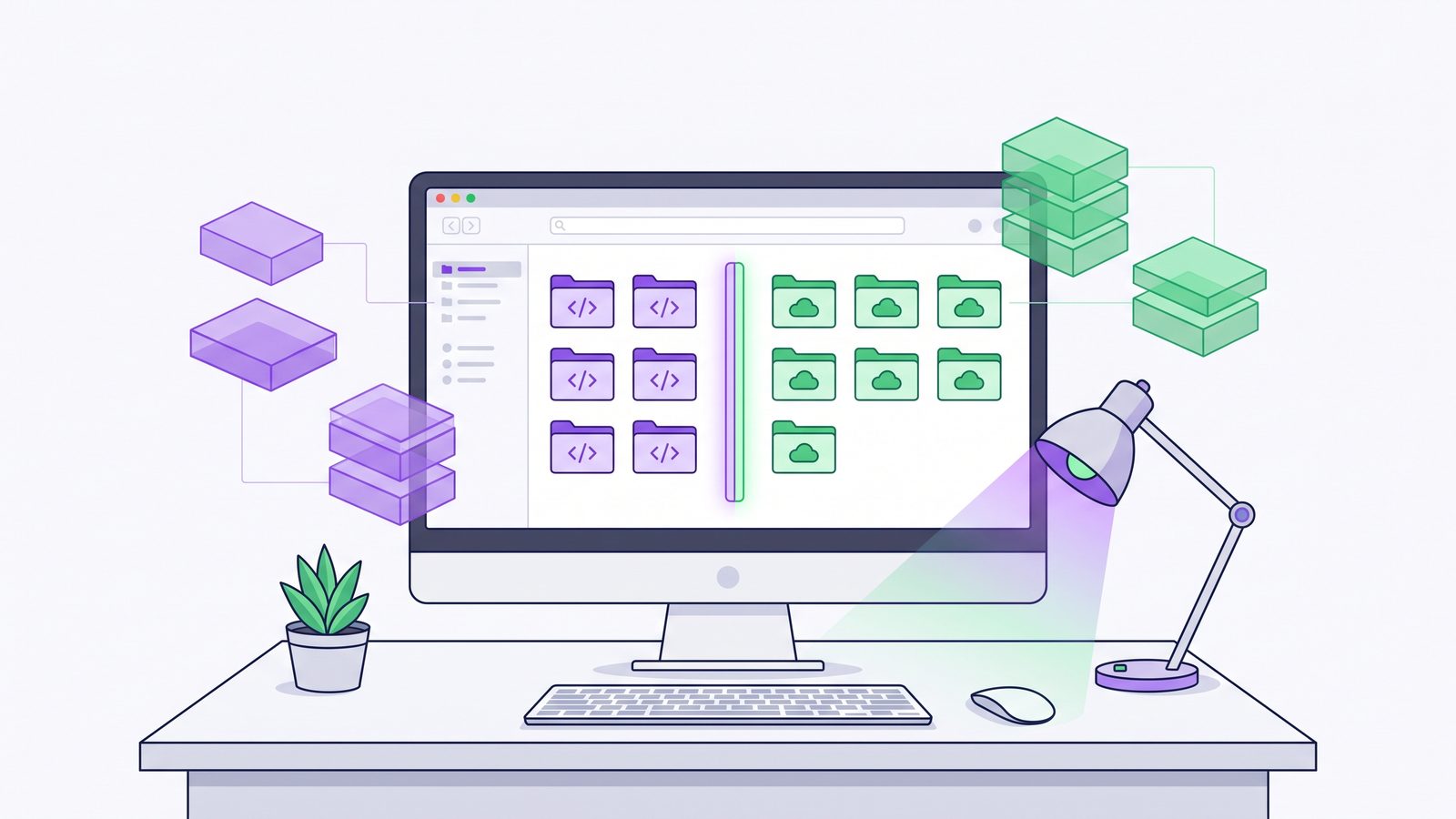
Choose the right workflow for iCloud storage problems
Keep active projects in iCloud
- Convenient across Macs when projects are small and quiet.
- Bad fit for
node_modules, virtual environments, caches, and build output. - Can make Optimize Mac Storage appear broken because files keep changing.
Use local projects plus filtered sync
- Fast local builds and package installs.
- Clean cloud backup containing source, docs, config, assets, and lockfiles.
- Requires explicit exclusions and occasional restore tests.
If you prefer a visual app over maintaining rsync flags, Lsyncer is built for this exact developer workflow. Keep the active project local, choose an iCloud, external drive, or NAS destination, and exclude node_modules, .git, virtual environments, caches, and build output by default. It is a one-time $19.99 Mac App Store purchase, not a subscription.
Best practices so Optimize Mac Storage does not become your backup plan
- Keep working trees local. Use
~/Developeror~/Codefor repositories you run, build, and test. - Use Git for history. iCloud is not a branch database, review system, or conflict resolver for source control.
- Back up source and lockfiles. Preserve
package.json, lockfiles, source, docs, migrations, config examples, and assets. - Skip generated folders. Exclude dependencies, caches, coverage, logs, build output, temporary files, and local database dumps unless you intentionally need them.
- Restore-test. Copy the backup to a scratch folder and run the install/build command. A backup you cannot restore is just another sync problem.
Related reading
- iCloud Drive taking up space on Mac — find local iCloud bloat from developer folders and remove rebuildable files safely.
- How to stop iCloud syncing certain folders — folder-level ways to keep noisy directories out of iCloud.
- Mac folder sync software for developers — compare Finder, rsync, cloud sync clients, and filtered app workflows.
- Backup Node.js project Mac — what belongs in a clean Node.js backup and what should be regenerated.
FAQ
Why is Optimize Mac Storage not working on my Mac?
It may be working, but not on the files you expect. macOS can evict eligible iCloud files when space is needed, but active files, recently modified files, upload queues, and files being used by apps can remain local. Developer folders make this worse because package managers and build tools keep touching thousands of files.
Does Optimize Mac Storage remove node_modules from local disk?
Not reliably. If node_modules is inside iCloud Drive, macOS still has to track it as real files. Because those files are often recent, numerous, and accessed by tools, they may stay local or keep returning. The better fix is to keep active projects outside iCloud and exclude node_modules from backup sync.
Is it safe to delete generated developer folders from iCloud Drive?
Usually, if you know they are rebuildable and the source files plus lockfiles are safe. Common examples include node_modules, .next/cache, .turbo, coverage, dist, and Python virtual environments. Do not delete source, migrations, assets, lockfiles, or uncommitted work.
Should I turn off Desktop and Documents syncing?
Turn it off only if the broad behavior is wrong for your workflow. It is useful for ordinary documents but risky as a default home for active repositories. If you keep it enabled, create a separate local-only developer workspace and sync filtered backups to iCloud when needed.
What is the best backup workflow for Mac developers using iCloud?
Use Git for version history, keep active projects in a local-only folder, then sync a filtered copy to iCloud or another destination. Include source, docs, config, migrations, assets, and lockfiles. Exclude dependencies, caches, build output, logs, and temporary files.