

iCloud Drive taking up space on Mac is annoying for normal documents. For developers, it can become absurd: a small app repository lives in Desktop or Documents, npm install creates 90,000 tiny files, and suddenly iCloud is keeping a local working copy, upload queue, metadata, and conflicts for folders that should never have been synced in the first place.
iCloud Drive taking up space on Mac: check developer folders first
If your Mac storage panel blames iCloud Drive, do not start by deleting random files. First check whether active code projects are inside iCloud-synced locations such as ~/Desktop, ~/Documents, or ~/Library/Mobile Documents/com~apple~CloudDocs. Those locations are convenient for notes and PDFs, but they are a bad default for repositories that generate dependencies, caches, build output, test artifacts, logs, local databases, and Git object churn.
The confusing part is that iCloud Drive can consume local disk even when the same files are “in the cloud.” macOS still needs placeholders, metadata, downloaded originals, upload staging, conflict copies, and files that are pinned locally because an app touched them. A code folder makes this worse because developer tools constantly read and write inside the tree.
General iCloud cleanup advice usually focuses on Photos, Downloads, or “Optimize Mac Storage.” That can help, but it misses the developer-specific failure mode: files that should not be in the sync set at all. The durable fix is to separate active work from synced archives, then back up only the files needed to restore the project.
Why iCloud Drive uses local space even with Optimize Mac Storage
Optimize Mac Storage does not mean “keep nothing locally.” It means macOS may evict eligible originals when space is needed. Recently used files, files currently being uploaded, files required by open apps, package-manager output created seconds ago, and files that are not safely reconciled yet can remain local. If a build tool keeps touching a cache directory, those files look active.
File count matters as much as byte count. A single 2 GB video is large, but it is one object. A JavaScript project can create tens of thousands of small files, each with names, permissions, extended attributes, timestamps, directory entries, and sync state. Python virtual environments add wheels, installed packages, bytecode caches, and metadata. Rails and Ruby projects add bundles, logs, temporary files, compiled assets, and local databases. Modern front-end frameworks add .next/cache, .nuxt, .turbo, coverage, build, and dist.
That is why iCloud Drive may show up as “taking space” after a development session even if you did not intentionally save big assets. You did save a lot of files; you just saved them indirectly by running package managers and build tools inside an iCloud-managed folder.

Find what is filling iCloud Drive before deleting anything
Start with read-only inspection. Do not run cleanup commands until you know whether the files are source, generated output, or irreplaceable local data.
1. Check the common iCloud Drive paths
Open Finder and inspect iCloud Drive, Desktop, and Documents. If Desktop and Documents syncing is enabled, those normal-looking folders are part of iCloud. In Terminal, these commands help reveal developer folders without modifying anything:
du -sh ~/Desktop/* ~/Documents/* 2>/dev/null | sort -h | tail -20
find ~/Desktop ~/Documents -name node_modules -o -name .venv -o -name venv -o -name vendor -o -name .next -o -name .turbo 2>/dev/null
If you know your iCloud Drive path, inspect it too:
du -sh ~/Library/Mobile\ Documents/com~apple~CloudDocs/* 2>/dev/null | sort -h | tail -20These commands are intentionally conservative. They show candidates. They do not delete them.
2. Measure file count, not just size
A folder that is only a few gigabytes can still be a terrible sync candidate if it contains 120,000 files. Use file counts to spot sync pain:
find ~/Documents/my-app -type f | wc -l
find ~/Documents/my-app/node_modules -type f 2>/dev/null | wc -l
find ~/Documents/my-app/.git/objects -type f 2>/dev/null | wc -l
If the majority of files live in node_modules, .git/objects, framework caches, or virtual environments, deleting the whole project is the wrong move. Move the active work out of iCloud and rebuild the generated parts locally.
3. Understand local vs cloud-only state
Finder can show cloud status icons, but developer tools often cause files to be downloaded or recreated locally. A package manager does not care that a file is cloud-only; it reads, writes, replaces, and touches files as part of normal work. A build watcher can make “Optimize Mac Storage” look ineffective because the project keeps becoming active again.
If a project must stay in iCloud for archival reasons, do not develop inside that copy. Treat the iCloud version as a clean backup or handoff folder. Work from a local-only path and sync filtered content into the iCloud destination only when appropriate.
Fix iCloud Drive storage without losing developer work
There are several safe fixes. Choose the one that matches how much you rely on iCloud for this folder.
1. Move active projects to a local-only developer folder
Create a local workspace such as ~/Developer or ~/Code. Move active repositories there, then let Git and a filtered backup workflow protect them. A typical layout:
mkdir -p ~/Developer
mv ~/Documents/my-app ~/Developer/my-app
Before moving, make sure your Git status is clean or intentionally saved:
cd ~/Documents/my-app
git status --short
If the project is not in Git, copy it first, verify the copy opens, and only then remove the old iCloud location. Do not treat a storage cleanup as a backup strategy.
2. Remove generated folders only after you can rebuild them
For Node.js, the usual safe sequence is:
cd ~/Developer/my-app
rm -rf node_modules .next/cache .turbo coverage
npm ci
Use the package manager your project expects: npm ci, pnpm install --frozen-lockfile, yarn install --immutable, bundle install, uv sync, or pip install -r requirements.txt. The key is that source files and lockfiles stay; generated dependencies do not need to be preserved in iCloud.
3. Turn off Desktop and Documents syncing if it is the wrong default
If iCloud Desktop and Documents is pulling too much developer work into the sync set, disable it in System Settings. The exact wording changes across macOS versions, but the path is generally System Settings → Apple Account → iCloud → iCloud Drive → Desktop & Documents Folders.
Read the prompt carefully. macOS may create local archive folders when you turn the feature off. Verify where your files are before deleting anything. For a deeper folder-level approach, see the guide on stopping iCloud from syncing certain folders.
4. Sync a clean copy to iCloud instead of the working tree
If you still want iCloud to hold a copy, sync only the restore-critical files into a separate destination. With rsync, start with a dry run:
rsync -avh --delete --dry-run \
  --exclude 'node_modules/' \
  --exclude '.git/' \
  --exclude '.venv/' \
  --exclude 'venv/' \
  --exclude 'vendor/bundle/' \
  --exclude '.next/cache/' \
  --exclude '.turbo/' \
  --exclude 'coverage/' \
  --exclude 'dist/' \
  --exclude 'build/' \
  ~/Developer/my-app/ \
  ~/Library/Mobile\ Documents/com~apple~CloudDocs/Project-Backups/my-app/
Keep --dry-run until the output is boring. Then run the real command. If this becomes a recurring job, put the excludes in a file and review it per project. The articles on rsync exclude files and rsync dry runs on Mac cover the safer patterns.
node_modules, virtual environments, build output, caches, logs, coverage reports, local databases, and anything your tools recreate.
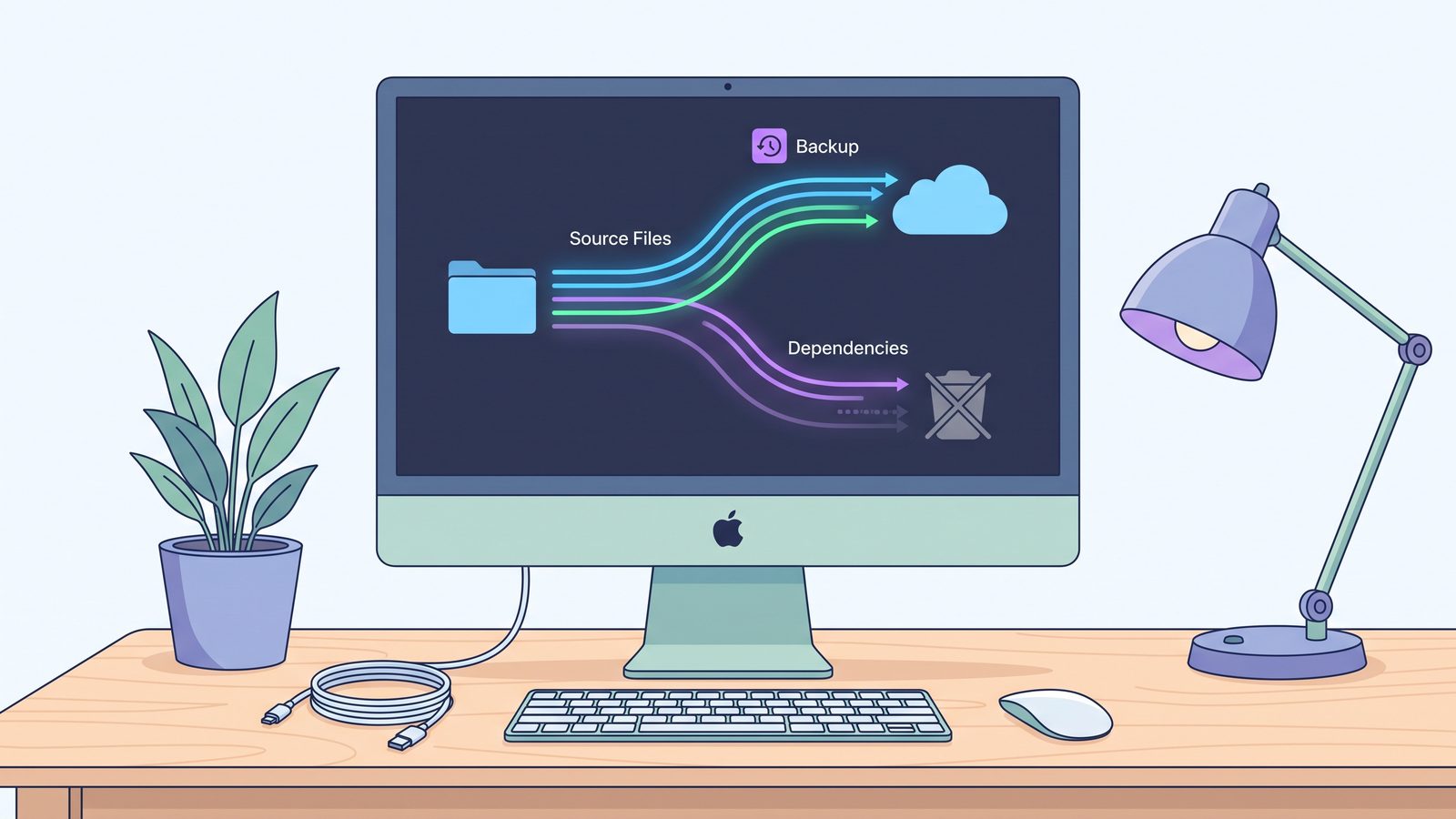
Where LSyncer fits in the cleanup workflow
If you like maintaining rsync commands, keep using them. They are transparent and powerful. The problem is that many developers eventually end up with a stale shell script, no visible schedule status, and a destination they forget to check until they need it.
LSyncer is designed for the recurring Mac developer sync job: source folder, destination folder, smart exclusions for node_modules, .git, virtual environments, build output, and caches, plus schedules and visible run status. It does not replace Git, Time Machine, or iCloud as a storage provider. It gives you a cleaner layer between your messy working tree and the place you want a restorable project copy.
For the iCloud Drive storage problem, the pattern is simple: work in ~/Developer, keep generated files out of the backup set, and sync a clean copy to iCloud, an external drive, NAS, or another local folder. LSyncer is a $19.99 one-time Mac App Store app for people who want that workflow without turning it into another script to babysit.
Best practices to keep iCloud Drive small on a developer Mac
- Do active development outside iCloud. Use
~/Developeror~/Codefor repositories you build, test, and run. - Use Git for history, not iCloud. iCloud is not a commit log, branch database, or review system.
- Keep lockfiles, skip dependencies. Preserve
package-lock.json,pnpm-lock.yaml,yarn.lock,Gemfile.lock,uv.lock, and similar files. Rebuild generated folders. - Review secrets separately. Do not copy
.env, private keys, certificates, production dumps, or customer data into broad sync destinations by accident. - Restore-test clean backups. Copy the synced folder to a scratch path and run the install/build command. A backup that cannot be restored is just storage usage with better branding.
Related reading
- Optimize Mac Storage not working — why active developer folders can stay local even when iCloud storage optimization is enabled.
- iCloud Drive not uploading on Mac — how to tell account/network problems from project-folder churn.
- How to stop iCloud syncing certain folders — folder-level strategies when iCloud is watching too much.
- Mac folder sync software for developers — how to choose a filtered sync workflow for code projects.
- Backup Node.js project Mac — what to preserve, what to regenerate, and how to restore-test.
FAQ
Why is iCloud Drive taking up space on my Mac?
iCloud Drive uses local space for downloaded files, placeholders, metadata, upload staging, recently used files, and conflict handling. If active developer projects live in iCloud-synced folders, generated directories such as node_modules, .venv, caches, and build output can greatly increase local storage use.
Can I delete node_modules from iCloud Drive?
Usually yes, if the project has the correct package metadata and lockfile. Move the active project to a local-only folder first, confirm the project can reinstall dependencies with npm ci, pnpm install --frozen-lockfile, or the expected package manager, and avoid deleting source files or lockfiles.
Does Optimize Mac Storage fix developer folder bloat?
It can help with inactive documents, but it is not a clean fix for active code folders. Package managers and build tools keep touching generated files, so macOS may keep them local or keep reprocessing them. Excluding generated folders from the sync workflow is more reliable.
Should I store Git repositories in iCloud Drive?
It is safer to keep active Git repositories outside iCloud Drive and use Git remotes for history. A filtered backup copy can go to iCloud if you exclude generated folders and understand whether you want to include or skip .git. The active working tree should stay local when possible.
What is the safest way to back up a Mac developer project to iCloud?
Keep the active project in a local-only folder, use Git for version history, then sync a filtered copy to iCloud that includes source, docs, config, migrations, assets, and lockfiles while excluding dependencies, caches, build output, logs, and temporary files.