

iCloud stuck on syncing on Mac is easy to misread as a network problem. Sometimes it is. But if the folder is a software project, the more likely culprit is file churn: node_modules, .git, virtual environments, build folders, coverage output, package caches, and test artifacts changing faster than iCloud Drive can reconcile them.
The confusing part is that Finder shows one simple state. It does not tell you whether iCloud is scanning a directory, hashing file contents, uploading data, downloading remote changes, resolving metadata, retrying a failed item, or waiting for a file to stop changing. A project folder can look “stuck” while macOS is still doing work on thousands of tiny files that you probably did not mean to sync in the first place.
iCloud stuck on syncing on Mac: why developer folders trigger it
iCloud Drive is designed around document-style sync. A Pages file changes. A PDF appears. A photo gets edited. Those are relatively stable objects. Code projects are different. They are not a folder of documents; they are a live filesystem workload.
One routine development action can create a huge sync backlog:
npm install,pnpm install, oryarn installcan write tens of thousands of files undernode_modules.git checkout,git pull, andgit rebaseupdate working-tree files plus refs, objects, indexes, and lock files inside.git.python -m venv .venv,bundle install, and language-specific package managers create local dependency trees that can be rebuilt from manifest files.- Build tools rewrite folders such as
.next,dist,build,coverage,target,DerivedData, and.cache. - Watch mode keeps writing while you work, so the queue never gets a quiet window.
File count matters more than Finder size. A single 2 GB video can be straightforward for a sync engine. A 300 MB dependency tree split into 60,000 files can be brutal because every entry needs metadata tracking, conflict handling, and state reconciliation.
First, separate a stuck iCloud account from a noisy folder
Before you move files or reset anything, run a small control test. Create one tiny file in iCloud Drive from a quiet location, not from inside your project:
cd ~/Library/Mobile\ Documents/com~apple~CloudDocs
printf 'icloud sync test\n' > icloud-sync-test.txt
Wait a few minutes and check another device or icloud.com/iclouddrive. If that tiny file appears, iCloud itself is probably alive. The problem is more likely the specific folder that remains stuck syncing.
Then remove the test file:
rm icloud-sync-test.txtIf ordinary small files do not sync anywhere, restart the Mac before attempting deeper fixes. Avoid signing out of iCloud, deleting CloudDocs data, or killing random background processes as a first move. Those actions can trigger a larger rescan and make a big queue even bigger.
Stop active writers before troubleshooting the queue
iCloud cannot settle a folder that is still changing. Quit the tools that write constantly:
- dev servers such as
next dev,vite, webpack, Rails, Django, and Phoenix watchers - test watchers, coverage tools, snapshot generators, and local report writers
- package installs, dependency updates, Docker bind mounts, and local databases writing inside the repo
- IDEs or language servers that are still indexing a freshly changed project
You can inspect likely iCloud-related and indexing processes from Terminal:
ps aux | egrep 'bird|cloudd|fileproviderd|mds|mdworker' | grep -v grepHigh CPU from those processes is not automatically a bug. The useful question is what caused the work. If your project just produced thousands of filesystem events, the sync engine and Spotlight may be busy because the folder shape is hostile to document sync.

Find the folders that should not be in iCloud Drive
From the project root, count the likely offenders:
find node_modules -type f 2>/dev/null | wc -l
find .git -type f 2>/dev/null | wc -l
find .venv venv vendor/bundle -type f 2>/dev/null | wc -l
find .next dist build coverage target DerivedData .cache -type f 2>/dev/null | wc -l
If those commands return five-digit numbers, the folder is not a good candidate for live iCloud sync. Also check what changed recently:
find . -type f -mmin -10 | head -50If the output is mostly caches, compiled assets, dependency files, logs, or test artifacts, the queue is being fed by disposable state. Syncing that state does not make your project safer. It makes the backup slower, noisier, and harder to trust.
Fix 1: remove rebuildable folders from the synced copy
If a project is already inside iCloud Drive and the sync state is stuck, reduce the workload. Keep source, docs, hand-written assets, manifests, lockfiles, and config. Remove folders that can be recreated.
For Node.js projects:
rm -rf node_modules .next dist build coverage .turbo .parcel-cache .cacheFor Python projects:
rm -rf .venv venv __pycache__ .pytest_cache .mypy_cache .ruff_cacheFor Ruby projects:
rm -rf vendor/bundle .bundle tmp/cache log/*.logRun destructive commands only after confirming you are in the correct project folder. The goal is not to delete work. The goal is to remove generated material that your lockfiles and package manifests can rebuild later in a local workspace.
Fix 2: move active repositories out of iCloud Drive
The durable fix is to stop developing inside iCloud Drive. Put active repositories in a local-only folder such as ~/Developer, ~/Code, or ~/Projects. Use Git for source history. Use iCloud for documents or filtered project copies, not live dependency trees.
mkdir -p ~/Developer
mv ~/Library/Mobile\ Documents/com~apple~CloudDocs/my-app ~/Developer/my-app
Then reopen the project from the local path and reinstall dependencies there:
cd ~/Developer/my-app
npm install
Do not move a project while editors, terminals, package managers, or dev servers are still writing to it. If the iCloud copy is already inconsistent, copy the source files you trust into a fresh local folder instead of dragging the entire noisy tree around.
Fix 3: use .nosync only for folders you control
macOS generally treats names ending in .nosync as excluded from iCloud Drive. This can be useful for local scratch data:
mkdir tmp.nosync
mkdir local-db.nosync
mkdir generated-reports.nosync
Be careful with standard dependency paths. Renaming node_modules to node_modules.nosync breaks normal Node module resolution unless you add workarounds. Renaming .venv can confuse shell scripts and editors. Use .nosync for your own scratch folders, not as a general way to make package managers behave.
Fix 4: sync a clean backup instead of the live folder
If the actual goal is backup, mirror only the files worth restoring. rsync is the reliable Terminal version:
rsync -av --delete \
  --exclude 'node_modules/' \
  --exclude '.git/' \
  --exclude '.venv/' \
  --exclude 'venv/' \
  --exclude 'vendor/bundle/' \
  --exclude '.next/' \
  --exclude 'dist/' \
  --exclude 'build/' \
  --exclude 'coverage/' \
  --exclude '.cache/' \
  ~/Developer/my-app/ \
  ~/Library/Mobile\ Documents/com~apple~CloudDocs/Backups/my-app/
Use a dry run before any command with --delete:
rsync -avn --delete \
  --exclude 'node_modules/' \
  ~/Developer/my-app/ \
  ~/Backups/my-app/
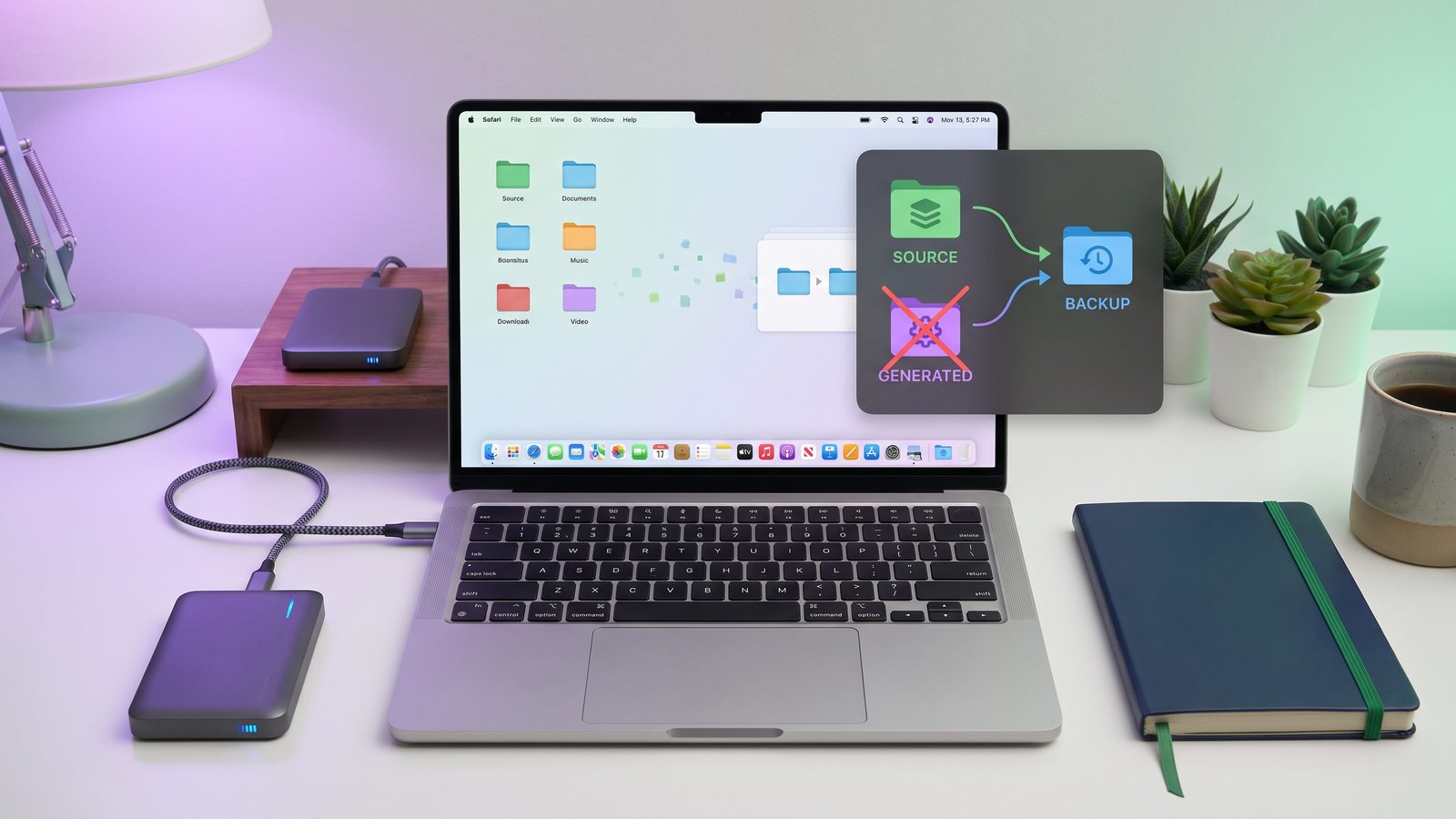
Read the output. Check the trailing slashes. Confirm the destination. A safe filtered sync is boring: source and configuration go to the backup, generated folders stay local, and the cloud client receives a stable tree it can actually finish.
Where Lsyncer fits
Lsyncer is built for Mac developers who want the filtered-sync workflow without maintaining long rsync commands. You choose a source, destination, schedule, and exclusions. Lsyncer skips the usual developer junk: node_modules, .git, virtual environments, build output, and caches.
It does not make iCloud Drive better at realtime collaboration, and it is not a replacement for Git. The clean setup is simpler: keep active work local, keep history in Git, and sync a clean copy to a destination you choose. Lsyncer makes that repeatable and visible on macOS for a one-time $19.99 purchase.
Good to sync
src,app,lib, docs, and hand-written assets.package.json, lockfiles,pyproject.toml,Gemfile, and config files.- Deployment manifests, scripts, README files, notes, and small fixtures.
Usually skip
node_modules,.venv,venv,vendor/bundle, and package caches..gitwhen a remote already protects repository history.dist,build,.next,coverage, logs, temp folders, and local databases.
Best practices to prevent iCloud getting stuck syncing again
- Keep live repos local. Develop in
~/Developer,~/Code, or another local-only folder. - Use Git for history. iCloud Drive should not be the only place your commits exist.
- Back up source, not generated state. Lockfiles are useful. Installed packages and build caches are usually disposable.
- Schedule sync after noisy work. Run backups after installs, builds, and test runs, not while watchers are still writing.
- Check file counts before blaming Wi-Fi. A small folder in megabytes can still be huge in filesystem events.
If iCloud is stuck on syncing on Mac only when a code project is involved, the fix is rarely a secret Apple setting. It is usually a workflow change. Give iCloud a clean, quiet folder to sync, and it behaves much more like the document sync tool it was designed to be.
Related reading
- iCloud Drive waiting to update on Mac — how to interpret Finder’s vague waiting state without making the queue worse.
- Force iCloud Drive sync on Mac — safe ways to nudge stale iCloud folders before reaching for account resets.
- How to stop iCloud from syncing certain folders — practical options for keeping generated folders out of iCloud Drive.
FAQ: iCloud stuck on syncing on Mac
Why is iCloud stuck on syncing on my Mac?
iCloud can get stuck on syncing because it is processing a large backlog, retrying a failed item, waiting for files to stop changing, or reconciling metadata. For developers, the common cause is a project folder with node_modules, .git, virtual environments, caches, or build output creating thousands of file events.
How do I fix iCloud stuck on syncing?
First stop apps that are writing to the folder, then test iCloud with one tiny file. If ordinary files sync but the project does not, remove rebuildable generated folders, move active repositories out of iCloud Drive, and use a filtered backup workflow for source files.
Can node_modules make iCloud stuck on syncing?
Yes. node_modules can contain tens of thousands of small files. iCloud Drive may need to scan, hash, upload, compare, and retry those entries. Sync the source and lockfile, then recreate node_modules locally with your package manager.
Does .gitignore stop iCloud Drive from syncing folders?
No. .gitignore affects Git only. iCloud Drive does not read Git ignore rules. To keep a folder out of iCloud, move the project outside iCloud Drive, use .nosync for scratch folders, or sync a filtered copy with explicit exclusions.
Should I sign out of iCloud to fix stuck syncing?
Not as a first step. Signing out can trigger a larger rescan and may make a noisy folder take even longer to settle. Start by stopping file churn, checking a tiny test file, restarting normally, and removing generated project folders from the synced copy.