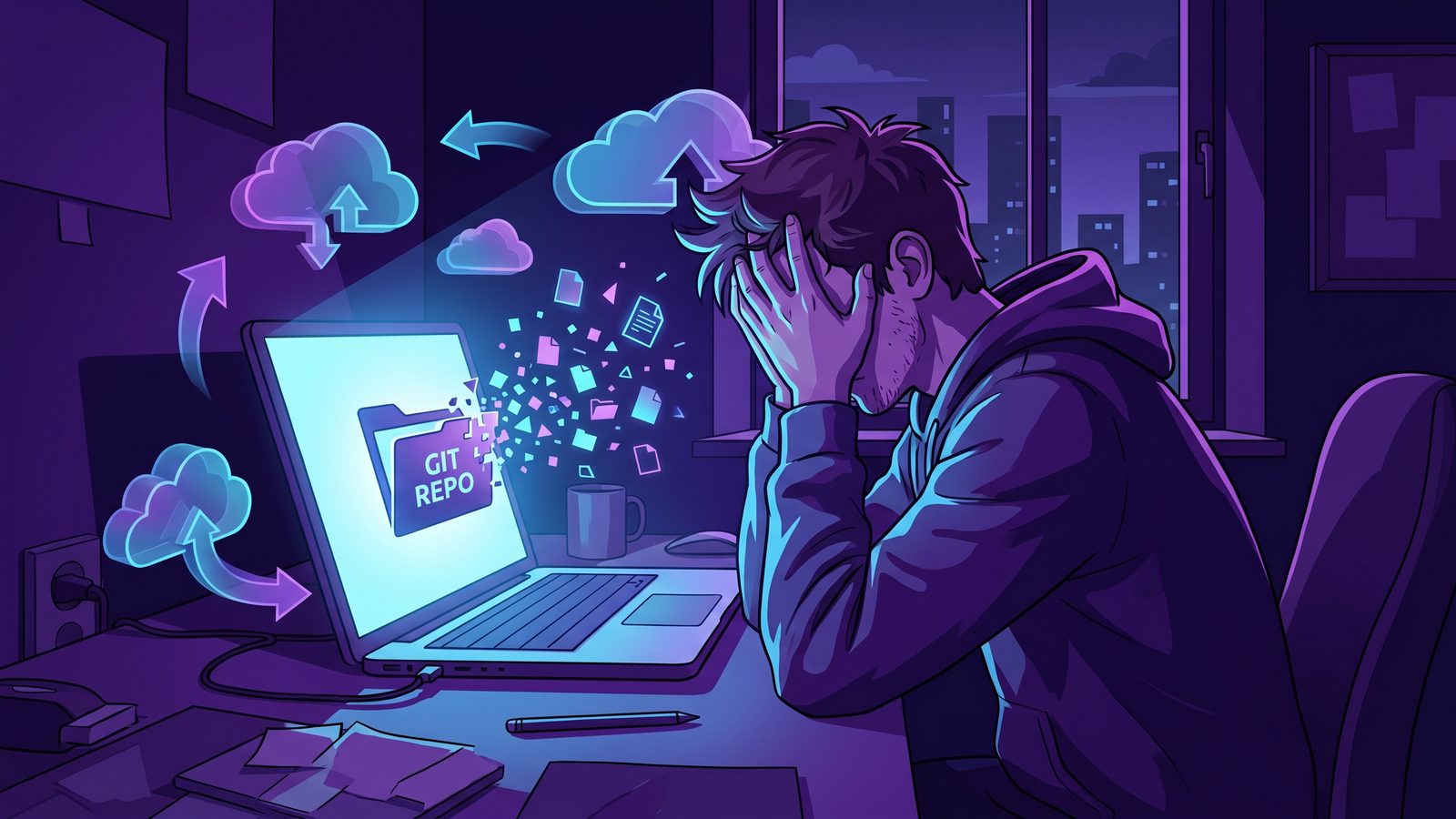
A Git repository in iCloud Drive looks harmless until the sync queue never settles. The working tree may only be a few megabytes of source code, but the hidden .git folder can contain thousands of small object files, refs, pack files, lock files, logs, and temporary state. Add node_modules, Python venv, or build caches next to it and iCloud Drive has to watch a project that changes like a database, not a document folder.
Git repository in iCloud Drive: why this causes sync trouble
Git is already a sync system for source history. iCloud Drive is a file provider that tries to keep files available across Apple devices. Those two models overlap badly when you put an active repository inside ~/Library/Mobile Documents/com~apple~CloudDocs or the visible iCloud Drive folder in Finder.
When you edit a file, Git records working tree state. When you commit, Git writes objects and refs. When you fetch, rebase, switch branches, run hooks, or update submodules, Git touches internals under .git/. Many of those files are tiny. Some are short-lived. Some are rewritten in bursts. iCloud Drive sees file system events and tries to make sense of them as normal user documents.
The result is not always data loss, but it is often friction: Finder badges stuck on uploading, bird using CPU, duplicated conflict files, slow branch switches, dependency installs that trigger hours of sync churn, or a Mac that feels busy even after the build finished.
What is inside .git that makes iCloud work so hard?
A small repository can hide a surprisingly noisy .git folder. The files that matter most for sync behavior are not the source files you edit. They are the repository internals Git updates while doing normal work.
.git/objects/stores loose objects and pack files. After commits, fetches, and garbage collection, this area can change in many small pieces..git/refs/and.git/packed-refsrecord branch and tag pointers. Branch operations rewrite them frequently..git/indextracks the staging area. It changes whenever Git refreshes working tree state..git/logs/stores reflog history. Many local Git actions append to these files..git/*.lockfiles appear during operations to prevent concurrent writes. Syncing a transient lock file is rarely useful..git/modules/can contain nested repositories for submodules, which multiplies the same problem.
Those files are important locally, but they are not the best unit of backup. The portable version of repository history is the remote repository you push to, or a deliberate mirror made with Git-aware tooling. A cloud file sync tool sees only files, not Git intent.
.git inside iCloud means every local repository operation can become cloud sync work.Symptoms that your Git repository is making iCloud Drive stuck
The pattern is usually easy to miss because no single file looks suspicious. The folder works, Git works, and iCloud Drive works for your normal documents. The problem only appears when a repository creates enough churn to keep the sync queue busy.
- Finder shows “Uploading” or “Waiting to upload” long after your editor and terminal are idle.
- Activity Monitor shows
bird,fileproviderd, or related iCloud processes using CPU during installs, branch switches, or rebases. - Branch changes feel slower when the project lives in iCloud Drive than when it lives in
~/Developer. - You see conflict copies, duplicate files, or old build artifacts in the cloud copy.
- A dependency install such as
npm install,pnpm install,bundle install, orpip installmakes iCloud sync a huge number of files.

Fix 1: move active Git repositories out of iCloud Drive
The cleanest fix is also the least clever: keep active repositories outside iCloud Drive. A conventional location is ~/Developer, ~/Code, or another local folder under your home directory that iCloud does not manage.
mkdir -p ~/Developer
mv ~/Library/Mobile\ Documents/com~apple~CloudDocs/my-app ~/Developer/my-app
If the project is already on GitHub, GitLab, Bitbucket, or another remote, cloning a fresh local copy is often safer than moving a half-synced folder:
mkdir -p ~/Developer
cd ~/Developer
git clone [email protected]:your-org/my-app.git
After cloning, reinstall dependencies from lockfiles rather than copying the old generated folders:
cd ~/Developer/my-app
npm ci        # or pnpm install, yarn install, bundle install, pip install -r requirements.txt
This gives you a local working copy that Git can update freely without turning every repository operation into an iCloud upload event.
Fix 2: use Git remotes for history, not iCloud file sync
If your reason for putting a repository in iCloud Drive is “I want my code backed up,” use Git for the part Git is good at. Push work to a remote early and often. For private projects, a private repository is still a better backup for source history than a cloud-synced .git folder.
git status
git add src package.json README.md
git commit -m "Save current work"
git push origin main
For work in progress that is not ready for the main branch, use a named branch:
git switch -c wip/backup-checkpoint
git push -u origin wip/backup-checkpoint
This avoids using iCloud as a second, less Git-aware transport for repository history. It also makes restores predictable: clone the repository, install dependencies, and rebuild generated state.
.git directory plus dependency folders captured by generic cloud sync.
Fix 3: create a clean iCloud copy without .git or dependencies
Sometimes you still want a copy of the project in iCloud Drive because it is convenient to browse from another Mac or because you want an additional document-style backup. In that case, sync a filtered copy, not the active working tree.
With rsync, start with a dry run:
rsync -avn --delete \
  --exclude .git/ \
  --exclude node_modules/ \
  --exclude .venv/ \
  --exclude venv/ \
  --exclude vendor/bundle/ \
  --exclude .next/cache/ \
  --exclude dist/ \
  --exclude build/ \
  --exclude coverage/ \
  ~/Developer/my-app/ \
  ~/Library/Mobile\ Documents/com~apple~CloudDocs/CodeBackups/my-app/
If the dry run looks right, remove -n:
rsync -av --delete \
  --exclude .git/ \
  --exclude node_modules/ \
  --exclude .venv/ \
  --exclude venv/ \
  --exclude vendor/bundle/ \
  --exclude .next/cache/ \
  --exclude dist/ \
  --exclude build/ \
  --exclude coverage/ \
  ~/Developer/my-app/ \
  ~/Library/Mobile\ Documents/com~apple~CloudDocs/CodeBackups/my-app/
That destination is no longer a live Git repository. That is intentional. It is a clean copy of the files you would want to read, restore, or move. If you need repository history, clone from the remote.
Fix 4: use .nosync carefully for disposable folders
macOS and iCloud Drive have historically treated names containing .nosync as a hint not to sync. Some developers rename noisy folders or place work under a directory with a .nosync suffix. This can help for disposable local state, but it is not the same as a clear backup workflow.
Use .nosync only when you are comfortable with that folder not appearing in iCloud at all. Do not rely on it as your only protection for important source files. Also be careful with team conventions: renaming folders to include .nosync may break scripts, tooling, or paths that other developers expect.
For dependency folders, exclusion is usually safer than renaming. Keep node_modules named node_modules. Keep .venv named .venv. Filter those folders when you sync backups.

Where LSyncer fits: filtered Mac sync without another script to maintain
If you like the filtered-copy approach but do not want to maintain rsync commands, schedules, logs, and path guardrails, LSyncer is built for this exact shape of problem. It is a native macOS folder sync app for developers. You pick a source folder and a destination, then keep the copy clean by skipping generated and high-churn folders such as .git, node_modules, virtual environments, build output, and caches.
The important detail is that LSyncer does not try to replace Git or iCloud. Git remains your source history. iCloud can still store the clean copy if you want one there. LSyncer sits between the two and keeps the noisy local project structure from becoming a cloud sync problem.
That is useful when you want a local external-drive mirror, an iCloud-safe project snapshot, or a scheduled backup that makes failures visible. LSyncer is a one-time $19.99 purchase on the Mac App Store, not a subscription, which fits the way most developers think about backup utilities: buy the tool, set the workflow, stop babysitting it.
Recommended workflow for Git repositories on Mac
For most Mac developers, the durable setup is simple:
- Keep active repositories local. Use
~/Developer,~/Code, or another non-iCloud folder for day-to-day work. - Push source history to a Git remote. Treat GitHub, GitLab, or your own remote as the backup for commits and branches.
- Do not sync
.git, dependencies, or caches with iCloud Drive. They are noisy, local, and usually reproducible. - Create a filtered backup copy. Use
rsync --exclude, FreeFileSync exclusions, or LSyncer to copy source files and docs while skipping high-churn folders. - Test restore occasionally. Clone the repository, copy any non-Git assets from the backup, reinstall dependencies, and run the project.
The key is to stop treating a code project as one folder where every file deserves the same sync behavior. Source code, repository internals, dependency trees, and build caches all have different jobs. Your backup strategy should reflect that.
Related reading
- Backup Git repository local Mac projects explains how to combine Git remotes, mirrors, filtered folder copies, and restore tests.
- How to stop iCloud from syncing certain folders on Mac covers iCloud-safe layouts and the limits of folder-level workarounds.
- iCloud Drive stuck uploading on Mac explains how to clear a queue after developer folders create too much churn.
- How to sync node_modules without freezing your Mac digs into dependency folders and why they should usually be excluded.
- Best rsync alternative for Mac developers compares scripts and app-based sync workflows for code folders.
FAQ
Is it safe to put a Git repository in iCloud Drive?
It can work for small, inactive folders, but it is not a good default for active development. Git updates hidden repository internals often, and iCloud Drive may try to sync transient files, locks, objects, and branch metadata. Keep active repositories outside iCloud Drive and use a Git remote for history.
Should I back up the .git folder with iCloud?
Usually no. The better backup for Git history is a remote repository or a deliberate Git mirror. If you want an iCloud copy of project files, create a filtered copy that excludes .git/, dependency folders, and build output.
Can iCloud Drive cause Git conflicts?
iCloud Drive does not understand Git semantics. If the same files change on multiple Macs before sync settles, iCloud may create conflict copies or leave stale state. Git itself also has conflict handling, but cloud file conflict handling around .git internals is not a replacement for normal Git workflows.
What folders should Mac developers exclude from iCloud backups?
Start with .git/, node_modules/, .venv/, venv/, vendor/bundle/, .next/cache/, dist/, build/, coverage/, __pycache__/, and framework-specific caches. Keep source files, lockfiles, docs, migrations, and configuration templates.
What is the best way to sync code folders on Mac?
Use Git for source history, keep active work outside iCloud Drive, and sync a filtered copy for backups. Terminal users can do this with rsync --exclude. If you prefer a native app with schedules, status, and built-in developer exclusions, LSyncer is designed for that workflow.