
Backup Git repository local Mac workflows are easy to get wrong because a Git repo is not just a folder of source files. The visible files are usually small. The hidden .git database, dependency folders, build caches, local databases, and secrets are where backup policies become messy. A useful local Git repository backup should answer one question clearly: what would I need if this Mac disappeared, and what can I safely recreate?
Backup Git repository local Mac: decide what you are actually protecting
There are three different recovery goals developers mix together when they say “back up my repo.” Treating them as one job leads to slow backups, leaked secrets, or archives full of junk.
- Source history: commits, branches, tags, and pull-request work. Git is already built for this, so the strongest backup is usually a remote on GitHub, GitLab, Bitbucket, or your own server.
- Working tree state: uncommitted files, notes, design docs, scripts, migrations, fixtures, and local-only changes that are not ready to push yet.
- Machine-local runtime state:
.env, local databases, uploaded test files, generated certificates, dependency folders, caches, and build output.
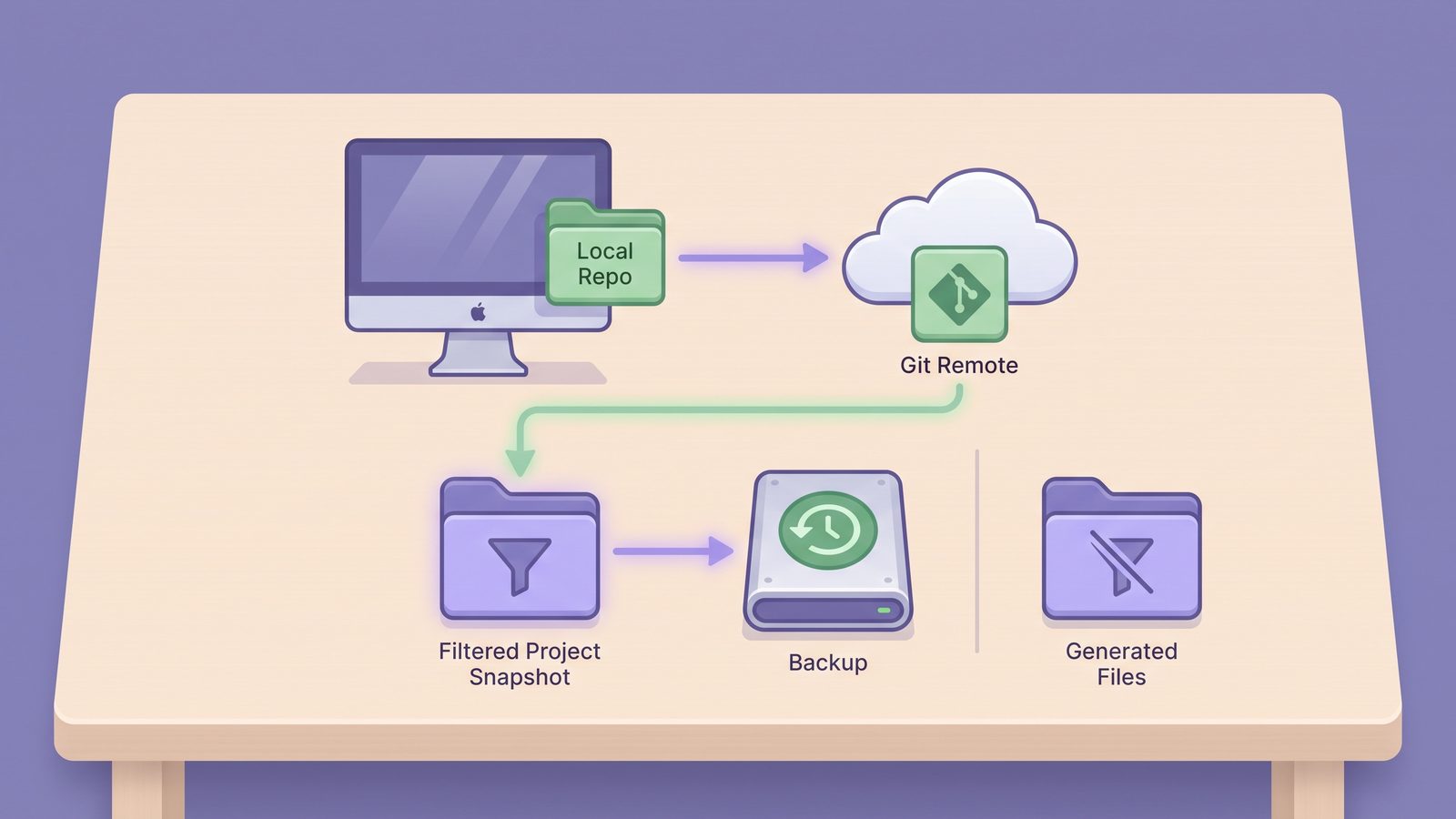
A clean Mac backup strategy handles each group differently. Push source history. Copy a filtered working tree. Review machine-local state deliberately. Do not blindly mirror every file under the project root just because it happens to sit there.
Why local Git repository backups get noisy on macOS
The obvious files in a repository are rarely the problem. A typical web app may have a few hundred files you wrote and tens of thousands of files created by package managers, test runners, language servers, and bundlers. macOS then adds filesystem events, metadata, Spotlight indexing, security scanning, and sometimes cloud-provider file watchers.
The .git directory deserves special attention. It contains repository internals such as objects/, refs/, packed-refs, index, logs/, hooks, submodule metadata, and temporary *.lock files. These files change during commits, fetches, rebases, branch switches, garbage collection, and even some status checks. They are valid local state, but they are not normal documents.
Dependency folders have a different failure mode: file count. node_modules, .venv, vendor/bundle, .next/cache, target, and build can make a backup spend most of its time walking generated files. Copying them usually does not improve recoverability if the lockfiles and build instructions are backed up.
Fix 1: push a real Git remote first
The best backup for commits and branches is another Git repository. If the project is private, use a private remote rather than hiding it in a cloud-synced folder. Push work in progress to a named branch when it is not ready for main:
git status
git switch -c wip/local-backup-checkpoint
git add -A
git commit -m "Checkpoint before Mac backup"
git push -u origin wip/local-backup-checkpoint
If you need a local offline copy of all refs, create a bare mirror on an external drive or NAS. This is Git-aware and avoids copying a live working repo as ordinary files:
mkdir -p /Volumes/DevBackup/git-mirrors
cd /Volumes/DevBackup/git-mirrors
git clone --mirror [email protected]:your-org/my-app.git
To refresh the mirror later:
cd /Volumes/DevBackup/git-mirrors/my-app.git
git remote update --prune
A mirror is good for repository history. It is not a substitute for project-adjacent files that are intentionally outside Git, such as local documentation, exports, or sample data.

Fix 2: create a filtered working tree backup
For the project folder itself, start with a filtered copy. This preserves source files, lockfiles, docs, and other useful project files while skipping dependency folders and build output.
rsync -avnih --delete \
  --exclude 'node_modules/' \
  --exclude '.venv/' \
  --exclude 'venv/' \
  --exclude 'vendor/bundle/' \
  --exclude '.next/cache/' \
  --exclude '.turbo/' \
  --exclude 'dist/' \
  --exclude 'build/' \
  --exclude 'coverage/' \
  --exclude '*.log' \
  ~/Developer/my-app/ /Volumes/DevBackup/projects/my-app/
The n in -avnih means dry run. Read the output before removing it. Pay special attention to the trailing slashes: ~/Developer/my-app/ copies the contents of the folder into the destination, while ~/Developer/my-app copies the folder itself.
Whether to exclude .git/ depends on your plan. If you already push everything important and maintain a mirror, exclude .git/ from the working-tree backup:
rsync -avnih --delete \
  --exclude '.git/' \
  --exclude-from="$HOME/Developer/.backup-excludes" \
  ~/Developer/my-app/ /Volumes/DevBackup/projects/my-app/
If you have unpushed local branches, hooks, or reflogs you cannot afford to lose, include .git/ or make a Git mirror first. The mistake is not choosing either option; the mistake is including or excluding it accidentally.
Fix 3: use an exclude file per stack
Long one-off commands rot quickly. Put your common rules in a file and keep it near your developer backup scripts:
# ~/Developer/.backup-excludes
node_modules/
.pnpm-store/
.yarn/cache/
.venv/
venv/
__pycache__/
.pytest_cache/
vendor/bundle/
.next/cache/
.nuxt/
.svelte-kit/
.turbo/
.vite/
dist/
build/
target/
coverage/
.DS_Store
*.log
Then reuse it:
rsync -avnih --delete \
  --exclude-from="$HOME/Developer/.backup-excludes" \
  ~/Developer/my-app/ /Volumes/DevBackup/projects/my-app/
This is also easier to review. You can ask, “Would I need this path to rebuild the project?” Source files, tests, migrations, config, docs, lockfiles, and hand-made assets usually stay. Dependencies and caches usually go.
Usually back up
src/,app/, tests, migrations, scripts, docs, and project notes.package.json, lockfiles,Gemfile.lock,requirements.txt,poetry.lock, and tool version files.- Small hand-authored assets, fixtures, and configuration needed to rebuild.
Review or exclude
.git/if a remote or mirror already protects history..env, certificates, local databases, and private uploads because they may contain secrets.node_modules/, virtual environments, caches, build output, logs, and coverage reports.
Fix 4: keep cloud sync out of the active repo
Do not use iCloud Drive, Dropbox, Google Drive, or OneDrive as the live location for active repositories unless you have a very small, mostly inactive project. Cloud file providers are optimized for documents. They do not understand that node_modules can be recreated, that .git/index.lock is transient, or that a framework cache can change thousands of files during a build.
A safer layout is:
~/Developer/my-app                         # active local repo
/Volumes/DevBackup/git-mirrors/my-app.git  # optional Git mirror
/Volumes/DevBackup/projects/my-app         # filtered working-tree copy
~/Library/Mobile Documents/.../CodeBackups # optional cloud copy of the filtered backup
That way the cloud client sees the calmer filtered copy, not the live development churn.
Where LSyncer fits in a local Git backup workflow
LSyncer is useful when you want the filtered working-tree part without maintaining shell snippets, launch agents, and manual logs. It is a native macOS folder sync app built for developer folders. You pick a source and destination, apply exclusions for paths like node_modules, .git, venv, build output, and caches, then run the sync manually or on a schedule.
LSyncer is not trying to replace Git. Keep pushing to a real remote. Use mirrors when you need offline Git history. Let LSyncer handle the “copy the project files I actually care about” layer, especially when the destination is an external SSD, NAS mount, or cloud-synced backup folder. It costs $19.99 once on the Mac App Store, which is a better fit for a small developer utility than another monthly subscription.
Restore-test your local Git repository backup
A backup that has never been restored is still a guess. Test the workflow in a scratch folder:
mkdir -p ~/RestoreTest
cd ~/RestoreTest
git clone [email protected]:your-org/my-app.git
rsync -av /Volumes/DevBackup/projects/my-app/ ~/RestoreTest/my-app/
cd my-app
npm ci
npm test
Adjust the install command for the stack: pnpm install --frozen-lockfile, yarn install --immutable, bundle install, python -m venv .venv followed by pip install -r requirements.txt, or your team's documented setup. The point is not to perform a perfect disaster-recovery drill every week. The point is to prove that your exclusions did not remove something important.
Best practices for Git repository backups on Mac
- Keep active repos in
~/Developeror~/Code. Avoid developing directly inside cloud provider folders. - Push branches before relying on folder backups. Git history belongs in Git-aware storage.
- Use a mirror for offline repository history.
git clone --mirroris cleaner than copying a live.gitdatabase as normal files. - Use filtered sync for the working tree. Skip dependencies, caches, logs, and build output unless you have a specific archival reason.
- Handle secrets separately. A general project backup is not a secrets manager.
- Run restore tests after changing exclusions. Restore, install from lockfiles, and run the project's test or build command.
Related reading
- Git repository in iCloud Drive — why active repos make iCloud queues noisy and how to move them to a safer layout.
- Backup Node.js project on Mac — a clean source-plus-lockfile backup workflow without copying
node_modules. - rsync exclude-from Mac — reusable exclude files for developer backups.
- Backup tool for Mac developers — compare Git, Time Machine, rsync, and filtered sync layers.
FAQ
What is the best way to backup Git repository local Mac projects?
Use Git for history, then back up a filtered working-tree copy. Push commits and branches to a remote, optionally create a git clone --mirror on an external drive, and sync project files with dependencies and caches excluded.
Should a local Git repository backup include .git?
Include .git if you need unpushed branches, local hooks, reflogs, or a full offline clone and you are not already making a Git mirror. Exclude .git if a remote or mirror protects history and you only need a clean working-tree backup.
Can I back up a Git repository with iCloud Drive?
You can store a filtered project copy in iCloud Drive, but it is better not to keep the active repository there. Active .git internals and dependency folders create many tiny file changes that can make iCloud sync slow or stuck.
Should I back up node_modules with my Git repository?
Usually no. Back up package.json, lockfiles, source files, and configuration instead. Recreate dependencies with npm ci, pnpm install --frozen-lockfile, or the package-manager command your project documents.
How often should I test a Mac developer backup?
Test after changing exclusion rules, moving backup destinations, or adopting a new framework. For important projects, a monthly restore check is reasonable: clone the repo, restore the filtered files, install dependencies from lockfiles, and run tests.