

iCloud Drive sync pending on Mac usually means macOS has noticed files that should sync, but the queue is not cleanly finishing. For a developer, that message often appears after a routine command: npm install, git checkout, pip install, bundle install, or a build that writes thousands of cache files. Finder says items are waiting. The cloud icon never settles. The Mac feels busy even though you are not doing much.
The uncomfortable truth is that iCloud Drive is behaving like a document sync service, not a development-aware backup tool. It can handle a Pages document, a PDF, or a folder of screenshots. It struggles when a project contains tens of thousands of tiny files that are disposable, frequently rewritten, and sometimes locked while tools are still running. This guide explains how to diagnose the pending state, clear it without making the queue worse, and build a workflow that keeps source code backed up without asking iCloud to sync dependency junk.
Why iCloud Drive sync pending on Mac happens with developer folders
When Finder shows an iCloud status like sync pending, waiting to upload, or a cloud icon that refuses to clear, macOS is usually still reconciling local file changes with iCloud state. That reconciliation is expensive when the folder is a live codebase.
A normal document folder changes slowly. A development folder can change explosively:
node_modulescan contain tens of thousands of package files, symlinks, metadata files, and nested directories..gitchanges during fetches, rebases, branch switches, commits, lockfile updates, and garbage collection..venv,venv,vendor/bundle, and language package caches contain installed dependencies that can be recreated from lockfiles..next,dist,build,coverage,.turbo,DerivedData, and test caches are designed to be rewritten often.
The problem is less about total size and more about file count plus churn. A single 1 GB video is one object to track. A 120 MB dependency tree with 60,000 files is 60,000 filesystem events, metadata records, upload decisions, and potential retries. If your editor, dev server, test runner, or package manager keeps writing while iCloud is trying to catch up, the queue may stay in a pending-looking state for hours.
First, confirm the pending queue is tied to a code project
Start with Finder. Open iCloud Drive, switch to list view, and enable the iCloud status column if it is available. Expand the folders where you keep projects. You are looking for a status icon that clusters around one repository, not a random document.
If the UI is vague, use Terminal to inspect the iCloud Drive folder directly. The default location is:
~/Library/Mobile Documents/com~apple~CloudDocsFrom there, find generated directories that do not belong in a cloud sync queue:
cd ~/Library/Mobile\ Documents/com~apple~CloudDocs
find . -name node_modules -type d -prune -print
find . -name .git -type d -prune -print
find . \( -name .venv -o -name venv -o -name vendor -o -name .next -o -name dist -o -name build -o -name coverage -o -name .turbo \) -type d -prune -print
Then count files in the suspicious folders. These numbers do not have to be exact; they only need to show whether iCloud is staring at a document folder or a dependency forest.
find node_modules -type f 2>/dev/null | wc -l
find .git -type f 2>/dev/null | wc -l
find .venv venv vendor/bundle -type f 2>/dev/null | wc -l
find .next dist build coverage .turbo -type f 2>/dev/null | wc -l
If you see file counts in the thousands or tens of thousands, the pending state is probably not mysterious. iCloud is processing a workload you would normally exclude from backups.
Check whether iCloud is actually busy
Before deleting anything, confirm whether macOS is still working. Open Activity Monitor and sort by CPU. iCloud-related work can show up under processes such as bird, cloudd, and fileproviderd. Spotlight can add extra load through mds and mdworker if it is indexing the same tree.
From Terminal:
ps aux | egrep 'bird|cloudd|fileproviderd|mds|mdworker' | grep -v grepAlso check whether the project is still changing. A running Vite server, webpack watcher, TypeScript watcher, test runner, Docker container, or language server can keep touching files while iCloud tries to drain the queue. If node, python, ruby, cargo, go, or xcodebuild is active inside the iCloud folder, stop the churn first. Otherwise you are debugging a moving target.
Fix 1: stop file churn and give iCloud a quiet window
The safest first fix is not clever. Quit the processes that are still writing files inside iCloud Drive. Stop dev servers, test watchers, Storybook, Docker Compose stacks, package installs, and IDE windows opened on that project. Close the folder in VS Code or JetBrains for a few minutes if the editor is indexing or running language servers.
Then wait long enough to see whether the pending queue moves. If the count drops or status icons start clearing, the sync engine was overloaded rather than broken. Let it finish before you move files around. Restarting iCloud services while the project is still changing usually just restarts the same fight.

Fix 2: remove generated folders from the iCloud copy
If a code project is the culprit, remove files that can be recreated. Do this only after checking that your source files, lockfiles, and uncommitted work are safe. The goal is to leave iCloud with human-authored project files, not generated dependencies and caches.
For Node.js projects:
rm -rf node_modules .next dist build coverage .turbo .cache
npm install
For Python projects:
rm -rf .venv venv __pycache__ .pytest_cache .mypy_cache .ruff_cache
python3 -m venv .venv
source .venv/bin/activate
pip install -r requirements.txt
For Ruby projects:
rm -rf vendor/bundle .bundle tmp/cache log/*.log
bundle install
The important detail is where you recreate them. Reinstall dependencies inside the iCloud folder and the pending queue may come right back. Recreate them in a local working copy instead.
Fix 3: move active repositories out of iCloud Drive
For daily development, keep repositories in a local workspace such as ~/Developer or ~/Code. Let Git handle history, let your package manager rebuild dependencies, and let iCloud store only a filtered copy if you want cloud access.
mkdir -p ~/Developer
mv ~/Library/Mobile\ Documents/com~apple~CloudDocs/my-app ~/Developer/my-app
After moving, open the project from the local folder. Reinstall dependencies there. If you still want a copy in iCloud Drive, create a separate backup folder that excludes node_modules, .git, virtual environments, build output, and caches.
This sounds less convenient than putting everything in iCloud once. It is also much more predictable. The live project stays fast. The cloud copy stays small. The sync system only sees files worth syncing.
Fix 4: use .nosync for scratch data, not dependency trees
macOS commonly treats files and folders ending in .nosync as excluded from iCloud Drive sync. That can help for local scratch output inside an otherwise synced folder:
mkdir tmp.nosync
mkdir local-db.nosync
mkdir playwright-output.nosync
Do not treat .nosync as a universal development fix. Renaming node_modules to node_modules.nosync breaks normal Node.js resolution. Symlink tricks can work until a tool, installer, watcher, or teammate's script assumes the standard path. Use .nosync for folders you control directly, not for ecosystem-defined dependency directories.
Fix 5: make a filtered backup instead of syncing the live tree
A filtered backup is the better long-term pattern: keep the working project local, then copy only meaningful files to iCloud Drive, an external disk, a NAS mount, or another local folder. rsync can do this well if you are comfortable with Terminal:
rsync -av --delete \
  --exclude 'node_modules/' \
  --exclude '.git/' \
  --exclude '.venv/' \
  --exclude 'venv/' \
  --exclude 'vendor/bundle/' \
  --exclude '.next/' \
  --exclude 'dist/' \
  --exclude 'build/' \
  --exclude 'coverage/' \
  --exclude '.turbo/' \
  --exclude '.cache/' \
  ~/Developer/my-app/ \
  ~/Library/Mobile\ Documents/com~apple~CloudDocs/Backups/my-app/
Run a dry run before using --delete:
rsync -avn --delete \
  --exclude 'node_modules/' \
  ~/Developer/my-app/ \
  ~/Library/Mobile\ Documents/com~apple~CloudDocs/Backups/my-app/
Read the output. Make sure the source and destination are exactly right. A filtered sync can save you from iCloud churn, but --delete is still a sharp tool.
Good files to sync
- Source files and templates
package.json, lockfiles,pyproject.toml,Gemfile- Documentation and project notes
- Small config files you actually maintain
Files to rebuild locally
node_modules,.venv,vendor/bundle.gitinternals when a remote already stores historydist,build,.next,coverage- Tool caches, logs, temporary databases, test output
Where Lsyncer fits
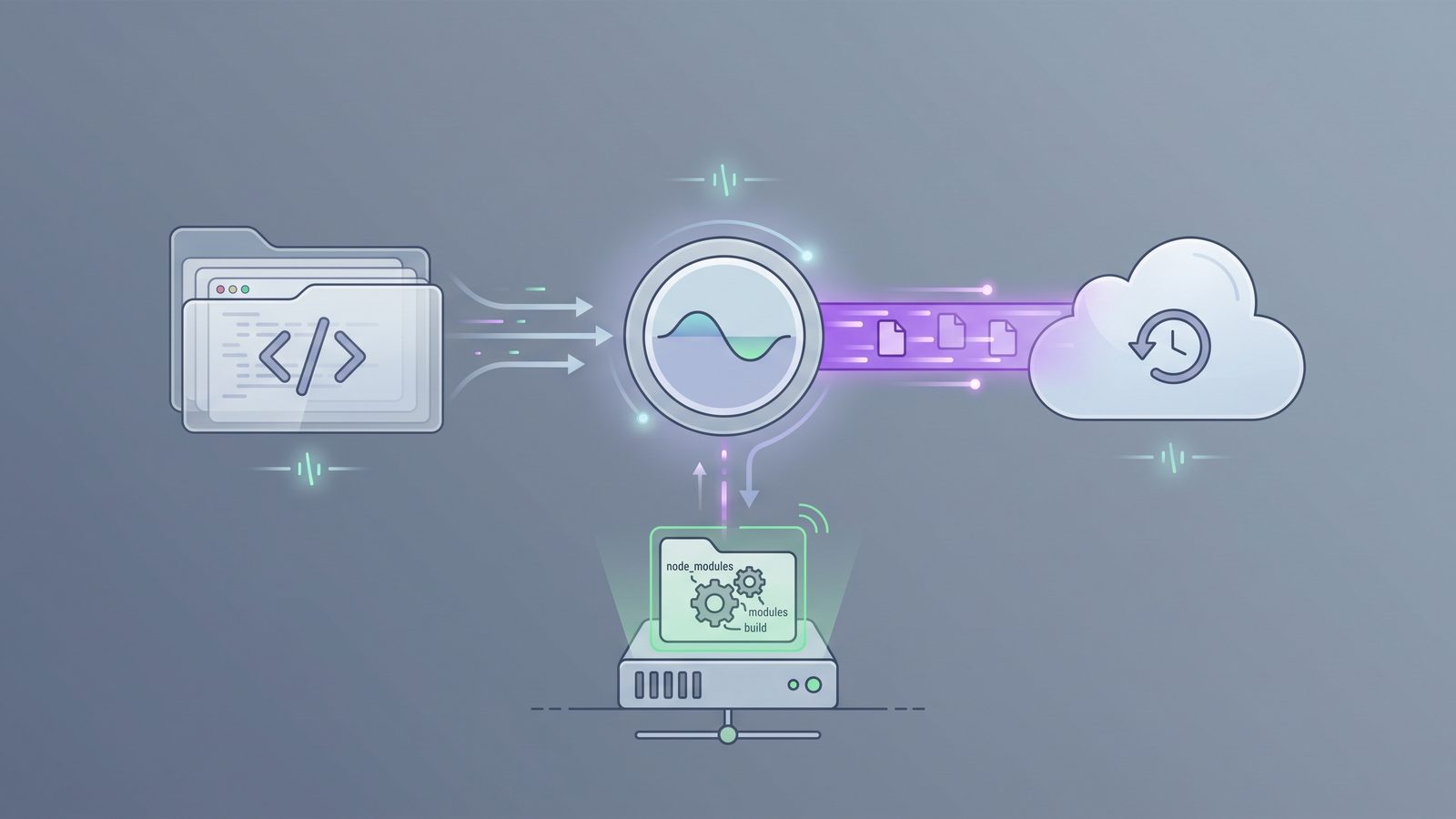
Lsyncer exists for developers who want the filtered-backup pattern without maintaining shell scripts. It is a native macOS folder sync app that skips the usual development junk by default: node_modules, .git, virtual environments, build folders, and caches. You choose the source, destination, schedule, and exclusions; Lsyncer handles the repeatable sync job.
That does not make iCloud a perfect development filesystem. It gives you a cleaner workflow: active repositories stay local, generated files stay disposable, and the backup copy contains the code and config you would actually need to restore the project.
Best practices to prevent iCloud Drive sync pending
- Keep active projects outside iCloud Drive. Use
~/Developer,~/Code, or another local workspace for repositories you run every day. - Sync lockfiles, not installed dependencies. Preserve
package-lock.json,pnpm-lock.yaml,yarn.lock,requirements.txt,uv.lock,poetry.lock, andGemfile.lock. - Use Git remotes for history. Do not rely on iCloud Drive to synchronize a live
.gitdirectory between machines. - Exclude build output and caches. Anything your tooling can regenerate should usually stay out of cloud sync.
- Test filtered deletes with dry runs. Before any sync workflow deletes destination files, verify the plan.
- Watch file counts, not just folder size. The folder that breaks sync may be small in megabytes and huge in filesystem events.
Related reading
- iCloud Drive waiting to upload on Mac focuses on upload queues caused by generated development files.
- iCloud Drive not syncing on Mac covers broader diagnosis steps when the queue is not only pending but failing to update.
- iCloud Drive stuck uploading on Mac explains how to clear an upload queue that never reaches zero.
- How to stop iCloud from syncing certain folders on Mac compares local folders,
.nosync, and filtered sync workflows. - File sync for Mac developers compares Finder,
ditto,rsync, iCloud, and developer-focused sync apps.
FAQ
What does iCloud Drive sync pending mean on Mac?
It means iCloud has local file changes that have not fully reconciled with cloud state yet. For developers, it often appears when a project folder creates thousands of generated files faster than iCloud can scan, hash, upload, and confirm them.
Why does node_modules make iCloud Drive stay pending?
node_modules contains many small files and nested directories. iCloud has to process them individually, and package managers may keep changing the tree while sync is running. The result can look like a pending queue that never settles.
Should I delete pending files from iCloud Drive?
Only delete files you know are generated or safely backed up elsewhere. Source files and uncommitted work need care. Dependency folders, build output, caches, and virtual environments are usually safe to recreate from lockfiles and project configuration.
Can I force iCloud Drive to sync immediately?
You can reduce the workload by stopping tools that write files, keeping the Mac awake, checking network connectivity, and removing generated folders. There is no reliable magic button that makes iCloud instantly finish a huge, changing developer folder.
What is the best workflow for backing up code projects on a Mac?
Keep active repositories local, use Git remotes for history, and sync a filtered backup that includes source, configuration, documentation, and lockfiles while excluding dependencies, .git internals, build output, and caches.