

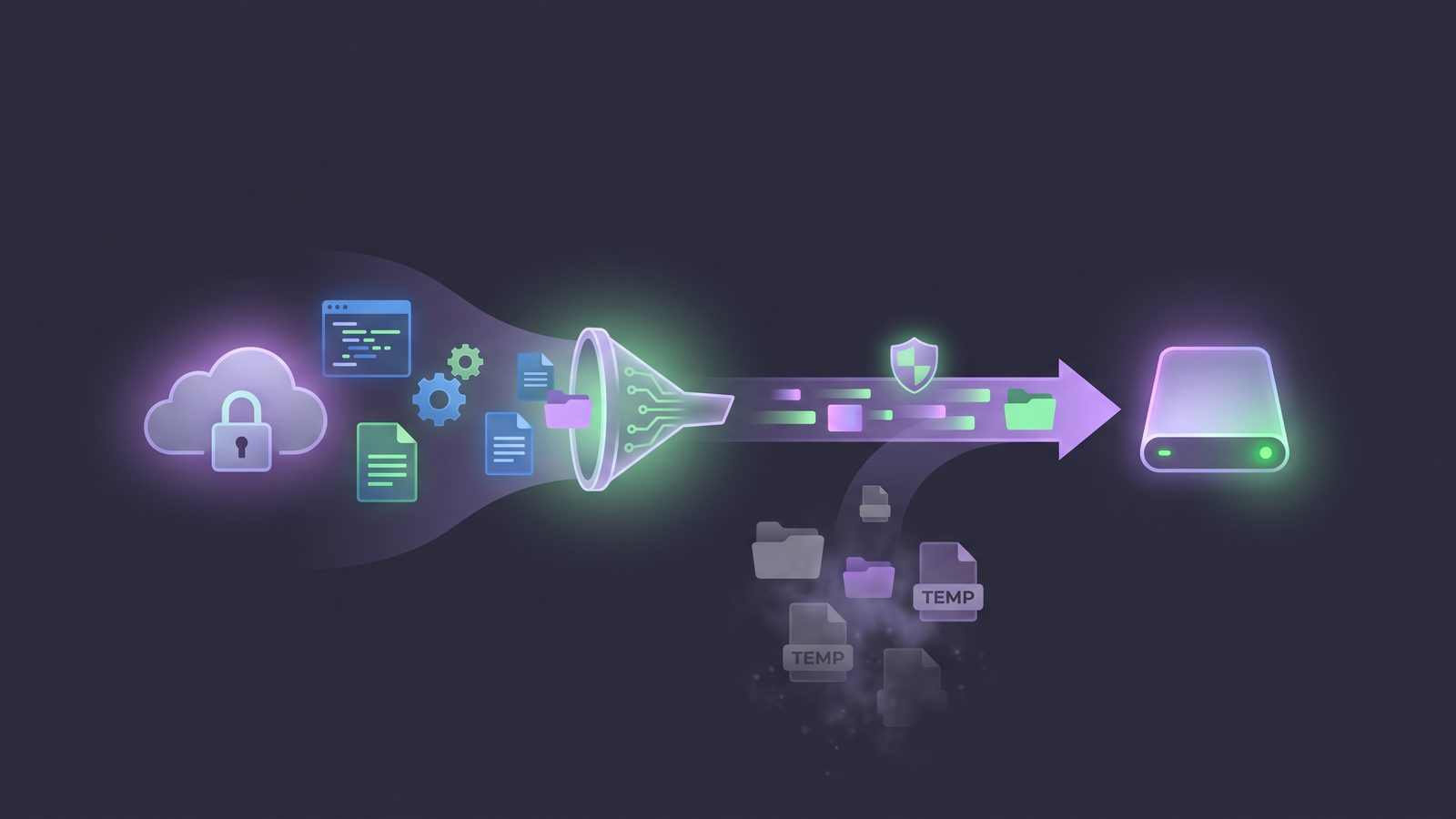
rsync command with exclude option is the simplest way to copy a Mac developer project without dragging node_modules, .git, virtual environments, build output, logs, and caches into every backup. The command is not hard; the part worth getting right is the policy: which files define the project, which files can be rebuilt, and how to prove your exclude patterns match before you run a real sync.
rsync command with exclude option: the safe Mac pattern
Start with a dry run. This example mirrors a project to an external drive while skipping common generated folders:
rsync -avhn --delete \
  --exclude 'node_modules/' \
  --exclude '.git/' \
  --exclude '.venv/' \
  --exclude 'venv/' \
  --exclude 'dist/' \
  --exclude 'build/' \
  --exclude 'coverage/' \
  --exclude '.DS_Store' \
  ~/Developer/my-app/ /Volumes/DevBackup/my-app/
The flags matter. -a keeps the usual archive metadata. -v prints what is happening. -h makes sizes readable. -n means dry run, so nothing changes. Keep -n while you are checking the output. Remove only the n when the proposed copy and delete list looks exactly right.
Put every --exclude before the source and destination paths. Quote every pattern. If you write --exclude *.log without quotes, your shell may expand *.log against the current Terminal directory before rsync sees it. --exclude '*.log' leaves pattern matching to rsync, where it belongs.
Why exclude options matter for Mac developer folders
Most code projects are small at the source layer and huge at the filesystem layer. A React app might have a few megabytes of handwritten code and hundreds of megabytes of node_modules, .next/cache, coverage output, and package-manager stores. A Python project might have source files next to .venv, __pycache__, .pytest_cache, and downloaded wheels. A Rails or Ruby project might keep durable migrations beside throwaway tmp, log, and vendor/bundle.
Copying all of that has real costs on macOS:
- Small-file overhead dominates. Thousands of tiny files require directory traversal, metadata reads, destination comparisons, and sometimes permission checks.
- Cloud destinations inherit the mess. If the destination lives in iCloud Drive, Dropbox, Google Drive, OneDrive, or Box, the cloud client now has to index and upload files that should never have left the build machine.
- Restores become less trustworthy. A backup full of stale dependencies can make a project appear recoverable until you try to rebuild it cleanly.
- Deletion becomes scary. If
--deleteis present, a bad source/destination path or an over-broad exclude rule can remove files you did not mean to touch.
The fix is not to exclude everything that looks large. The fix is to define the source of truth. For most developer backups, that means source, tests, docs, scripts, lockfiles, project manifests, migrations, and configuration templates. It usually does not mean dependency folders, compiled output, local caches, coverage reports, or editor scratch files.
--exclude rules run before files reach the destination, which is why they are useful for external drives and cloud-backed backup folders.Best exclude patterns for Node, Python, and Ruby projects
Use the stack you actually run. A safe starting list for mixed Mac development looks like this:
# JavaScript / TypeScript
--exclude 'node_modules/'
--exclude '.npm/'
--exclude '.pnpm-store/'
--exclude '.yarn/cache/'
--exclude '.next/cache/'
--exclude '.nuxt/'
--exclude '.svelte-kit/'
--exclude '.turbo/'
--exclude '.vite/'
--exclude 'dist/'
--exclude 'build/'
--exclude 'coverage/'

# Python
--exclude '.venv/'
--exclude 'venv/'
--exclude '__pycache__/'
--exclude '.pytest_cache/'
--exclude '.mypy_cache/'
--exclude '.ruff_cache/'

# Ruby / Rails
--exclude 'vendor/bundle/'
--exclude '.bundle/'
--exclude 'tmp/'
--exclude 'log/'

# macOS metadata
--exclude '.DS_Store'
Review .git/ separately. Excluding .git is right for a clean working-tree backup when GitHub, GitLab, or another remote is the source of truth for history. Keeping .git is right when the destination must be a full offline clone with local branches, tags, hooks, reflogs, and unpushed commits. Many developers need both: a Git remote or bundle for repository history, and a filtered folder backup for source files and project context.

How rsync exclude matching works on Mac
rsync patterns are path rules relative to the transfer root. They are not regular expressions. Small differences change what gets skipped:
Usually what you want
node_modules/skips directories namednode_modulesat any depth.dist/skips directories nameddist, not arbitrary files withdistin the name.*.logskips log files, as long as the pattern is quoted in the shell..next/cache/skips a noisy cache without excluding all Next.js project files.
Review before using
/node_modules/only matches at the transfer root, so it can miss nested workspace packages.*cache*may skip real source files whose names happen to include “cache.”*.envcan prevent leaking secrets, but may also omit restore clues if you do not keep templates..*skips far more than macOS metadata; it can hide.gitignore,.editorconfig, and other useful project files.
The trailing slash on the source path is a separate issue from excludes, but it affects every backup. ~/Developer/my-app/ copies the contents of my-app into the destination. ~/Developer/my-app can copy the folder itself into the destination parent. Pick the layout you want and keep it identical between the dry run and the real run.
Test the command before running a real backup
For a serious backup, use itemized output during the dry run:
rsync -avnih --delete \
  --exclude 'node_modules/' \
  --exclude '.git/' \
  --exclude '.venv/' \
  --exclude 'venv/' \
  --exclude 'dist/' \
  --exclude 'build/' \
  --exclude 'coverage/' \
  ~/Developer/my-app/ /Volumes/DevBackup/my-app/
Read the output like a reviewer, not like someone waiting for a progress bar:
- Do
src/,tests/, docs, scripts, manifests, and lockfiles appear? - Are
node_modules, virtual environments, build output, coverage, and caches absent? - If
--deleteis present, are proposed deletions limited to destination files you truly want removed? - Does the destination path look like the layout you intended, or did the trailing slash produce a nested folder?
If an excluded folder still appears, simplify the test. Run find ~/Developer/my-app -maxdepth 3 -name node_modules -type d to see where the directory actually lives, then match the pattern to the transfer root. If a useful file disappears, narrow the rule. Excluding too little costs time; excluding too much creates a backup that fails during restore.
Use --exclude-from when the command gets long
A few --exclude flags are fine in a one-off command. When the list becomes your backup policy, move it into a file:
cat > ~/Developer/.rsync-dev-excludes <<'EOF'
node_modules/
.git/
.venv/
venv/
__pycache__/
.pytest_cache/
.mypy_cache/
.ruff_cache/
.pnpm-store/
.yarn/cache/
.next/cache/
.turbo/
dist/
build/
coverage/
.DS_Store
EOF

rsync -avhn --delete \
  --exclude-from="$HOME/Developer/.rsync-dev-excludes" \
  ~/Developer/my-app/ /Volumes/DevBackup/my-app/
Do not write --exclude-from='~/Developer/.rsync-dev-excludes'. Single quotes prevent ~ from expanding. Use $HOME inside double quotes or write the full absolute path. Keep the exclude file in a dotfiles repo or documented backup folder so you can review changes over time.
When a GUI sync app is the better tool
rsync is excellent when you want a command you can audit, paste into a script, and run over SSH. It is less comfortable when the workflow turns into a small backup system: several source/destination pairs, per-project filters, mounted-volume checks, schedules, logs, notifications, and a way to see whether the last run actually succeeded.
Lsyncer is built for that local Mac developer workflow. It gives you filtered folder sync with developer-friendly exclusions for node_modules, .git, virtual environments, build folders, and caches, plus visible status and schedules. Use rsync when you want full command-line control. Use Lsyncer when you want the same clean-backup idea in a native app without maintaining fragile shell commands. It is a one-time $19.99 App Store purchase, not a subscription.
Best practices for clean developer backups
- Keep active code local. Work in
~/Developeror~/Code, then sync a filtered copy to iCloud, an external SSD, a NAS, or another destination. - Back up lockfiles, not installed dependencies. Dependency folders are rebuildable; lockfiles are the instructions for rebuilding them.
- Separate backup types. Time Machine protects the whole Mac. Git protects history. A filtered folder sync protects clean project state.
- Dry-run before destructive mirrors. Any command using
--deletedeserves a dry run and a quiet review. - Restore-test periodically. Copy the backup to a scratch folder and run
npm ci,pip install -r requirements.txt,bundle install, or your stack's equivalent.
Related reading
- rsync exclude multiple directories on Mac — build a longer command or reusable policy for several generated folders.
- rsync exclude-from Mac — move growing exclude lists into a reviewed file.
- rsync exclude not working on Mac — debug pattern roots, quoting, and filter-order mistakes.
FAQ
What is the basic rsync command with exclude option?
Use rsync -avhn --exclude 'node_modules/' source/ destination/ for a dry run, then remove the n after reviewing the output. Add more quoted --exclude flags before the source and destination paths as needed.
Can I use more than one --exclude option?
Yes. Add one --exclude per pattern: --exclude 'node_modules/' --exclude '.git/' --exclude 'dist/'. If the list gets long, put the patterns in a file and use --exclude-from.
Should I exclude node_modules from Mac backups?
Usually yes. node_modules is generated from package.json and a lockfile, and it creates thousands of small files that slow local backups and cloud sync. Back up the manifests and lockfiles, then reinstall dependencies after restore.
Should I exclude .git with rsync?
Exclude .git/ when the backup is a clean working-tree copy and your Git remote preserves history. Keep .git when you need an offline clone with local branches, unpushed commits, hooks, tags, and reflogs.
Why does my rsync exclude option not work?
The most common causes are putting options after the source path, leaving wildcard patterns unquoted, anchoring a pattern to the wrong transfer root, forgetting the trailing slash for directory rules, or testing a different source path than the real command uses. Start with -avnih and inspect the itemized dry-run output.