

If you are searching for a Carbon Copy Cloner alternative for Mac, first separate two jobs that sound similar but behave very differently: cloning a Mac volume, and syncing an active developer folder. Carbon Copy Cloner is excellent at the first job. The second job gets awkward when your project contains node_modules, .git, .venv, build output, package caches, test artifacts, and thousands of files that should be rebuilt rather than backed up.
Carbon Copy Cloner alternative for Mac developers: choose by restore behavior
The useful question is not “which app can copy the most files?” A developer backup should copy fewer files on purpose. It should keep source code, lockfiles, scripts, docs, migrations, tests, configuration, and assets. It should usually skip dependency directories, build products, local database files, logs, package-manager caches, language-server indexes, and Git internals. If the destination can restore the project after a clean dependency install, the backup probably captured the durable state.
That is why Carbon Copy Cloner can feel too broad for code-folder sync. It is designed for dependable Mac backups and clones. It can run scheduled tasks, preserve metadata, and exclude files. But a code project is not a normal Documents folder. It is a small set of important files surrounded by huge amounts of disposable machine state. A tool that treats every file as equally valuable creates slow backups, noisy logs, and destinations that look complete while still being hard to trust.
Why Carbon Copy Cloner can be the wrong shape for code folders
Carbon Copy Cloner is built around reliable copying. That is exactly what you want for a bootable-ish system backup, a home folder archive, a photo library, or a large external-disk mirror. The tool’s mental model is “make the destination match the source, with rules.” For developer folders, the better mental model is often “make the destination useful after disaster, with generated state removed.”
Small files are the pain multiplier. Copying one 2 GB video is mostly a streaming operation. Copying a JavaScript dependency tree with the same total size may involve tens of thousands of directory entries, metadata reads, destination writes, permissions checks, extended attributes, and delete decisions. Put that destination in iCloud Drive, Dropbox, Google Drive, OneDrive, or a network share, and every copied file can trigger another layer of indexing and upload work.
Git adds a second trap. The .git directory is not just “project history.” It contains objects, refs, locks, indexes, packfiles, and transient maintenance state. Copying it while a repository is active can produce unnecessary churn or a destination that is not the recovery path you should depend on. For most project backups, a remote Git repository plus a clean copy of working files is easier to reason about than a synced .git directory.
When Carbon Copy Cloner is still the right tool
Do not replace Carbon Copy Cloner just because a developer folder is annoying. CCC is still a strong choice when your backup target is broad and system-oriented.
- Whole-Mac or home-folder backups: use a dedicated backup tool that understands macOS metadata, snapshots, and volume-level behavior.
- Large media or archive drives: photo libraries, design archives, video projects, and document stores benefit from conservative copying.
- Disaster recovery: if the goal is to recover a Mac after disk failure, do not narrow the job to a project-folder sync app.
- Non-developer folders: most office folders do not contain disposable dependency trees, so a general backup workflow is fine.
The mistake is using one broad backup workflow for every folder on the machine. A Mac can have Time Machine for system recovery, Carbon Copy Cloner for disk-level backup, Git for history, and a separate filtered sync for active code projects. Those layers solve different failures.

Developer-friendly alternatives to Carbon Copy Cloner
If your problem is an active code workspace, evaluate alternatives by how well they handle exclusions, repeatability, preview, scheduling, and restore testing. Here are the practical options.
Option 1: rsync with an exclude file
rsync is the most transparent Carbon Copy Cloner alternative for Mac developers who like the terminal. Put your noisy patterns in one file and reuse it across projects:
node_modules/
.git/
.venv/
venv/
dist/
build/
.next/
.cache/
coverage/
.DS_Store
Then run a dry run before the real mirror:
rsync -avhn --delete --exclude-from=dev-excludes.txt ~/Developer/my-app/ /Volumes/Backup/my-app/
rsync -avh  --delete --exclude-from=dev-excludes.txt ~/Developer/my-app/ /Volumes/Backup/my-app/
The trailing slash matters. ~/Developer/my-app/ copies the contents of the folder. Without the slash, rsync may create a nested my-app directory at the destination. Use -n until the output matches what you expect.
Option 2: FreeFileSync or another visual sync tool
A visual sync app can be easier to inspect than a shell command. Look for saved jobs, preview mode, clear delete behavior, and exclusion rules that match paths rather than only file extensions. The downside is setup drift: every new project type may need another manual rule for .venv, vendor/bundle, target, .gradle, .turbo, or whatever your stack generates next.
Option 3: a filtered folder sync app like Lsyncer
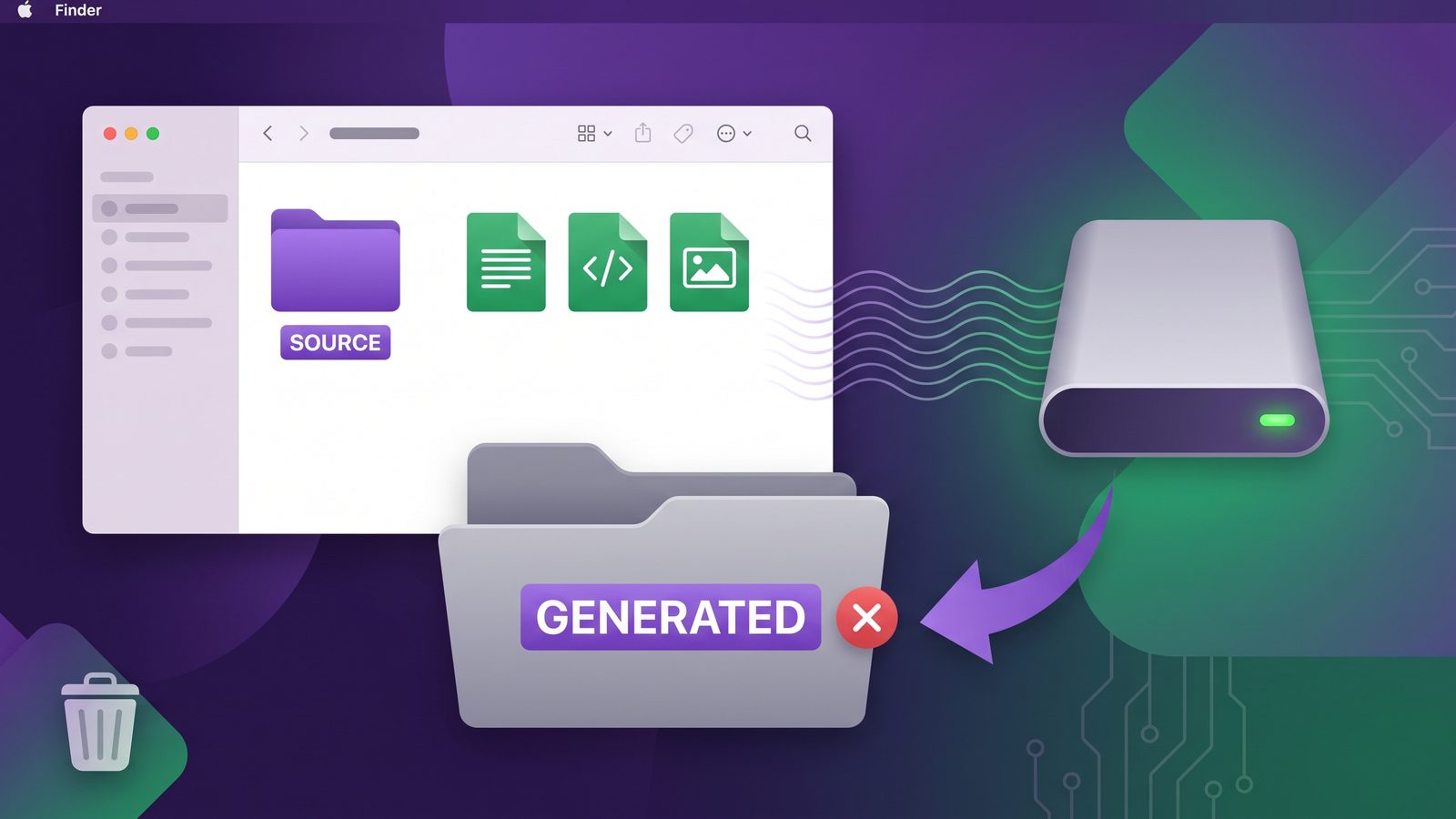
Lsyncer is built for the narrower job: sync Mac developer folders without copying the folders developers normally should not back up. It skips common generated directories such as node_modules, .git, virtual environments, build output, and caches; runs scheduled syncs; and shows visible status so you can tell whether the last run actually happened. It is not a replacement for full-disk backup. It is a focused tool for keeping clean project mirrors on an external drive, another local folder, or a cloud-synced destination.
That narrower scope is useful if you keep active projects outside iCloud Drive but still want a clean copy in a backed-up location. The source stays fast and local. The destination receives the files that matter. Your cloud client or external disk does not waste time processing a dependency tree that package managers can recreate.
node_modules, .git, virtual environments, caches, and build output.
A safe migration plan before you switch
Do this before replacing an existing CCC task. It keeps the decision technical instead of emotional.
- Pick one project first. Do not migrate your whole
~/Developerfolder in one step. Choose a project with a realistic dependency tree. - Write down the restore command. For example: clone Git repo, copy uncommitted local files if needed, then run
npm ci,pnpm install --frozen-lockfile,uv sync,pip install -r requirements.txt, orbundle install. - Create an exclusion list. Include dependency folders, caches, generated output, logs, editor indexes, and local secrets that should not leave the machine.
- Run a preview or first sync to an empty destination. Inspect the result before adding schedules or delete behavior.
- Restore-test the destination. Copy it to a temporary folder and run the project. If the app builds from the clean copy, the backup is useful.
- Only then schedule it. A scheduled broken backup is worse than a manual backup you understand.
Best practices for code backups on Mac
- Keep active projects local. Put dependency-heavy workspaces under something like
~/Developer, not directly inside a cloud-synced folder. - Use Git for history, not folder sync. Push important branches. Treat folder sync as recovery for working files, docs, assets, and local project state.
- Back up lockfiles.
package-lock.json,pnpm-lock.yaml,yarn.lock,uv.lock,poetry.lock,Gemfile.lock, and similar files are part of the restore path. - Exclude local secrets deliberately. Decide whether
.env, local certificates, database dumps, and test fixtures belong in the destination. - Avoid blind
--delete. Use preview mode before destructive mirrors, especially when changing source paths or exclusion rules. - Test restores on a schedule. Once a month, open a project from the backup destination and rebuild dependencies. Annoying, but less annoying than discovering a stale backup during an outage.
Related reading
- Sync Folders Pro alternative for Mac developers — another comparison focused on clean code-folder backups.
- ChronoSync vs Lsyncer — where a broad Mac sync app helps, and where a smaller developer tool is simpler.
- Rsync GUI for Mac developers — what to look for if you want visual sync without giving up exclusions.
- Backup Node.js project on Mac — a practical restore-first backup workflow for JavaScript projects.
FAQ
What is the best Carbon Copy Cloner alternative for Mac developers?
The best Carbon Copy Cloner alternative for Mac developers is the tool that matches the job. Use CCC for broad Mac backups and disk-level protection. Use rsync, a visual sync app, or Lsyncer for filtered project-folder sync where node_modules, .git, build output, and caches should be skipped.
Should I use Carbon Copy Cloner to back up node_modules?
Usually no. node_modules is generated from your package manifests and lockfile. Back up package.json plus the lockfile, then recreate dependencies with npm ci, pnpm install --frozen-lockfile, or the package manager your project uses.
Can I use Carbon Copy Cloner and Lsyncer together?
Yes. They solve different layers. Carbon Copy Cloner can handle broad disk or folder backups. Lsyncer can handle clean, scheduled mirrors of active developer projects with developer-focused exclusions. Many Mac developers are better served by layered backups than by forcing one tool to do every job.
Is rsync safer than a Mac backup app?
rsync is safer when you understand the command, test with -n, and keep exclusions under version control. A Mac backup app is safer when it gives you clear previews, schedules, logs, and fewer chances to mistype a destructive path. The risky part is not the tool; it is running a mirror without previewing what will be copied or deleted.
Does a developer sync tool replace Time Machine?
No. Time Machine is still useful for system-level recovery and accidental deletion across the Mac. A developer sync tool is narrower: it keeps clean project copies without generated folders. Use both if the project matters.
Try Lsyncer for clean code-folder sync
If your Carbon Copy Cloner task is really a full Mac backup, keep using a full backup tool. If the task is “keep this code folder synced without dragging node_modules everywhere,” Lsyncer is built for that narrower job.
Get Lsyncer on the Mac App Store — $19.99, one-time purchase.